Changing an Asset's Status

When you create an asset record, you can select a status. You can also identify the status of assets as you perform functions on them. For example, you can select the appropriate status as you swap components and transfer assets.
You can use asset statuses to determine when standard tasks are triggered. For example, you might create a standard task that is only triggered when an asset is “stored.” Changing the asset status could affect triggers for existing standard jobs. You can also use statuses to sort assets in a list.
An asset’s status is often shared by its child assets. When you change the status of an asset, you can choose whether the status of child assets is also changed. However, if any of the child assets are component locations, their installed components always have the same status. Note that changing the status of the site asset does not affect the status of the assets on that site.
Note: The option to not apply the status to descendants is generally available. You must first enable feature 106 to use the functionality in APM. In the Enterprise window, select the Features view and the Enabled Features tab. Click Browse, select “Provide an option to limit an asset status change to the current asset only” and click OK. If APM is running as a smart client, click Refresh Enabled Features on the server. Then restart the client to use the functionality.

Status of Component and Component Location Assets

When you remove a component from a location, you must choose a status for the asset that is “non-operational.” Also, when you change the status of a component asset that is not installed or a component location that does not currently have an installed component, you must choose a “non-operational” asset status.
When you install a component into a component location, APM checks the current status of the component to make sure that it is “available for use.” If a component is not “available for use,” it cannot be installed.
Some components might have cascaded indicators that get their readings from other assets (that is, source indicators). If so, when the component’s status is changed to a non-operational one, the component does not receive readings from the source indicators.

Changing the Asset’s Manufacturer Information

When you start a new asset life, you can also change the asset’s manufacturer information. If you change the status of a component location, the manufacturer information displayed on the Change Asset Status dialog belongs to the component that is currently installed in the location. Changes to this information affect only the component’s manufacturer information.

To Change the Status of an Asset

1.
2.
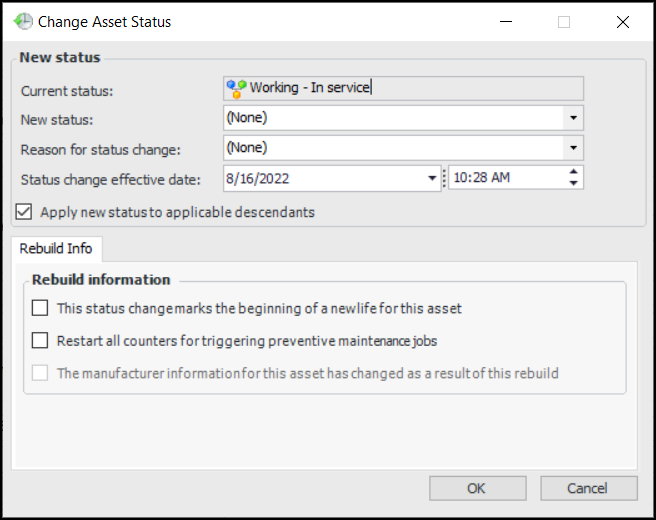
From the Asset menu, select Change Asset Status. The Change Asset Status dialog appears.
3.
From the New status list, select the status that you want the asset to have. This list shows only the statuses that apply to the current asset. For example, if you are changing the status of an uninstalled component asset, the list shows statuses that are valid for uninstalled components.
Note: The list of available statuses is also determined by your employee permission group (if any) and the policy (set on the asset status record) that determines which statuses can follow the current one.
4.
From the Reason for status change list, select the reason why you are changing the asset status. The list shows standard problems that have been defined for the type of asset that you have open.
5.
6.
7.
If you are changing the status of a maintainable, system, subsystem, or component asset, you can start a new asset life at the same time. To do this, select This status change marks the beginning of a new life. When you close the dialog, APM creates a new asset life for the asset and closes out the previous one.
8.
To reset the triggering counters, select Restart all counters for triggering preventive maintenance jobs. When you select this option, APM asks you to confirm that you want to reset all counters and warns you that this action cannot be undone. To reset the counters, click Yes.
9.
If you have selected to start a new asset life, you can change the asset’s manufacturer information. To do this, select The manufacturer information for this asset has changed. Select the Manufacturer Info tab. You can enter the manufacturer, model, OEM number, serial number, expected life, year of manufacture, and so on.
10.
Click OK to close the Change Asset Status dialog. APM changes the asset status to the one that you selected and creates an asset status history record.
11.