|
Sending an Asset Properties Change Request for Approval
Note: Support for approving or reviewing asset change requests is generally available in APM. To use it, you must first enable feature 56. In the Enterprise window, select the Features view and the Enabled Features tab. Click Browse, select “Review or approval support for asset change requests”, and click OK. If APM is running as a smart client, click Refresh Enabled Features on the server. Then restart the client to use the functionality.To Send a New Change Request for Approval
2. At the bottom of the New Properties Change Request dialog, select Send for approval using route and choose the approval route. For example:To Send an Existing Asset Change Request for Approval

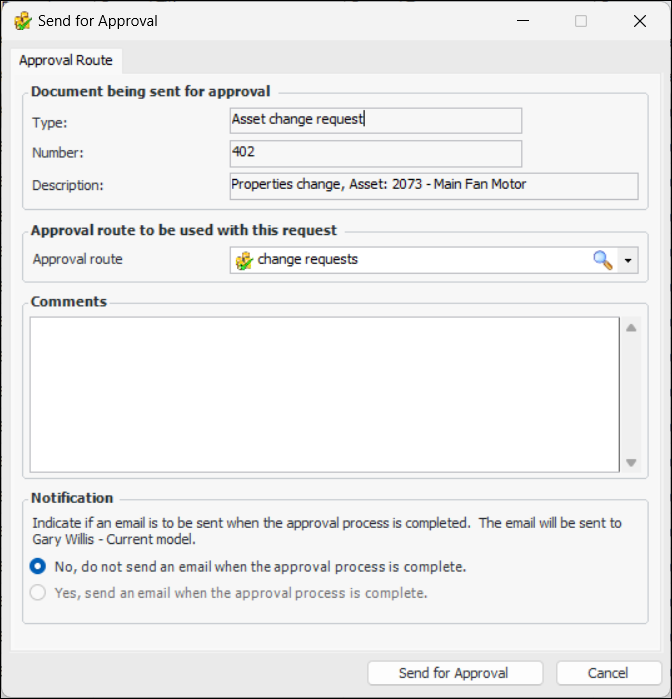
2. Click the Change Request menu and then Send for Approval. The Send for Approval dialog appears. For example:
4. Enter a comment, if you wish. Requester comments are displayed in the site’s Approvers view, Requests tab, as well as in the Approval Request window in the Request Info tab.
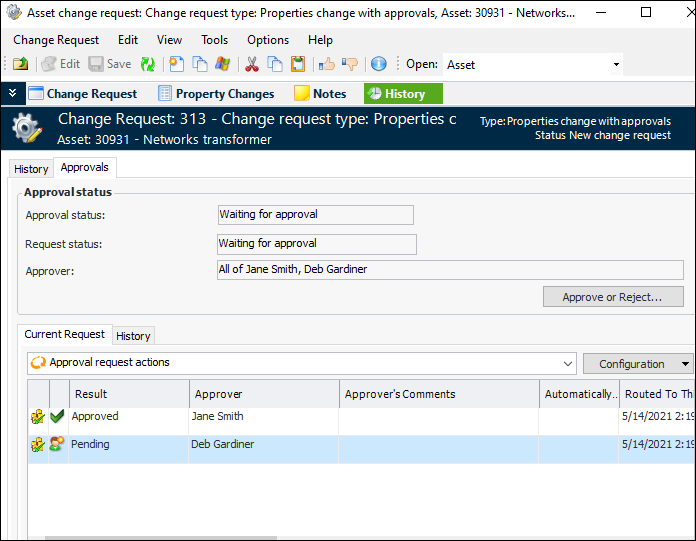
6. Click Send for Approval to send the request to the first approver on the route. The change request’s approval status changes to “Waiting for approval”.Tip: To see the status of the approval request, open the Asset Change Request window, select the History view and then the Approvals tab. For example: