|
|


Adding Regulatory Information to an Asset
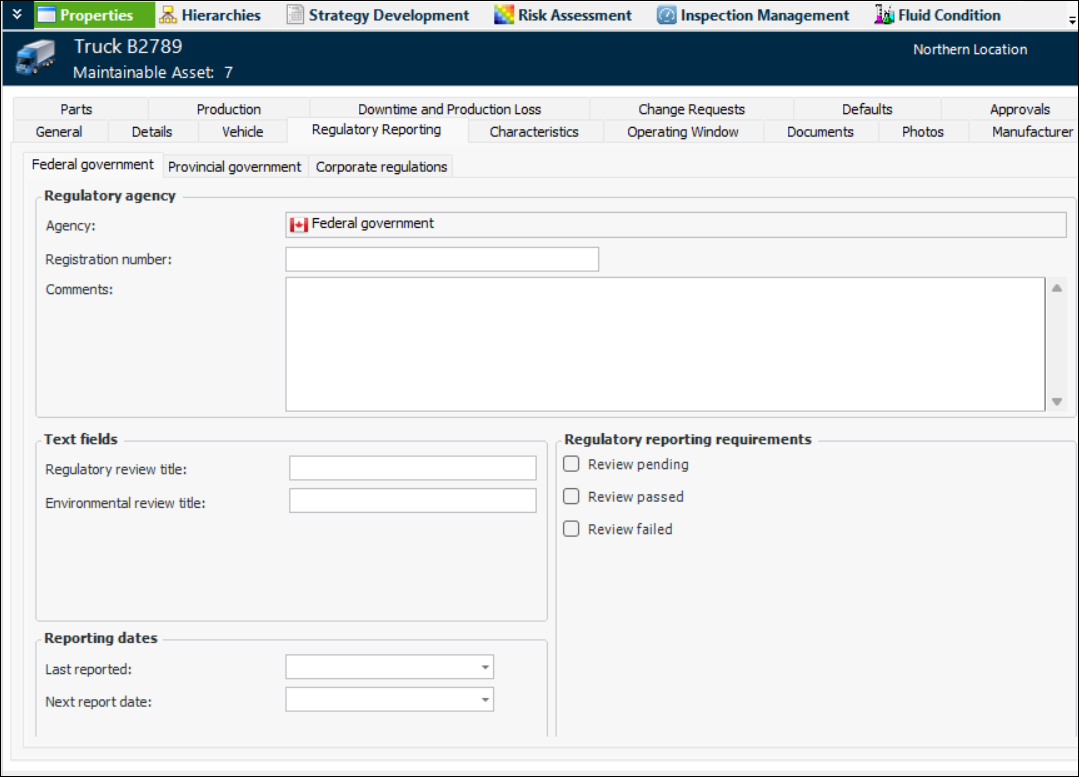
Note: This functionality is “generally available” in APM. To use it, you must first enable feature 61. In the Enterprise window, select the Features view and the Enabled Features tab. Click Browse, select “Regulatory reporting tracking support on assets”, and click OK. If APM is running as a smart client, click Refresh Enabled Features on the server. Then restart the client to use the functionality.Regulatory agencies and the information tracked are set up in site-level settings and asset types. For more information, see Setting up Regulatory Reporting.To Add Regulatory Information to an Asset