|
Adding Documents to an Asset
You can browse for existing standard documents to link to an asset. If supported by the asset type, you can select a linked document to display on the asset’s Specifications tab.You can also create standard documents from the asset. For more information, see Creating a Standard Document.To Link Documents to an Asset
1. Open the asset, select the Properties view, General tab, and then the Documents tab. The tab lists any documents that are currently linked to the asset.
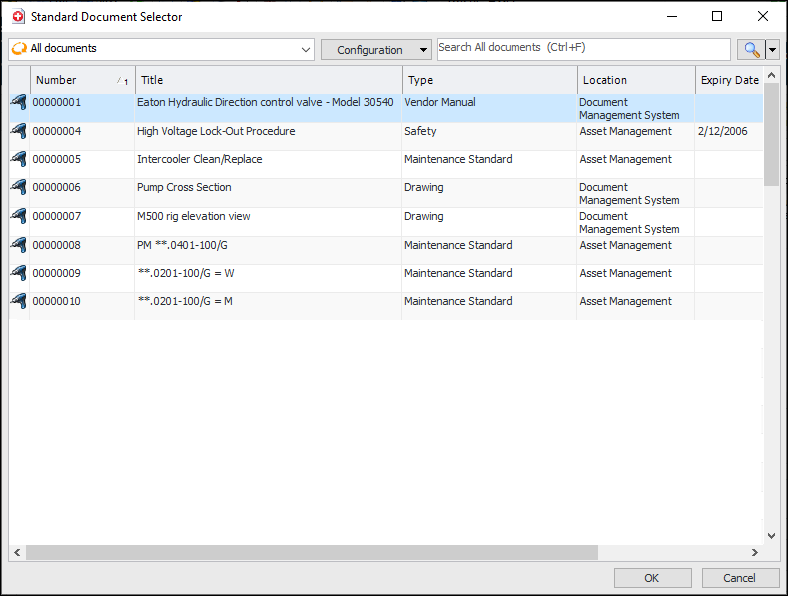
3. Click Browse. The Standard Document Selector dialog appears. This dialog shows all of the standard documents that are currently available on the site. For example:
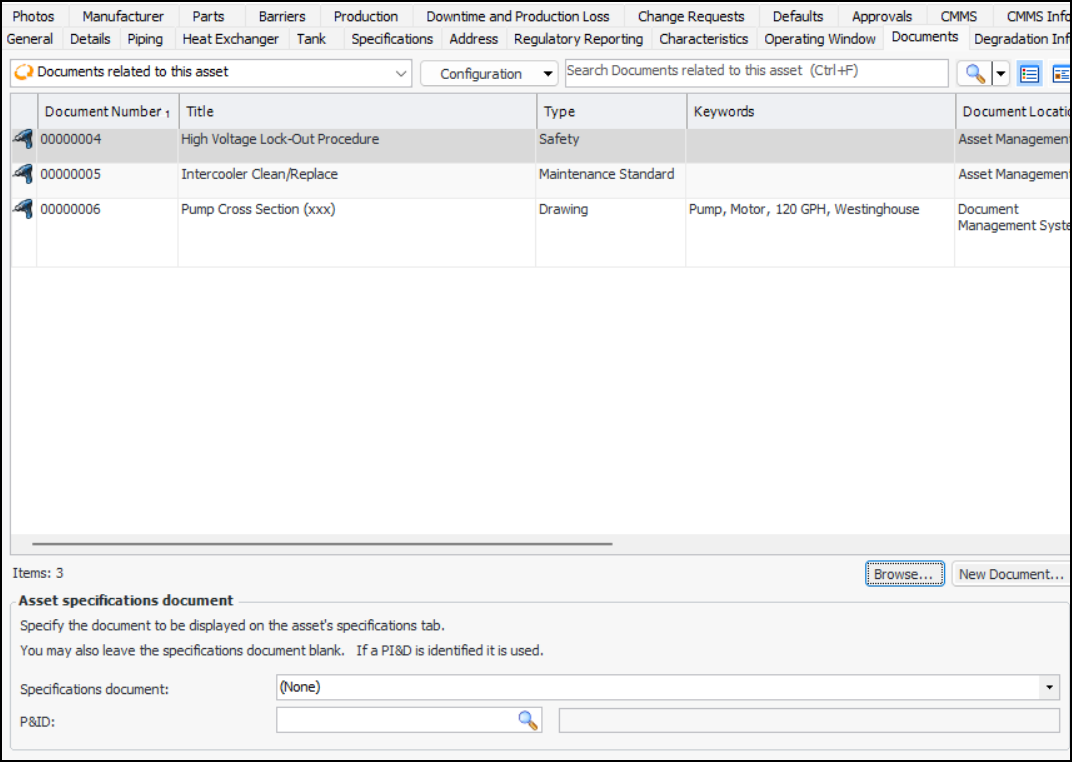
4. Select one or more documents and click OK. The documents are added to the list for the asset. For example:To Add a Specifications Document to an Asset
1. Open the asset, select the Properties view, General tab, and then the Documents tab. The tab lists documents that are currently linked to the asset.
3. If the asset type supports the functionality, the Specifications document list is enabled. Select one of the asset’s documents to make available on the Specifications tab:
4. You can also select a piping and instrumentation diagram (P&ID) and leave Specifications document blank. The P&ID will be displayed on the asset’s Specifications tab.
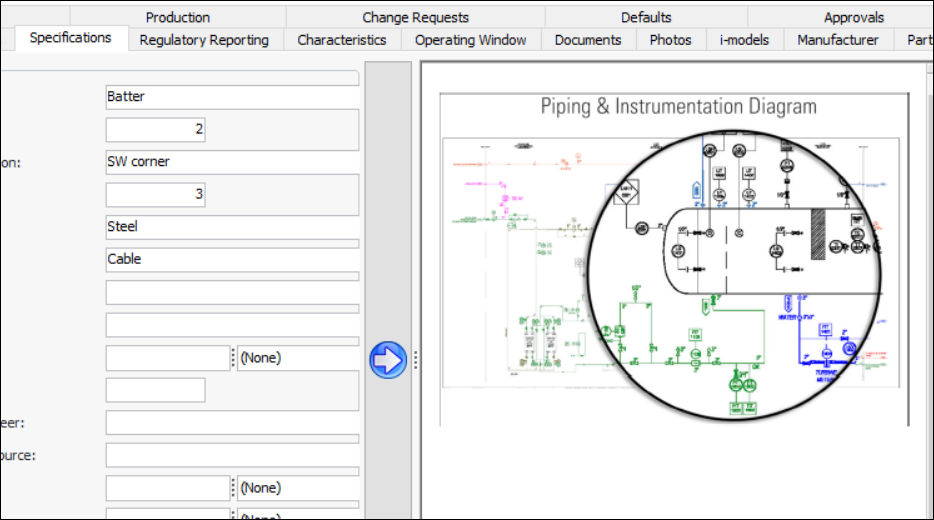
5. Select the Specifications tab and click the sidebar button to view the document. For example: