Adding Operating Parameters to an Asset

On the asset record, you can record operating parameters for the asset. The parameters provide numerical information about the asset’s designed, actual, and integrity operating variables, including maximum and minimum measurements and measurement frequency. You can also identify the indicators used to track these parameters. The operating parameters are available in strategy development analyses for reference purposes.
Together, operating parameters constitute the asset’s integrity operating window, the framework of limits that prevent potential breaches of containment that might otherwise occur as a result of operation outside of the recommended limits. Operation outside the limits can result in accelerated damage to equipment from one or more degradation mechanisms, such as general or localized corrosion, mechanical or metallurgical damage, high temperature corrosion, and environmentally assisted cracking. Operation within the recommended limits should result in predictable and or reasonably low rates of degradation of equipment.
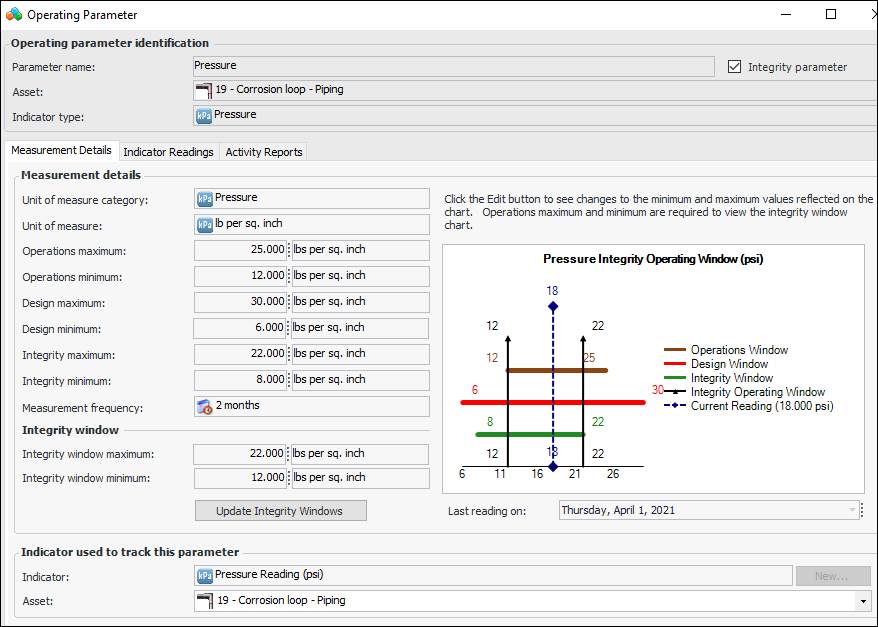
After the measurement details have been defined and the operating parameter has been saved, an Integrity Operating Window is displayed to show the measurements in a chart format. For example:
Note: A policy on the asset type definition controls whether operating parameters can be defined for assets of that type. If operating parameters are not supported, the Operating Window tab does not appear on the Asset window’s General tab.
This topic describes how to add an operating parameter.

To Add an Operating Parameter

1.
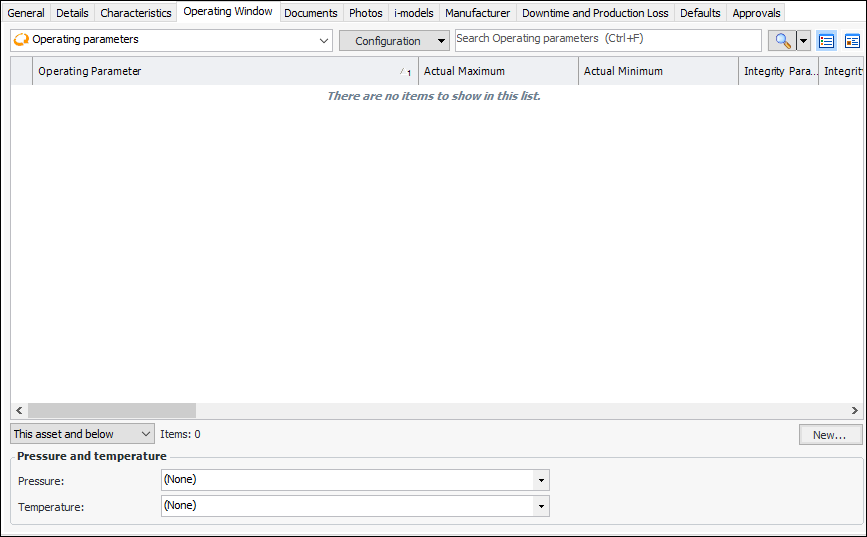
Open the asset. On the Properties view, select the Operating Window tab.
2.
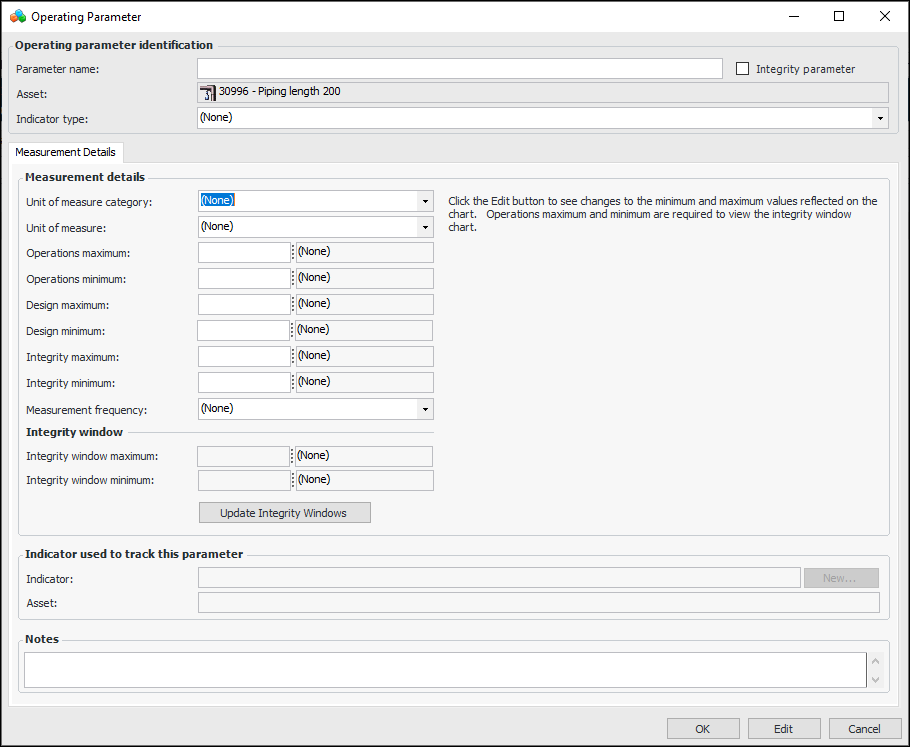
Click New. The Operating Parameter window appears.
3.
For detailed instructions on creating indicators, see Setting up Asset Indicators.
4.
Click Update Integrity Windows. The chart appears is updated and the integrity window maximum and minimum values are populated.
5.
When you have finished defining the parameter, click OK. The Operating Parameter window closes and the parameter is added to the Operating Window tab.
6.
Tip: When asset activity reports include this asset, you can open the operating parameter’s window and select the Activity Reports tab to view them.
7.
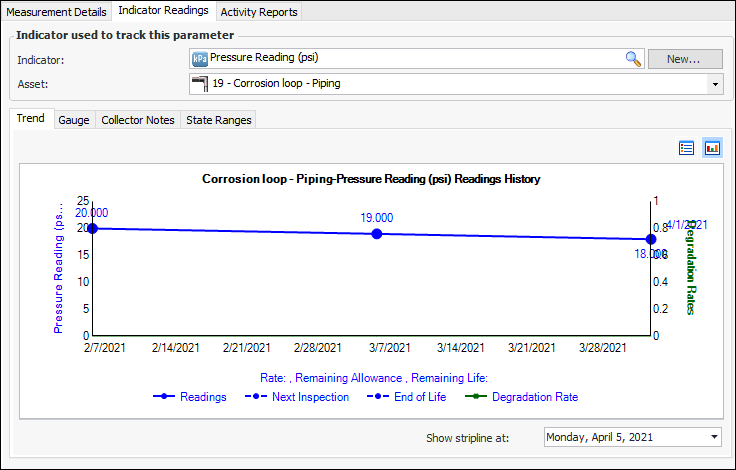
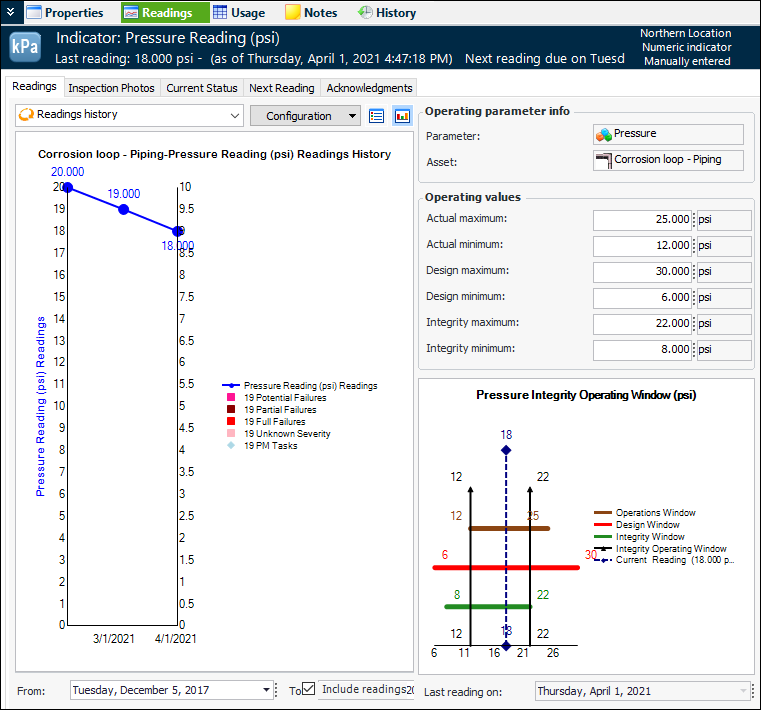
You can also open the indicator, select the indicator’s Readings view, Readings tab. Operating parameter information is displayed on this tab. For example: