The Approval Process

The document approval process allows APM users to send documents for approval and designated approvers to approve, reject, or forward the documents. This topic explains the types of documents that support approvals and the ways that APM shows a document’s approval status. It also describes the approval life cycle and the approval process step-by-step:

Document Types that Support Approvals

The following APM documents support online approvals:
Asset management:
Strategy development:
Inspection management:
Fluid condition:
Work management when AWEIS is not active
Work management when AWEIS is active
Projects
Safety management:
Purchasing:
Invoicing:
 
The site’s approval settings determine which document types require approval. If approval is not required, the document’s approval status is set to “Approval not required” and the rest of the approval process is bypassed. For more information about the site’s approval settings, see Setting up Document Approvals.

Approval Status

In APM, documents can have the following approval statuses. The status icons are displayed in lists of documents.
Each approval status can be assigned an icon to provide a visual cue to the current status for documents that require approval.
Note: Project statuses are more flexible than approval statuses for other documents. The statuses for projects at your site might not match the statuses described above.
TOP

Approvals Life Cycle

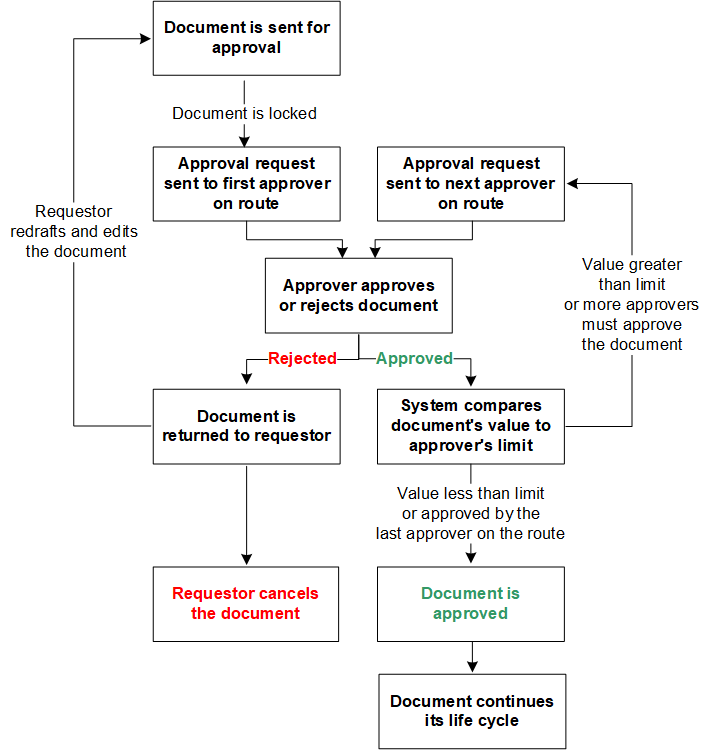
The following illustration shows the movement of a document through the approval process from the moment when it is sent for approval.
 
When the requestor determines that a document requires approval, he or she sends the document for approval, in the process selecting an approval route. The system routes the request through the approvers on the route, who can forward the request, reject, or approve it. If an approver rejects a request, the requestor can cancel the document or redraft it and send it for approval again. The following sections explain the process in detail.
On an approval route, you can define an approver as one or more employees. When two or more employees are included, approval is based on one of the following responses:
Note that when any one of the employees rejects a request, it is returned to the requestor with the status “Rejected”.

Selecting an Approval Route

Approval routes are made up of one or more employees in your organization who have been set up as approvers authorized to handle requests for document approval. An approver is typically assigned an approval limit: the maximum monetary amount that the approver is authorized to approve.
When you send a document for approval, the system searches for appropriate approval routes for that document. The system filters the list of available routes so that you can only select a route that:
If the system cannot find an approval route that meets the above criteria, it first checks if the employee is assigned a default approval route for the type of object and then uses the set of default routes for the site. Each site can have different default routes selected. You can also select default routes for:
If the site does not have default routes assigned and the system cannot find an appropriate route for an approval request, you must select a route from the entire list of routes in the enterprise.
TOP

Routing the Request to the Approver(s)

APM sends the request for approval to the first employee or group on the route. If the estimated value of the request exceeds the first employee’s approval limit, it is routed to the next employee on the route (that is, to the approver with the next highest approval limit). Each approver on the route can write comments on the request before it goes to the next person. This process is repeated until the request reaches an employee with the appropriate approval limit, who then approves the request.
Approvers who are set up to approve all requests to the route are last on the route, even if their approval limit is lower than other approvers on the route. This setting overrides the approval route’s threshold amount (if set). If an approver on the route must approve all requests, all requests are sent to him or her regardless of their values. For example, you could have an approver who checks certain work orders for safety reasons.
Approvers can specify in their employee record that they wish to be notified by email when an request is sent to them.

Processing Requests

When an approver reviews a request, he or she can choose to forward the request, approve it, or reject it.

Forwarding an Approval Request

An approver can forward a request to another employee. For example, the approver might want to ask the requestor to clarify something about the purpose or cost of the request, ask another employee for input on the request, or ask another employee to approve or reject the request on the approver’s behalf.
The approver can indicate whether or not the approval request is to be returned after the recipient responds.

Approving a Request

Because an approval route can have several approvers, each with different approval limits, and one or more approvers can be required to approve all requests, the process of approving a request can be complex. The following examples illustrate this step in the approval process.
Example 1: An approval route has been defined for approving work orders. Three approvers have been identified on the route:
A work order with a planned cost of $1,250 is entered and sent for approval. The request is sent to Bill. Bill reviews the work order and approves it. Because the value of the work order is within Bill’s approval limits, the work order is updated as approved. No further approval is required.
A second work order is entered and sent for approval. The planned cost of this work order is $5001. Again the work order is sent to Bill, who reviews and approves it. Because the cost of this work order exceeds Bill’s approval limit, the request is sent to Sal. Sal reviews the work order and also approves it. Sal’s approval limit is not sufficient to approve the work order, so the request is now forwarded to Rick. Rick approves the request and, because it is within his approval limit, the work order is now approved.
Example 2: An approval route has been defined for approving work orders. Three approvers have been identified on the route:
A work order with an estimated value of $1,250 is entered and sent for approval. The request is sent to Bill. Bill reviews the work order and approves it. Although the value of the work order is within Bill’s approval limit, the request is now forwarded to Rick because Rick must approve all requests. Rick approves the request and the work order is now approved.
Example 3: An approval route has been defined for approving work orders. Two approvers have been identified on the route:
A work order with no estimated value is entered and sent for approval. The request is sent to Bill. Bill reviews the work order and approves it and the work order is now approved.

Rejecting a Request

An approver does not always approve a request. The request might be returned to the originator for additional information or simply rejected. When an approver rejects a request, the status is changed to “Approval Rejected”, and the document does not continue to the next approver on the route. The originator can revise the request and re-submit it for approval or cancel the request.
A re-submitted request is routed through the complete approval process. Any approvers who approved the request the first time must approve it again. This ensures that the request has not significantly changed without the approver’s knowledge.

Redrafting a Request

Redrafting allows a document to be revised. If a request for approval has been returned unapproved or if you wish to make changes before it is approved, you can redraft the document. Redrafting cancels any approval request and removes it from the approver’s list of active documents to be approved. When the document is revised, it must follow the approval process from the beginning.
When it comes to interop documents (asset change requests, requests for work, work order change requests, and work request change requests), the document’s interop status can determine whether or not the Redraft option is available. Settings in the site interoperability profile control whether redraft is allowed or not allowed for each interop status.
For more information, see Setting up Site Interoperability Profiles for AWEIS.
TOP

Approval Request Status

In APM, approval requests can have the following statuses. The approval request status icons are displayed in listings of documents.
Default Icon1

1
When defining the site’s approval settings, you can change the icons used to show approval status in lists.