Applying Mass Updates

Mass updates can be applied to APM classes. This feature allows you to replace all occurrences of existing data with a different value, such as an employee, date, status, and so on.
You can perform mass updates on APM classes within a table configuration. This is an efficient method for applying updates to large volumes of data that might otherwise take hours if attempted manually. One typical scenario for a mass update is when a planner has transferred to another site and work order tasks must be reassigned to a different employee. Another example is the need to reassign a buyer on resources because the buyer has left the company.
You can perform partial text replacements for string data, by selecting the Replace partial string only option. In doing so, you can replace all instances of the word “Main” with the word “Primary” regardless where the word resides within the text string, for example. In addition, you can choose whether or not to match case and find whole words only. Note that replacing a word or phrase with a blank value is not allowed.
You can apply a mass update to up to a maximum of three columns of a table simultaneously. If you attempt to select more than three columns for mass update at one time, APM displays a warning message.
By default, most APM classes are automatically enabled for the mass update feature. APM administrators can enable the mass update feature in the properties of the custom class. Read-only classes such as history or audit data and classes that are not normally edited such as cost balances, are not supported by mass update. If you attempt to apply a mass update to a class that is not supported by mass updating, APM displays a warning message.
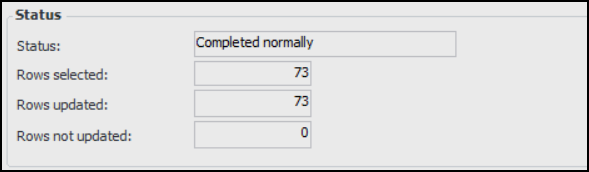
When the update has completed, the status of the completion, and the number of rows selected, updated, and not updated are displayed in the status section of the Replace Column Data dialog. For example:
When rows are unable to be updated, a View Log button appears in the status section and you can click it to view a list of failed updates and the reason for the failure.
Successful updates are displayed in the appropriate object’s History view if auditing has been enabled.
This topic describes how to apply a mass update to a table configuration.

To Apply a Mass Update

1.
2.
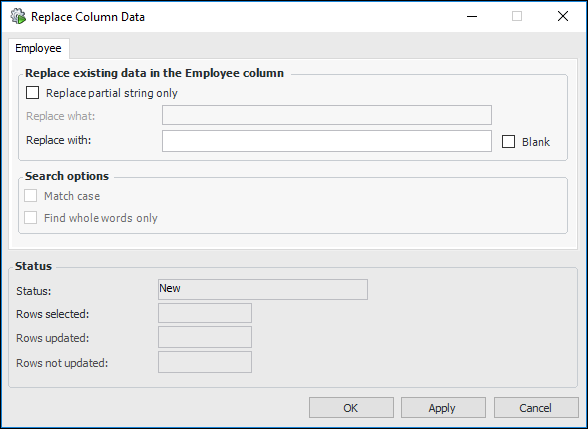
Right-click the column heading for which you want to replace values and then select Replace. The Replace Column Data dialog appears, for example:
Tip: To include up to two additional columns, press Ctrl and then right-click each additional column heading. A tab for each selected column is displayed on the Replace Column Data dialog.
3.
4.
If the column that you have selected is a text field, you can select Replace partial string only and type the value that will be used to replace the value entered in step 3.
5.
If available, select your search options including Match case and Find whole words only.
6.
Repeat steps 3 to 5 for each tab on the Replace Column Data dialog.
7.
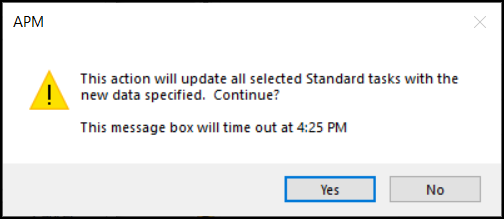
Click Apply to perform the mass update. A dialog prompts you for confirmation. For example:
Tip: If rows could not be updated during a mass update, they can be viewed by clicking View Log or on the enterprise’s Data Management view, Mass Update Requests tab. For more information, see Viewing Mass Update Requests.
8.
Click Yes to proceed.
9.
10.