Applying Prioritization Analysis Results to Assets

Once you have calculated priority scores and are satisfied with them, you can apply the results to the assets included in the analysis. This action applies the consequence priority numbers to the assets included in the analysis, overwriting any existing consequence priorities. According to the options selected in the analysis, the ratings can also be applied to related assets in the hierarchy.
You can have the ABC indicators for SAP equipment and functional locations updated when the APM assets that reference them have the results applied. For information about settings this up, see “Synchronizing Consequence Priorities and ABC Indicators” in APM Interoperability Guide for SAP Plant Maintenance.

To Apply Prioritization Analysis Results to Assets

1.
From the Site window, select the Strategy Development view and then the Prioritization tab. Open the finished assessment that you want to apply.
2.
3.
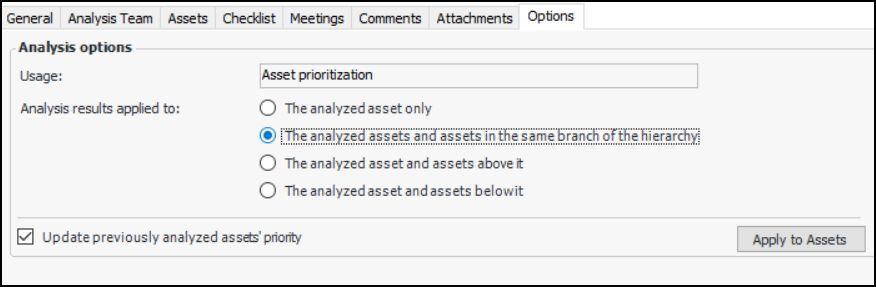
In the Asset Analysis window, Properties view, select the Options tab.
4.
The analyzed asset only – Only the assets included in the current analysis have their consequence priority numbers or conditions updated
The analyzed assets and assets in the same branch of the hierarchy – Only the assets included in the analysis and their descendants and ancestors in the hierarchy are updated
The analyzed asset and assets above it – Only the assets included in the analysis and their ancestors in the hierarchy are updated
The analyzed asset and assets below it – Only the assets included in the analysis and their descendants in the hierarchy are updated
This option takes into account the selected Analysis results apply to option. For example, if descendant assets are to be updated and Update previously is selected, all assets below the analysis asset in the hierarchy are updated, whether they have been analyzed separately or not.
If Update previously is not selected, descendant assets are updated until the system identifies an asset that has been analyzed separately. At that point, the update process stops.
5.
If you change the defaults here, click Apply to Assets to apply the defaults to each of the assets in the analysis.
6.
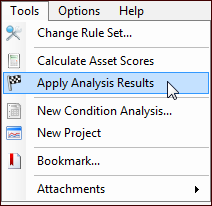
Click the Tools menu and then Apply Analysis Results:
A message appears asking you to confirm the command. Click Yes.
7.