|
Sending a Document for Approval
APM sends the request for approval to the first employee or group on the route. If the estimated value of the request exceeds the first employee’s approval limit, it is routed to the next employee on the route (that is, to the approver with the next highest approval limit). Each approver on the route can write comments on the request before it goes to the next person. This process is repeated until the request reaches an employee with the appropriate approval limit, who then approves the request.To Send a Document for Approval
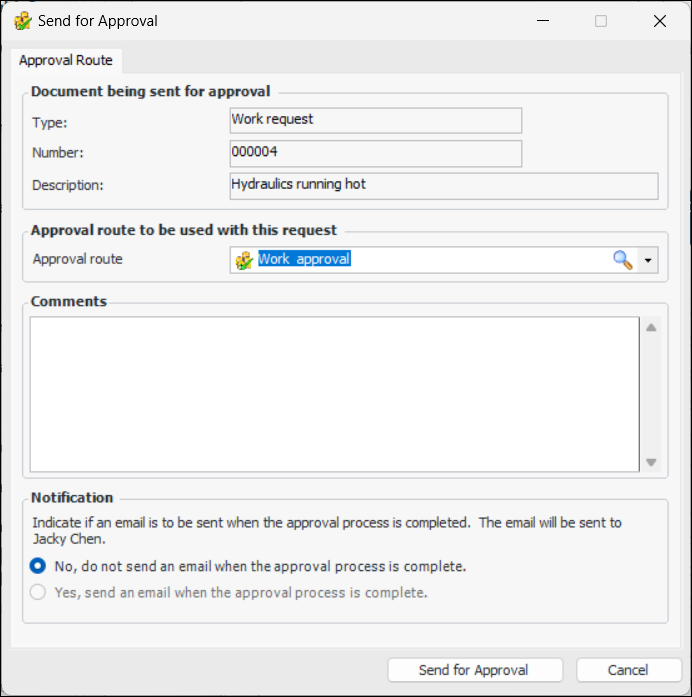
1. Right-click a document with the status unapproved and select Send for Approval. The Send for Approval dialog appears. For example:Tip: You can select two or more unapproved documents and submit all of them to the same approval route. You can also open a document and select Send for Approval from its object menu.
2. If a default route has been selected for the document type, it is displayed. You can select another from the Approval route list or click the browse icon to select one.
3. Enter a comment, if you wish. Requester comments are displayed in the site’s Approvers view, Requests tab, as well as in the Approval Request window in the Request Info tab.
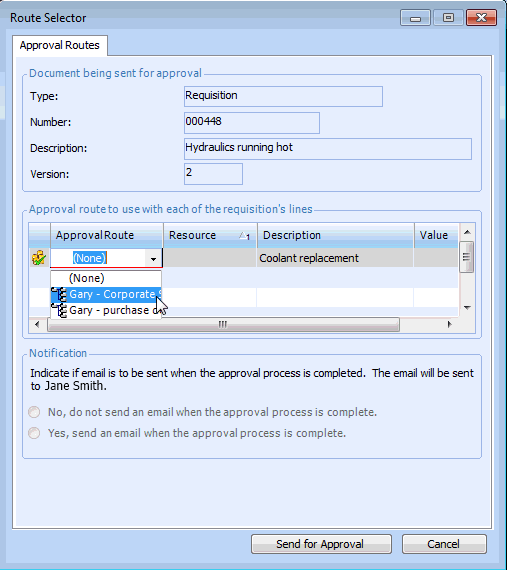
4. If you are approving a work order with requisition lines or a requisition, you might need to select an approval route for each line. To change the selected route for a line, select the line and press F2. The Approval Route box can then be edited. Select the approval route from the list. Only valid approval routes for requisitions are listed.Note: You can create a custom subject and/or body message for the approval request email. For more information, see Customizing Approval Request Emails.
6. Click Send for Approval to send the request to the first approver on the route and the document’s status is changed to “Waiting for approval”.