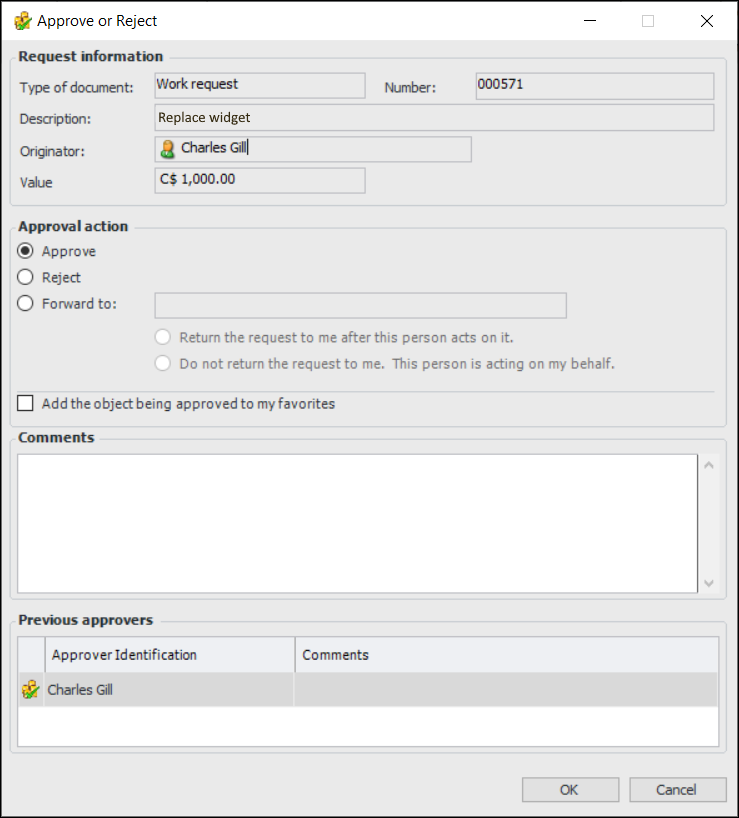
Forwarding an Approval Request

An approver can forward a request to another employee. For example, the approver might want to ask the requestor to clarify something about the purpose or cost of the request, ask another employee for input on the request, or ask another employee to approve or reject the request on the approver’s behalf.
A request can be forwarded to any of the following employees:
When you forward a request, you can indicate whether or not the forwarded request is to be returned to you.
If an approver substitution is in effect for the person to whom you are forwarding the request, the request is forwarded to the substitute.

To Forward an Approval Request

1.
On the site’s Approvals view, select the Waiting to be Approved tab. By default, this tab displays requests that are waiting for your approval.
Tip: If a My Desk view has been defined for approvals and added to your employee record, you can select the My Desk view and the appropriate tab to see the approval requests assigned to you.
2.
Double-click the request to open the Approve Request dialog. Click Approve or Reject. The Approve or Reject dialog appears.
3.
Click Forward to. Select the employee from the list or click the browse icon () to locate and select the employee.
4.
If you wish to forward the request to ask another employee for input or to clarify some information about the request, select Return the request to me after this person acts on it. When the person responds, the request is returned to you to continue the approval process.
If you wish to forward the request to ask another employee to approve the request, select Do not return the request to me. This person is acting on my behalf. When the person responds, the document is either approved or routed to the next approver.
5.
In the Comments box, you can type a note to the requestor.
6.
Click OK. The request is forwarded to the other employee.