Approving a Document

When you approve a document, APM checks your approval limit, if appropriate, and the value of the request. If your approval limit is sufficient to approve the document and there are no approvers who must approve all requests, the document’s approval status is set to “Approved,” and the approval process is complete.
If the value of the document exceeds your approval limit or there is an approver who must approve all requests, the request is routed to the next approver on the approval route. The approval process is repeated by the next approver.

To Approve a Document

1.
On the site’s Approvals view, select the Waiting to be Approved tab. By default, this tab displays requests that are waiting for your approval.
Tip: If a My Desk view has been defined for approvals and added to your employee record, you can select the My Desk view and the appropriate tab to see the approval requests assigned to you.
2.
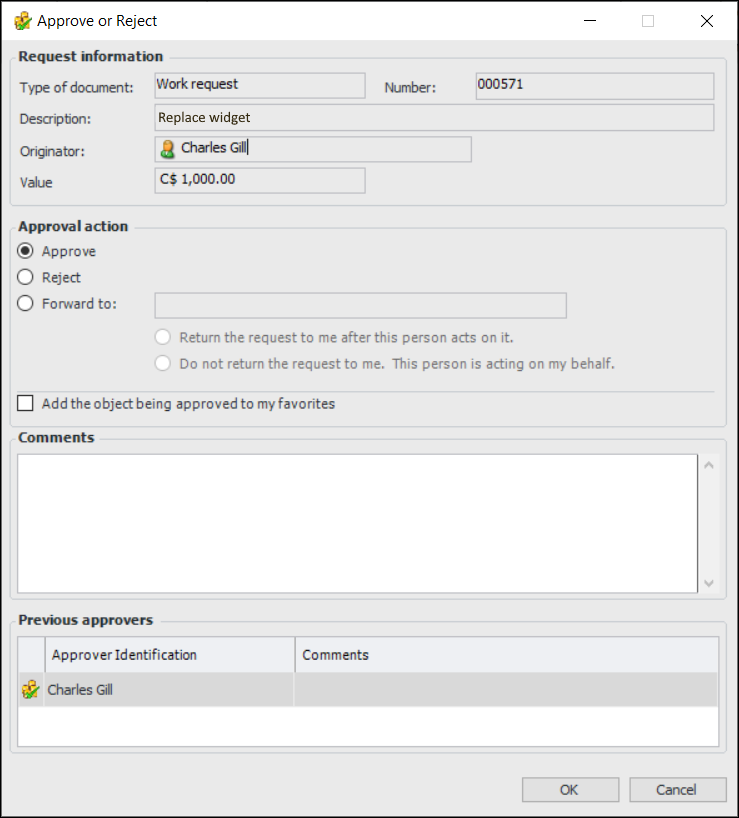
Right-click the request and click Approve or Reject. The Approve or Reject dialog appears. For example:
Tip: You can also open the document to be approved, click the object menu and then Approve or Reject.
3.
4.
Tip: The Previous approvers list shows related approval activities for this request as well as approvers’ comments.
5.
Click OK. The request is updated. Close the Approval Request Details dialog.