|
Adding Approvers to an Approval Route
Approvers in APM have the authority to approve or reject documents that are sent to them for approval using an approval route. Approvers have maximum approval limits for each approval route they are on. You can specify that an approver must review all requests.When you set up an approval route, you will identify the approvers who will review the documents sent to the route. You can specify the maximum value these employees are authorized to approve.You can add employees to existing approval routes as approvers; however, the employee records must be defined with related approval authority. For example, if you are adding an employee to a route that approves work orders, that employee must have authority to approve them. For more information on adding approval authority, see Setting up an Employee as an Approver.When adding employees as route approvers, you must set their approval limits and specify whether they are required approvers.To Add Approvers to an Approval Route
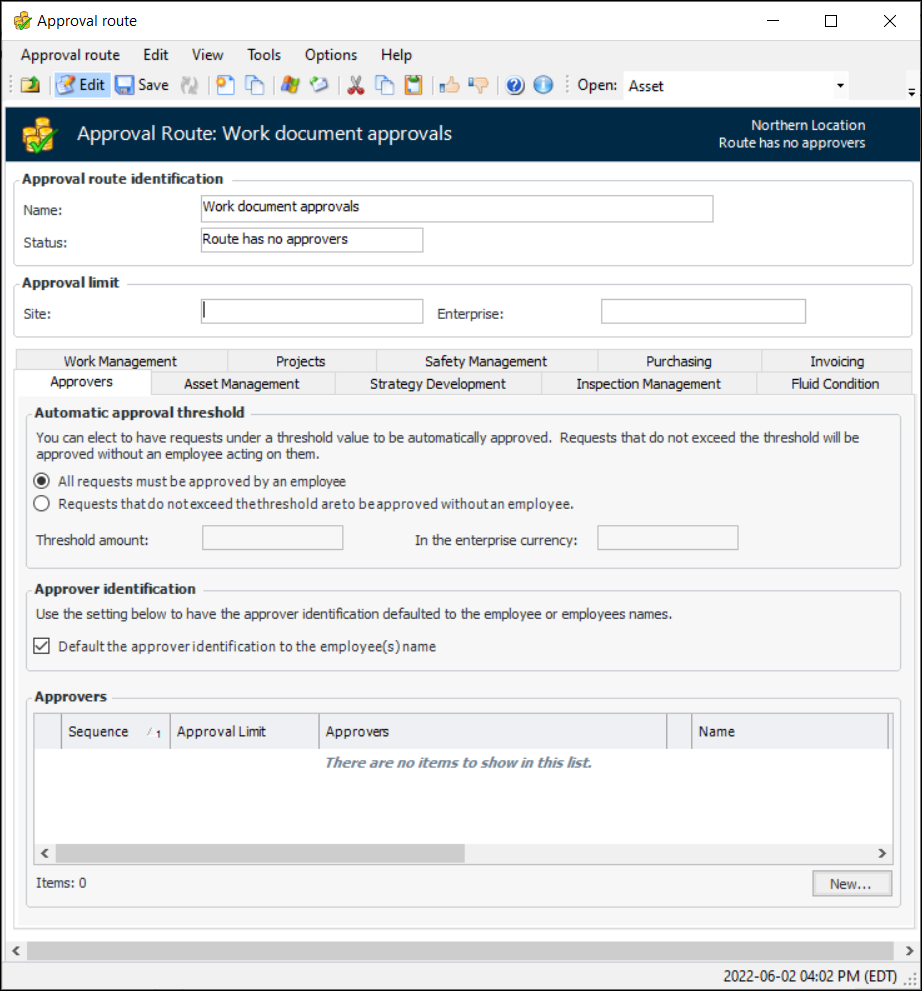
1. Open the approval route and select the Approvers tab.
• All requests must be approved by an employee: all requests routed to this route must be approved manually. Automatic approvals are not used with this route.
• Requests that do not exceed the threshold are to be approved without an employee: requests with a value up to the automatic approval threshold limit are to be automatically approved.
4. By default, the approver identification is automatically set to the employee(s) names. If you would like to set this value manually, clear Default the approver identification to the employee(s) name.
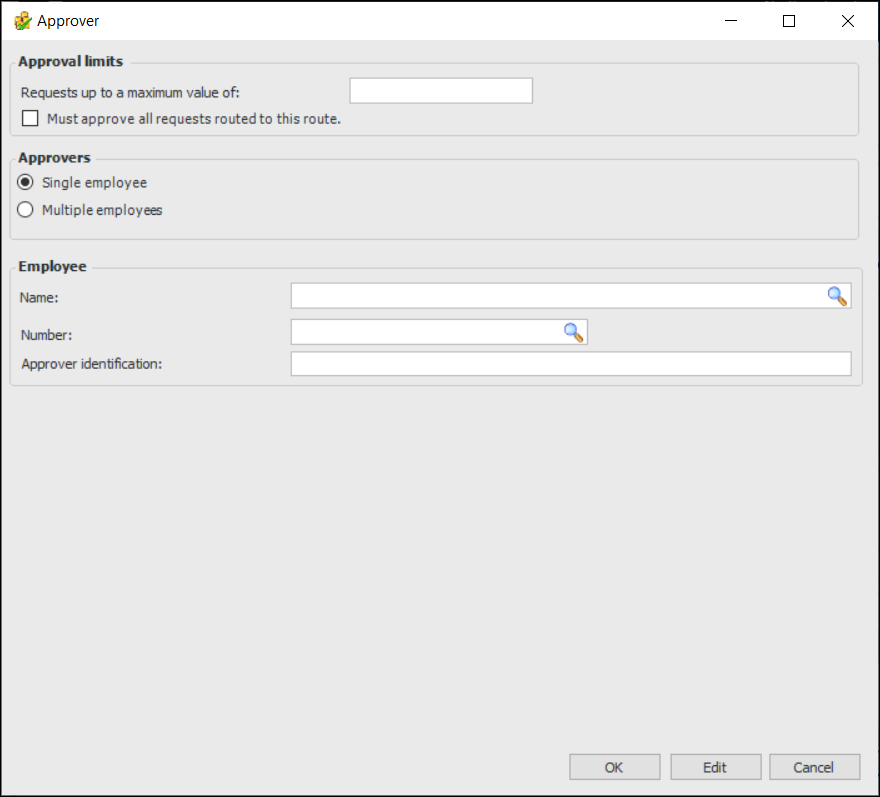
5. Click New. The Approver dialog appears.
7. If the approver for this limit must approve all requests that use this route, select Must approve all requests routed to this route. The approver that you identify at this level must approve all requests, regardless of the request’s value and the approval limits of the route’s other approvers. Selecting this option can change the order of the approver on the approval route.
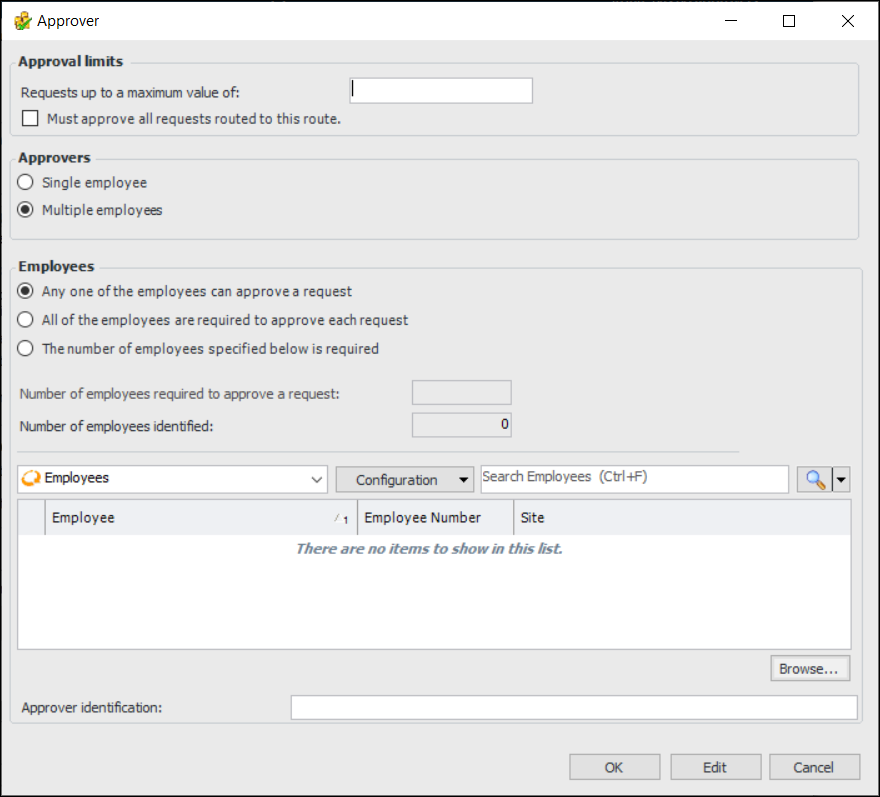
9. To include two or more employees, click Multiple employees. The dialog changes as follows:
10. Click Browse to select employees. The Browse Employees dialog lists people who have the authority to approve the types of documents selected for the route. The personnel that you choose are added to the Employees table. The total is shown in the Number of employees identified box.
• Any one of the employees can approve a request – When any one of the selected employees approves the request, it moves to the next level of approvers on the route. The other members of the group do not need to approve the request.
• All of the employees are required to approve each request – When all of the selected employees have approved the request, it moves to the next level of approvers on the route. If any member of the group rejects the request, it is returned to the requestor with the status “request rejected”.
• The number of employees specified below is required – Enter the number of employees needed to approve the request in the corresponding box. When the required number of employees have approved the request, it moves to the next level of approvers on the route. If any member of the group rejects the request, it is returned to the requestor with the status “request rejected”.
12. When multiple approvers are added to a route, their names are added to the Approver identification box with the appropriate stem (for example, “All of”). You can change the identification as needed, for example, to “A shift supervisor”, “Two supervisors”, or “All shift supervisors”.
13. Click OK. The approver is added to the approval route.