|
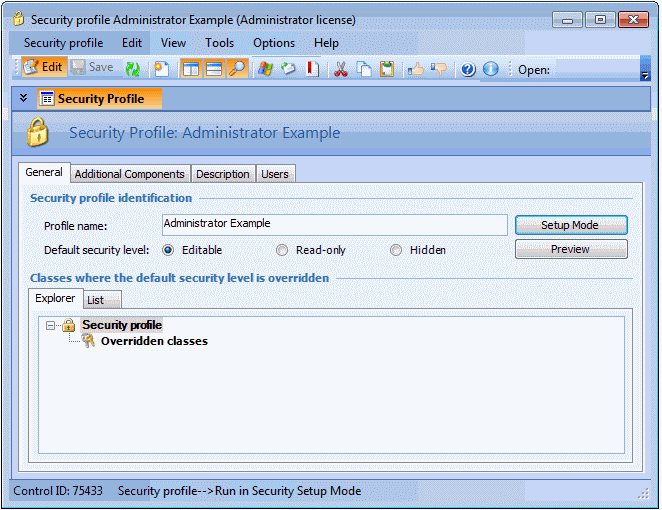
Creating an Editable (Full) Profile: Administrator Example
To Create the Administrator Example Profile
2.
3. Click New. The Security Profile dialog appears.
Enter Administrator Example.
Select the Editable option. This sets the default security level to full-access.
5.
• On the Sites view, right-click the Site Hierarchy tab and select Secure Page, and then Mark as Read-only
• On the Site Hierarchy tab, right-click a site and set the following actions to disabled: New Child, New Peer, Insert Existing Child, Change Parent, Delete, Remove from Hierarchy
• On the Sites view, right-click the Site Listing tab and select Secure Page, and then Mark as Read-only
• On the Site Listing tab, right-click a site and set the following actions to disabled: New, Copy Asset Hierarchy, DeleteNote: Do not mark the Site Settings tab as Read-only. If you do, all of the site settings that are listed in the configurations on this tab will be set to Read-only.
8. Select the Administration menu, then Applications Settings, right-click the Asset Hierarchies tab and select Secure Page, then Mark as Read Only.
9. Select the Administration menu, then Applications Settings, right-click the Site Types tab and select Secure Page, then Mark as Read Only.
10. From the Security Profile view, click Exit Setup to exit security setup mode.