
Adjusting Consigned Inventory

Adjusting consigned inventory is similar to adjusting regular inventory. In both cases, the user must select the appropriate warehouse inventory group.
Quantity adjustments and counts are the only valid adjustment types for a consigned item. The remaining adjustment types (for example, value, unit cost) are not valid for a consigned inventory group.
You must designate the adjustment of a consigned item as being either the customer’s or supplier’s responsibility. Adjustments that are the customer’s responsibility are treated the same as an issue or return to consignment; the customer is responsible for the value of the adjusted quantity, and the transaction is marked for invoicing. Adjustments that are the supplier’s responsibility are not marked for invoicing, have no accounting information, and are calculated at the current consignment price. The selected reason for the adjustment identifies who is responsible for the adjustment.
If your organization is using APM to track consignment inventory, you might need to define at least one adjustment reason with the option Supplier is responsible for adjustments. You will need to use this reason if you are using the adjustment method to replenish consignment inventory.
Note that adjustment reasons can support site-specific settings, so the consignment responsibility can differ depending on the transaction site.
An adjustment of a consigned resource where the customer is responsible for the adjustment has the following unique characteristics:
An adjustment of a consigned resource where the supplier is responsible for the adjustment has the following unique characteristics:

To Adjust Consigned Inventory

1.
In the Site window, select the Resource Management view and then the Inventory tab.
2.
Select the Warehouses tab, and double-click the warehouse where you want to adjust items. The warehouse items stocked in this warehouse are displayed in the table on the right.
3.
Right-click the item that you want to adjust and select Adjust Item. The Inventory Adjustment dialog appears.
The system displays default information in the Resource and Description information.
4.
In the Inventory box, select the consignment warehouse inventory group where you are adjusting the item’s balances.
5.

Adjustment Type:

There are two types of adjustments that you can make to consignment inventory items. The Adjustment amount area changes according to the option you select.
Count: Updates the quantity of items on hand to reflect the physical count of items in the warehouse. Enter the number of items that are currently in the warehouse. The difference between the original value and the replacement value is calculated, and the appropriate adjustment made.
Quantity: The entered quantity is added to or subtracted from the warehouse item’s current on-hand balance. This type of adjustment is typically used when a known quantity of an item must be added to or removed from inventory. For example, if a number of items were found to be defective, an adjustment quantity of x is adjusted out (or down). The unit cost is not affected.

Adjustment amount:

Current values:

Adjustment Details:
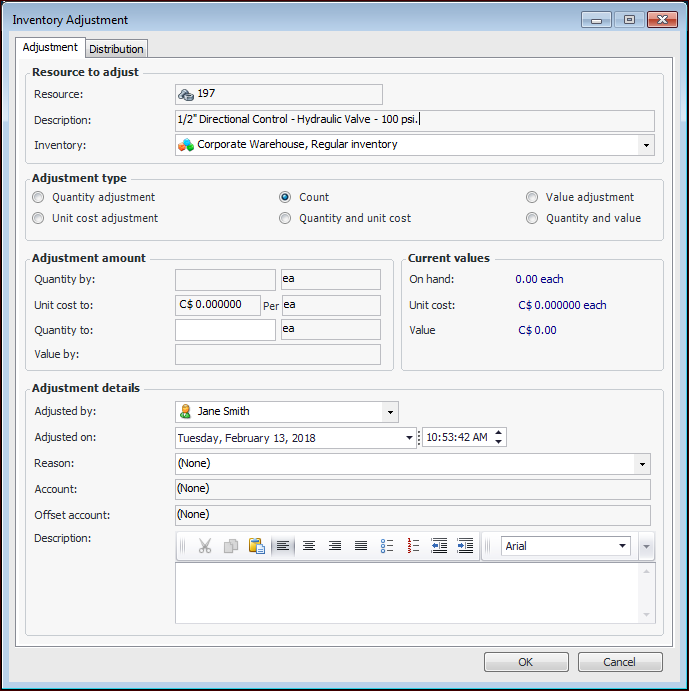
Adjusted by: The person adjusting the inventory.
Adjusted on: The date and time the inventory was adjusted.
Reason: Select the reason that the inventory was adjusted from the list. If you are making the adjustment to replenish a consignment inventory item, you should choose a reason with the “supplier is responsible for adjustments” option selected.
Note that adjustment reasons can support site-specific settings, so the consignment responsibility can differ depending on the transaction site.
Account: This information is not relevant for consignment adjustments.
6.
When you are finished entering information, click OK. APM posts the new transaction and makes the appropriate inventory adjustments in the consignment warehouse inventory group.
Note: If you see the message “A consignment price has not been entered for [resource] and [supplier].”, the system cannot post the adjustment transaction. Enter a supplier resource price for this resource and then post the transaction.