Adding Tax Lines to an Invoice

Extra charge and tax lines are automatically inserted into the invoice when the regular or miscellaneous expense lines have applicable extra charges or taxes. For example, if both PST and GST are identified as being applicable for a regular expense line, two tax lines are inserted on the invoice: one for the PST and one for the GST.
You can also add tax lines to identify additional taxes that have been included on the supplier’s invoice.
Tip: You can quickly add or remove the site’s default taxes on an invoice line. For more information, see Adding or Removing Default Taxes on an Invoice Line.
This topic explains how to create a tax invoice line using the Invoice Line dialog. You can quickly enter simple miscellaneous expense, extra charge, and tax lines to an invoice using the Entry Pad. For more information, see Using the Invoice Lines Entry Pad.

To Add a Tax Line to an Invoice

1.
From the Site window, select the Invoicing view, Invoices tab, then the Invoices tab. By default, this tab lists all invoices by supplier.
2.
3.
4.
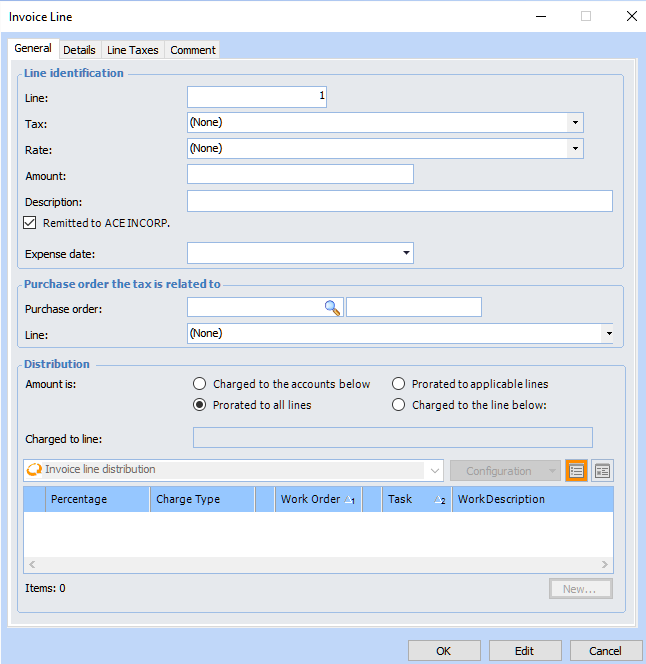
On the Worksheet view, click the New list and Tax Line. The Invoice Line dialog appears.
5.
On the General tab, select the tax type and rate to include on the invoice.
6.
7.
8.
9.
This does not match the invoice line to the purchase transaction but is simply a reference to a related purchase order and line.
10.
Charged to the accounts below: select this option if the value of the line is to be charged directly to selected accounts. The line can be distributed to a work order task, asset, or GL account. It cannot be charged to a warehouse.
Prorated to all lines: select this option if the value of the line is to be distributed over all of the lines. If this option is selected, the lines do not require the extra charge or tax to be identified as an applicable charge.
Prorated to applicable lines: select this option if the value of the line is to be distributed over the applicable lines. If this option is selected, the charge is only applied to lines that have identified the charge or tax as applicable. At least one line must have identified the charge or tax as being applicable.
Charged to one line: select this option if the complete value of the line is to be charged to the selected line. You must select which line to apply the charge or tax to.
11.
When you are finished entering the appropriate information, click OK. The system adds a new line to the invoice.
12.