Adding Suppliers to an RFQ

You can add bidding suppliers to any open catalog price or “for demand” request for quotation (RFQ).

To Add Suppliers to an RFQ

1.
2.
3.
On the Properties view, select the Suppliers tab. This tab lists the suppliers that are currently selected to bid on the RFQ.
4.
Click Browse. The Browse Suppliers dialog appears.
5.
To see only suppliers that supply resources in a particular resource category, select the appropriate category.
Tip: You can quickly filter the list to see only items that begin with any letter or number using the buttons in the Starts with section. To see the whole list again, click Clear.
6.
7.
When you have selected the suppliers, click OK. The suppliers are added to the list.
8.
9.
10.
If you are sending the document by mail or courier, ensure that the Mailing address information is correct. The system enters default values from the supplier record.
11.
Low: All faxes that have a normal or a high priority are sent before a fax that has a low priority.
Normal: All faxes that have a high priority are sent before a fax that has a normal priority.
High: The fax is sent with a high priority.
As soon as possible: Sends the fax as soon as the fax server is available.
Discount period: Sends the fax during a predefined discount period. The discount period can be set up on the fax server.
Specific time: Sends the fax no sooner than the selected time. The actual time the fax is sent depends on the availability of the fax server and the fax priority. Enter the date and time that you want the fax to be sent.
12.
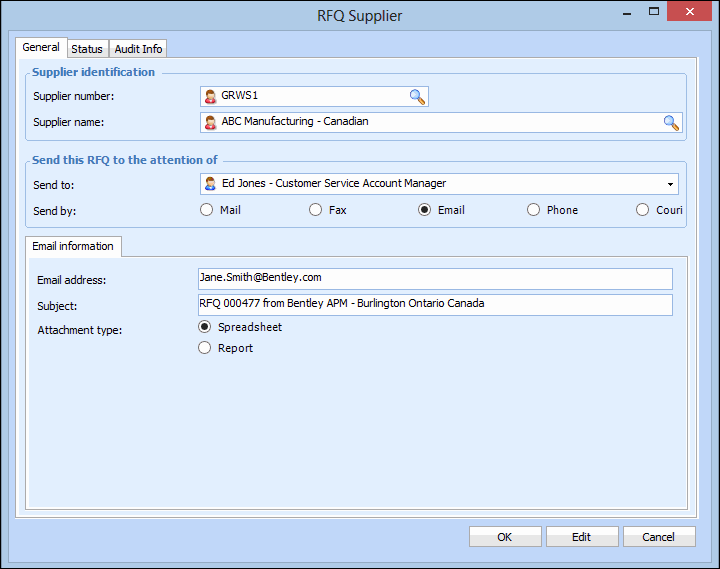
Spreadsheet: The system exports the document to a Microsoft Excel file. For RFQs, the supplier can enter bid information into the file and then send it back to you. You must have Excel installed for this option to work.
Report: The system creates a printable report of the document. For RFQs, the supplier cannot enter bid information directly into this file.
13.
14.
15.