Adding Supplier Resources to a Contract

You can add supplier resource and pricing information to an existing open contract. However, if you are using contract approvals, once the contract has been approved, you must redraft it in order to add supplier resources. Then, you must re-send the contract for approval.
The contract’s supplier resource information rule controls whether the contract’s supplier resource values can be changed on supplier resource records or not. These values are pricing agreement effective and expiration dates, discount percentage, extra charges, primary supplier setting, and the replenishment rule. If the values are fixed, they cannot be changed on the supplier resource. Any changes to the contract’s values are automatically applied to the supplier resources.
If the contract’s information varies on the supplier resources, choose the “information is default values only” setting. The contract’s information is defaulted onto new supplier resources where it can be changed. Changes to the contract’s information are not applied to the supplier resources.
If you have selected to fix supplier resource values, you will not be able to change those values on new supplier resources.
This topic explains how to add supplier resources to an existing contract.

To Add Resources to a Contract

1.
2.
Select the Resources view and then the Resources tab. This view lists all of the resources currently on the contract.
3.
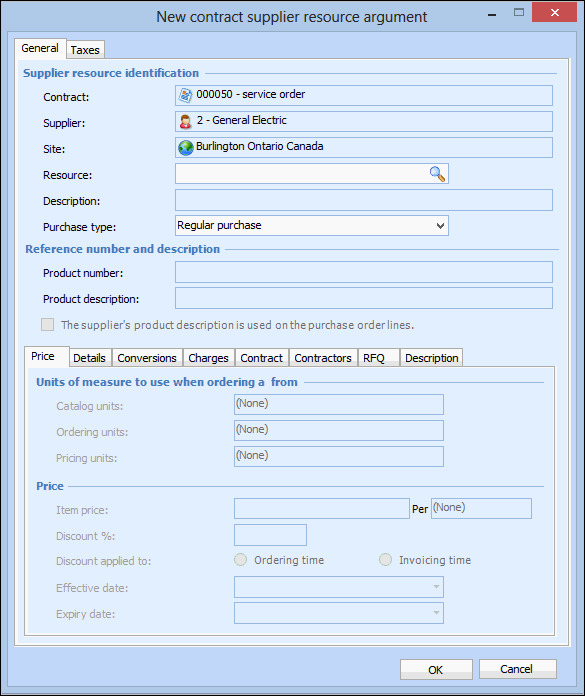
Click New. The New Contract Supplier Resource dialog appears.
4.
Enter the number of the Resource, or browse to search for the resource.
5.
6.
7.
On the General tab, Price tab, complete the following information from the supplier:
8.
Select the Details tab. Complete the following information:
If the manufacturer is not in the list, right-click the box and select New. Fill in the manufacturer information for this supplier resource price.
9.
Select the Charges tab. This tab lists the default extra charges added to this resource. You will only be able to add extra charges if the Supplier Resource Information rule is set to ‘default’.
10.
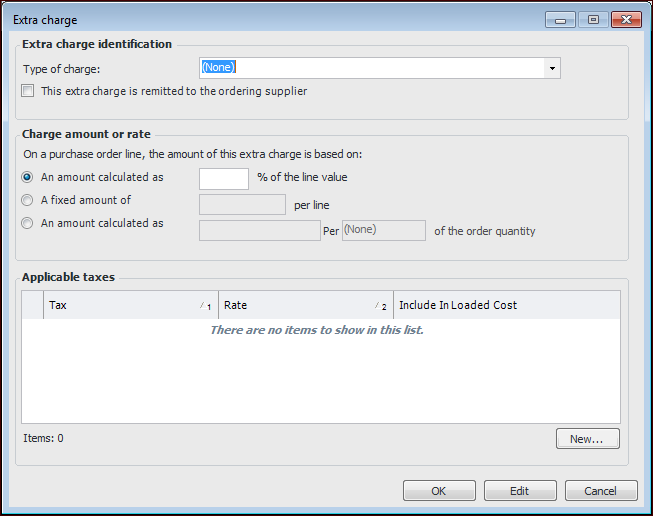
To add an extra charge, click New. The Extra Charge dialog appears.
11.
12.
Indicate whether or not the This extra charge must be remitted to the supplier. If the charge is remitted to the supplier, it is included in the amount you pay the supplier for the item.
13.
Percent of Value: The extra charge is a percentage of the value of the purchase order line. For example, if the value of the order is $20 and the extra charge is 5% of the value, the system applies an extra charge of $1 to the purchase order line.
Fixed Amount: The extra charge is a fixed amount per purchase order line. For example if the fixed amount is $5, the system adds an extra charge of $5 to each purchase order line for this supplier resource and price. (Not available for consignment purchases.)
Per-Unit Amount: The extra charge is a fixed amount per unit of the order quantity in the purchase order line. For example, if the fixed amount is $1 per unit and 20 units are ordered, the system adds an extra charge of $20 to the purchase order line.
14.
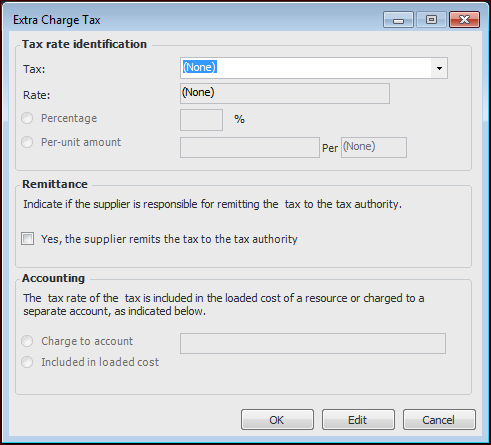
Click New to select the applicable taxes payable on this extra charge. The Extra Charge Tax dialog appears.
15.
16.
Repeat steps 14 and 15 for each tax payable on the extra charge.
17.
To save the extra charge, click OK. The extra charge appears in the list.
18.