
Adding Standard Tasks to a Standard Job or a PM Route

You can add standard tasks to a standard job a preventive maintenance (PM) route.
You can also add a task template to a standard job. When you add a task template, you must also identify an asset to use when creating a task from the standard job. When you add the task template to the job, APM checks to see if the asset already has a standard task based on the template. If it does, the standard task is added to the standard job. If an appropriate standard task does not exist, the task template is assigned to the job.

To Add Standard Tasks to a Standard Job or PM Route

1.
2.
Select the Tasks tab. This tab shows a list of standard tasks currently on the standard job or PM route.
3.
Click Browse. The Browse Tasks dialog appears.
4.
Tip: Click to select values for filtering the list. For example:
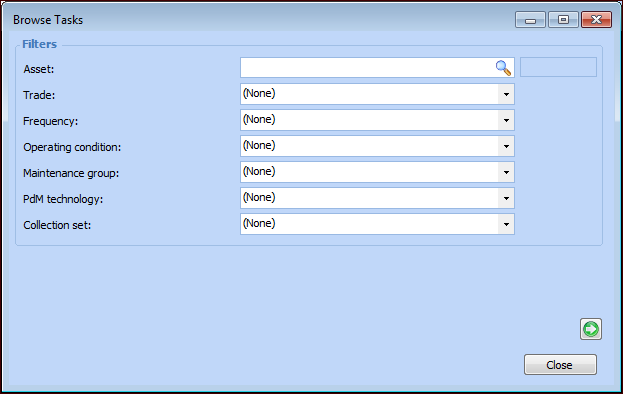
Notice that you can select an asset to view its standard tasks.
When you have selected filter values, click to return to the Browse Tasks dialog.
5.
To add task templates, select the Templates tab. Click the browse icon to select the asset that the tasks are for and then click OK. Select the task templates that you want to use.
6.
When you are finished selecting tasks and templates, click OK. The tasks are added to the standard job or PM route. If you selected task templates, APM creates new standard tasks for the asset that you selected and adds the new tasks to the standard job or PM route.
Note: In order for new standard tasks to be created, the task template’s “Standard task creation” setting (on the Template Options tab) must be set to Create a standard task for the asset.
7.
To change the order of the standard tasks, see Changing the Order of Standard Tasks on a Standard Job or a PM Route.
Once you have added the standard tasks, you can set up triggering cycles for them. See Triggering a Subset of Standard Tasks on a Standard Job or PM Route.