Adding and Removing Columns in a Table Configuration

You can add to or remove columns from the table configuration at any time.
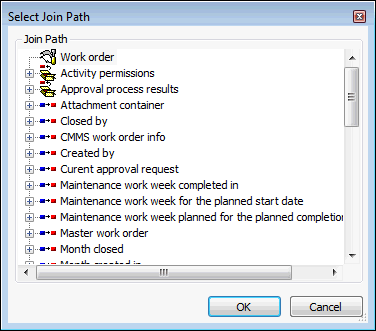
Note: If you want to use join paths to locate class attributes to include as columns in the configuration, you will need to understand how the object model works. For information, see Exploring the Object Model Through the User Interface.

To Add Columns

1.
2.
Click Configuration and then Open. The Configuration dialog appears, open to the Columns tab.
3.
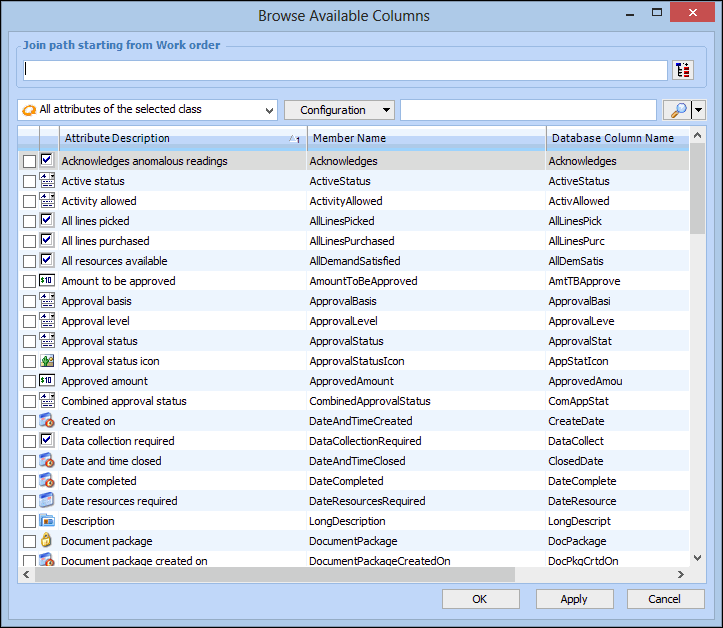
Click Browse to select the columns you want to include in the configuration. The Column Selector dialog appears.
4.
5.
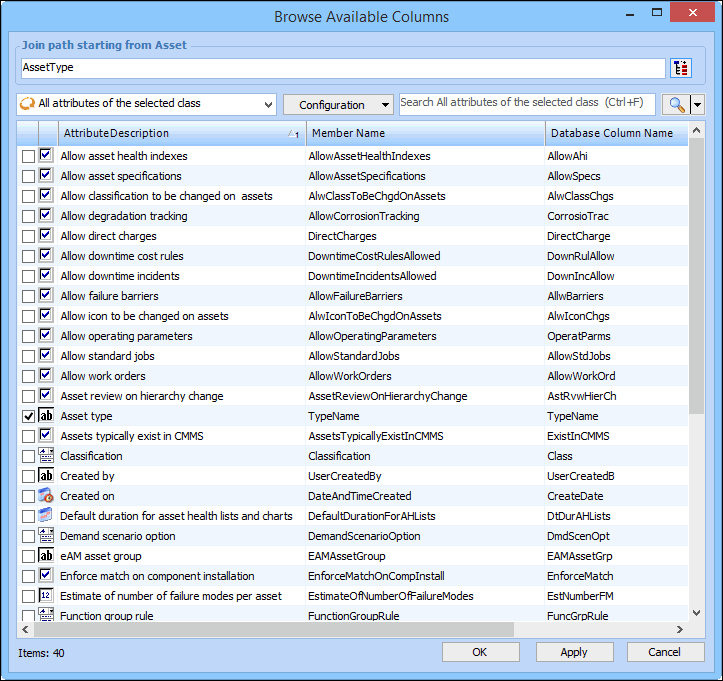
Click OK. If the class has more than one attribute, the attributes are displayed in a table. For example:
6.
Click OK to add all the attributes to your configuration and close the Column Selector dialog. The attributes now appear in the list of columns. If necessary, you can change the order of the columns, change properties like column width, and create data groups.
7.
Click OK to save the changes.

To Remove Columns

1.
2.
Click Configuration and then Open. The Configuration dialog appears, open to the Columns tab.
3.
Right-click the column(s) you want to remove from the table configuration and then click Delete. A message appears asking if you want to delete the selected column.
4.
Click Yes. The column is removed from the configuration.
5.
Click OK to save the changes.