Adding Prices to a Supplier Resource

The supplier resource price contains most of the information associated with the supply of a resource from a supplier. When you create a new supplier resource, you are entering the information for the resource and for the supplier’s current price. After the supplier resource has been created, you can add more prices.
You can create both regular and special prices for a supplier resource:
Regular price: identifies a price that is generally available for use.
Special price: identifies a price that is not generally available for use. A special price is typically associated with a special set of terms and conditions, lead-time, or supplier promotion. APM never prompts a special price as the expected price for a resource demand or PO line. Special prices are only used when specifically selected by a user.
This topic explains how to add prices to an existing supplier resource.

To Add a Price to a Supplier Resource

1.
From the site’s Resource Management view, select the Supplier Resources tab.
2.
3.
4.
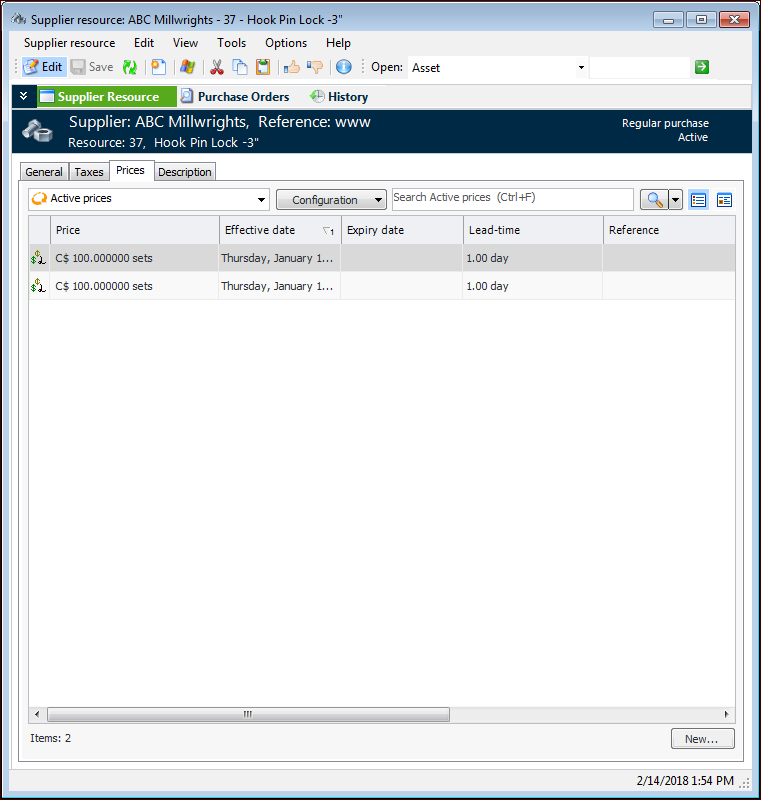
Select the Prices tab. This tab lists all of the prices that have been entered for the supplier resource.
5.
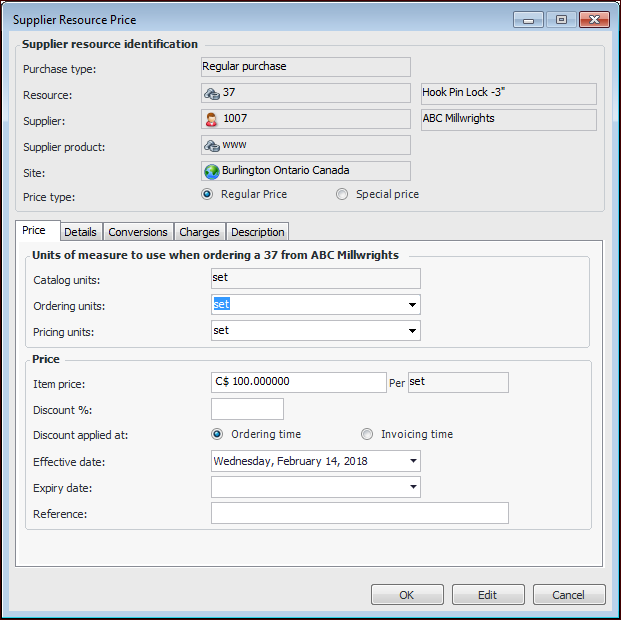
To add a new price, click New. The Supplier Resource Price dialog appears. The system defaults in the information from the current price for the resource.
6.
Regular price: identifies a price that is generally available for use.
Special price: identifies a price that is not generally available for use. A special price is typically associated with a special set of terms and conditions, lead-time, or supplier promotion. APM never prompts a special price as the expected price for a resource demand or PO line. Special prices are only used when specifically selected by a user.
7.
Select the Details tab. Make any required changes to the following:
If the manufacturer is not in the list, right-click the box and select New. Fill in the manufacturer information for this supplier resource price.
Replenishment review is required: The replenishment requisition must be reviewed before a purchase order is created.
Replenishment review is not required: The purchase order will be automatically generated as soon as the replenishment requisition is created.
8.
If you are entering a price for an on-site contractor, select the Contractors tab. Select whether or not all employees of this supplier can use this price. If only some employees can use the price, select the appropriate employees from the list. Only employees who are set up as contractors for this supplier will be available for selection.
9.
If the ordering units of measure (UOM) are different than the pricing or catalog UOMs, you can set a conversion factor. On the Conversion tab, click Conversion Calculator, enter the conversion factors, and click OK. If a conversion factor has already been set for the UOMs, you will not be able to change it.
10.
Select the Charges tab. If applicable, enter any extra charges that apply to this price. For more information, see Adding Extra Charges to a Supplier Resource Price.
11.