|
Adding Miscellaneous Expense Lines to an Invoice
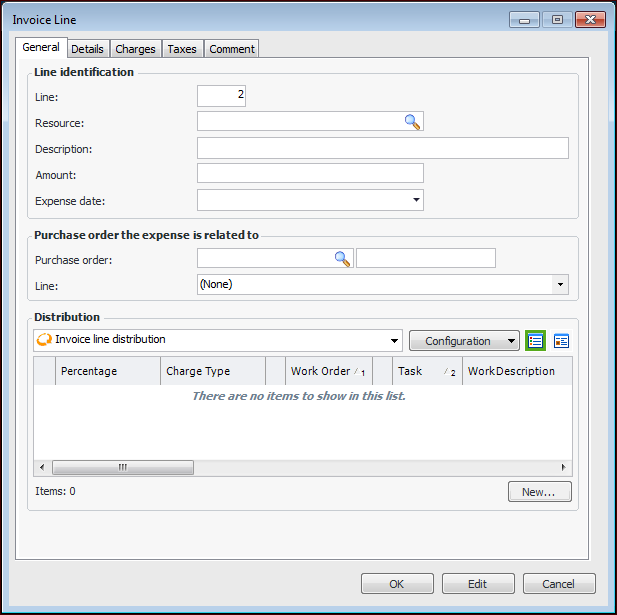
This topic explains how to create a miscellaneous expense line using the Invoice Line dialog. You can quickly enter simple miscellaneous expense, extra charge, and tax lines to an invoice using the Entry Pad. For more information, see Using the Invoice Lines Entry Pad.To Add a Miscellaneous Expense Line
1. From the Site window, select the Invoicing view, Invoices tab, then the Invoices tab. By default, this tab lists all invoices by supplier.
4. On the Worksheet view, click the New list and then Miscellaneous Expense Line. The Invoice Line dialog appears.
5. On the General tab, enter the number of the resource being invoiced or click the browse icon to search for the resource. If the invoice is for a non-catalog item, enter the description of the item being invoiced.
8. To enter the distribution for the line, click New. In the Invoice Line Distribution dialog, select the work order, asset, or account to charge the line to. If charging to multiple accounts, set the percentage or amount charged to the current account, and then click OK.
10. Select the Charges tab. You can add any charges that are applicable to this line on this tab.
11. Select the Taxes tab. You can add any taxes that are applicable to this line on this tab.
12. If necessary, on the Taxes tab you can change the taxable amount for the line:
13. When you are finished entering the appropriate information, click OK. The system adds a new line to the invoice.