Adding Lines to a Purchase Order

A purchase order includes a separate line for each resource you want to purchase. You can only add lines when the purchase order is open. Once it has been sent for approval or printed, you must redraft before you can add lines.

To Add Lines to a Purchase Order

1.
2.
On the Properties view, select the General tab, and then the Lines tab.
3.
4.
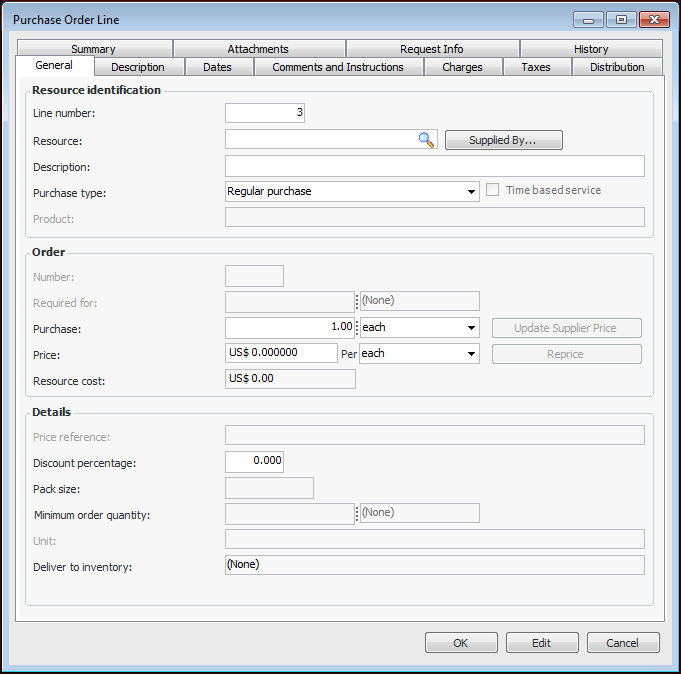
Click the New. The Purchase Order Line dialog appears.
5.
6.
If you specify a serialized resource with the purchase type of “Repair Order,” the Unit list becomes available. Select a unit from the list. Only units with a status of “Repair Shop,” “Uninstalled,” or “Returned” may be selected.
7.
8.
Select the Description tab to enter purchasing information. This information is copied to subsequent documents in the purchasing flow, for example, the invoice line.
9.
Select the Dates tab and enter the required, promised, expected, placed, and expediting dates.
10.
Select the Comments and Instructions tab and enter your notes and any instructions to be included with the purchase order line.
11.
Select the Charges tab. All extra charges applied to the purchase order line appear in the list.
12.
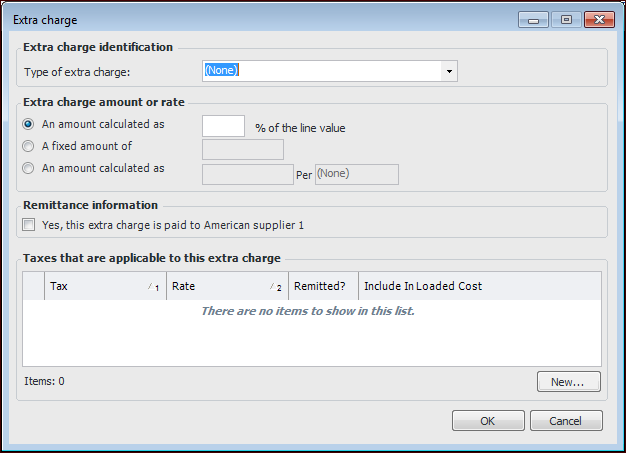
Click New to open the Extra Charge dialog.
13.
14.
Select the Taxes tab. All taxes for this purchase order line appear in the list.
15.
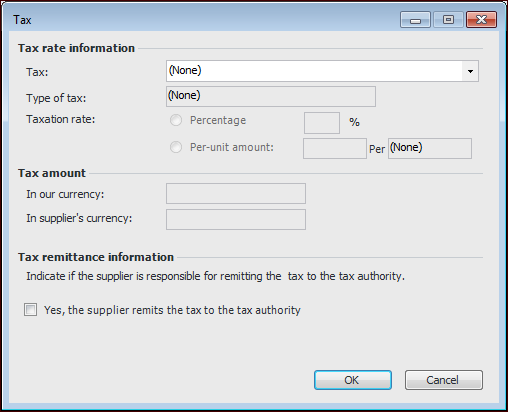
Click New to add a tax to the purchase order line. The Tax dialog appears.
16.
17.
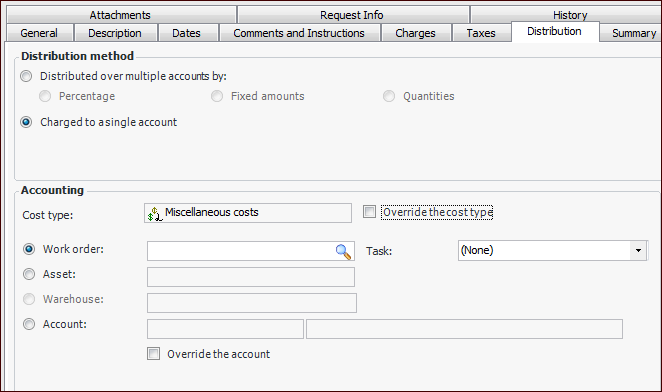
Select the Distribution tab. For example:
18.
If the purchase order is being charged by line, enter the charging information for this purchase order line. For detailed instructions, see Distributing Costs on a Purchase Order Line.
19.
Select the Summary tab to view the cost summary, order values, and receipt values.
20.
Select the Attachments tab, and click New to add an attachment to the purchase order line. The Attachment dialog appears. For more information about adding attachments, see Adding Attachments to Objects.
Tip: The History tab displays the actions performed on the line by event and data element, as well as creation and update information.
21.
Click OK to save and close the purchase order line.