Adding Regular Expense Lines to an Invoice

An invoice line contains the details of the invoice. An invoice line can be matched to a source invoiceable liability (for example, receipt, service acknowledgment) or have no source (that is, not matched to a purchasing source transaction). Each line contains the same information: what is being invoiced (resource), quantity, price, amount, and where the costs are being charged.
A regular expense line is matched to a liability in the system (for example, a purchase order line). When you create an invoice based on a purchase order, the system can create an invoice line for each uninvoiced purchase order line. You can also add regular expense lines manually to an invoice, after the invoice has been created.
This topic explains how to create a new regular invoice line.

To Create New Invoice Lines

1.
From the Site window, select the Invoicing view, Invoices tab, then the Invoices tab. By default, this tab lists all invoices by supplier.
2.
3.
4.
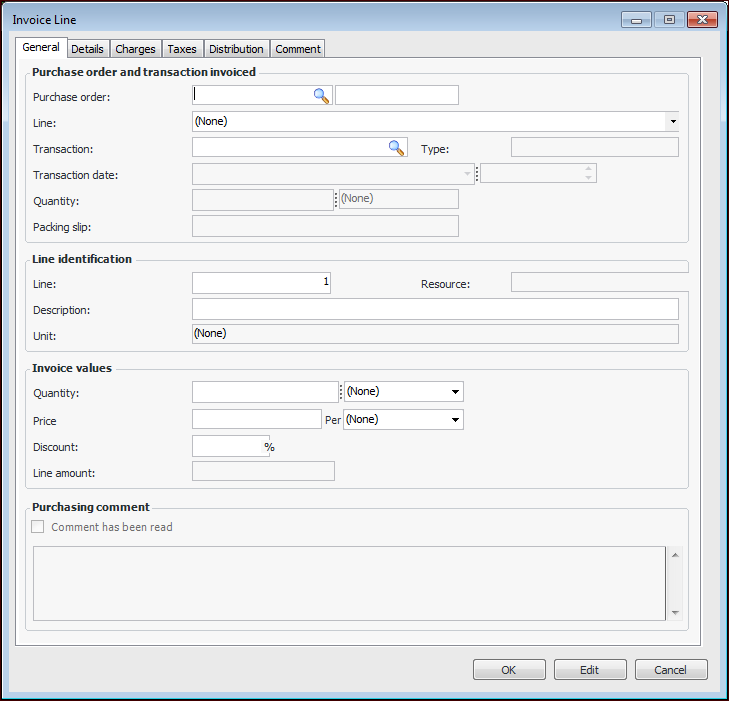
On the Worksheet view, click the New list and then Regular line. The Invoice Line dialog appears.
Tip: To add multiple lines at one time, you can search for liability transactions to add to the invoice by clicking the browse icon in the Transaction box. The Purchase Liability Selector dialog appears. Select the transactions that you want to create lines from and click OK. The system creates the new lines. You can then review the lines as usual.
5.
On the General tab, enter the purchase order number or click the browse icon in the Purchase order box to select the appropriate purchase order.
6.
7.
8.
9.
Select the Charges tab. The system automatically includes any charges that were identified on the purchase order line and are being remitted to the supplier. If necessary, you can add more charges on this tab.
10.
Select the Taxes tab. The system automatically includes any taxes that were identified on the purchase order line and are being remitted to the supplier. If necessary, you can add more tax lines on this tab. You can also change the taxable amount for the line:
11.
Select the Distribution tab. The system copies the purchase order line distribution to the invoice line. To change the distribution, select Override distribution and enter the new distribution account(s).
For detailed instructions, see Changing the Distribution on an Invoice Line.
12.
When you are finished entering the appropriate information, click OK. The system adds a new line to the invoice.
13.