|
Adding Static Indicators to a Standard Task
If indicator readings are to be collected using a mobile device, you can have the activity assigned to a device automatically when the work order is created. Once you add an indicator to the standard task, the Mobile Computing tab becomes available on the Inspection tab. For more information, see Setting Mobile Computing Options on a Standard Task.If you want to edit a standard task that is based on a task template, see Editing a Standard Task that is Based on a Template.This topic explains how to add static indicators to a standard task. For information about changing the order of indicators, see Changing the Order of Indicators on a Standard Task. For information about setting options for indicator inclusion and planning lead time, see Setting Inspection Options for a Standard Task.Tip: You can also add indicators by clicking the Tools menu in the Standard Task window, clicking Indicators, and then Work With. In the Work With Standard Task Indicators dialog, you can use drag-and-drop functionality to copy indicators from one task to another or from an indicator to the task.To Add Static Indicators to a Standard Task
3. Note: The Inspection tab does not appear unless the standard task’s work type allows indicator information. The Static tab does not appear unless the standard task’s work type supports static indicators.
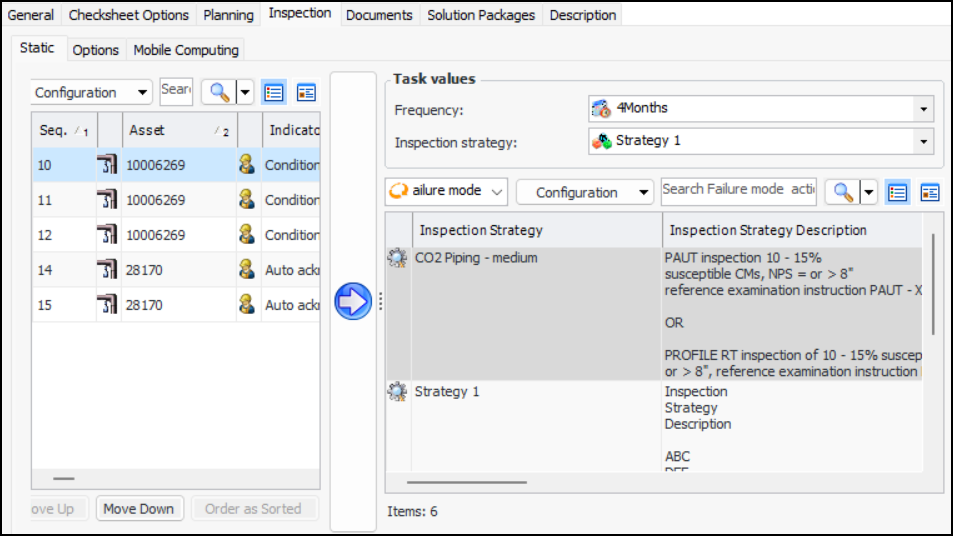
4. If supported by the work type, the Static tab displays a side-bar showing recommended tasks and inspection strategies from primary and secondary action plans that identify the standard task as the inspection task. For example:
5. To create an indicator, click New. The Create New Indicator dialog appears, where you can choose to create the indicator from scratch or from a template. For detailed information about creating indicators, see Setting up Asset Indicators.
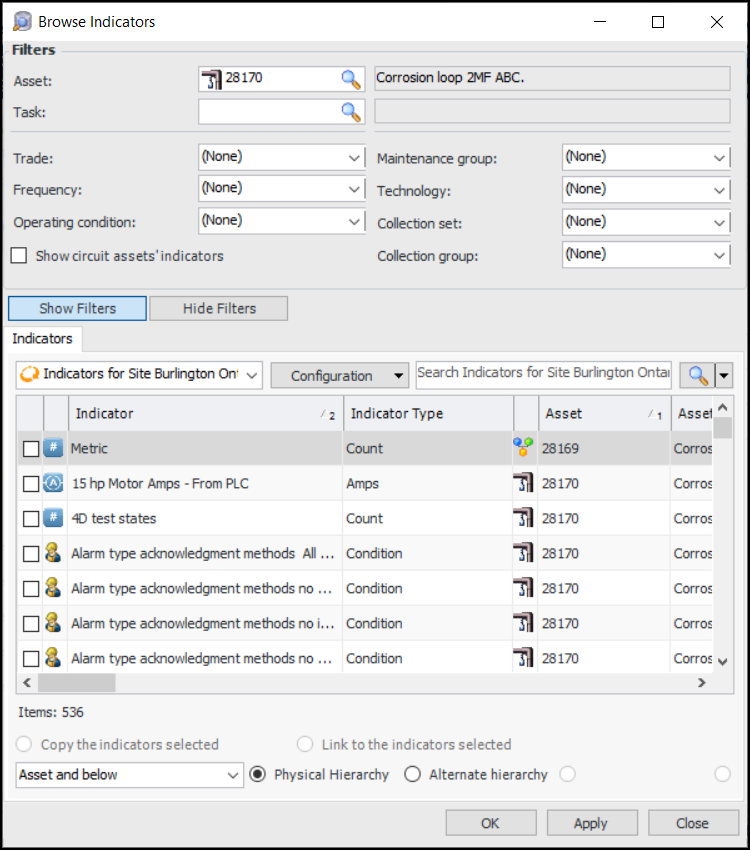
6. Click Browse. The Browse Indicators dialog appears. By default, this dialog lists indicators for the standard task’s asset to work on and below. You can adjust the display by selecting other options in the list. For example:Note: Show circuit assets’ indicators is available and selected when the asset that you are filtering on represents a circuit. When selected, the option filters the list to include only indicators for assets included in the circuit.
8. Select the indicators that you want to add to the standard task and click OK. The indicators now appear on the Static tab.Tip: You can also add indicators to the standard task by dragging them from the Indicators tab of an asset, standard task, or standard job, or from the site’s Inspection Management view, Indicators tab, Listing tab. When you drag an indicator from one of these locations to the current standard task’s Static tab, the indicator is added to the task.
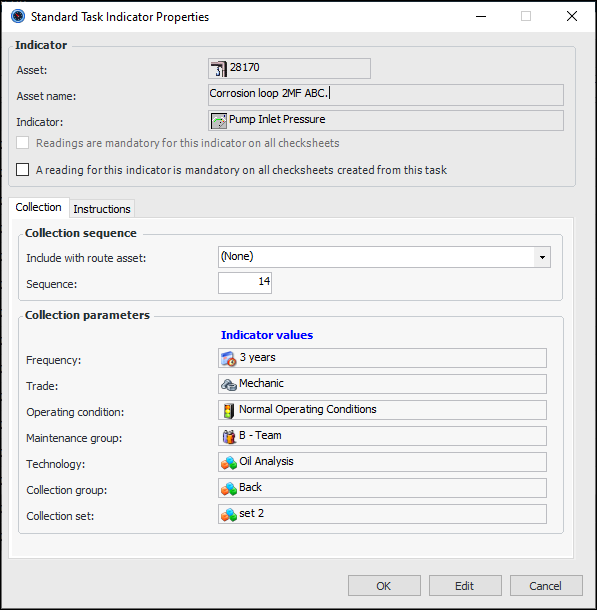
10. If you select A reading for this indicator is mandatory on all checksheets created fro this task, checksheets that include this indicator cannot be processed unless a reading exists for the indicator.
11. On the Collection tab, specify the indicator’s sequence by doing one of the following:In the Collection Parameters area, any indicator template collection parameters are transferred to the standard task static indicator.
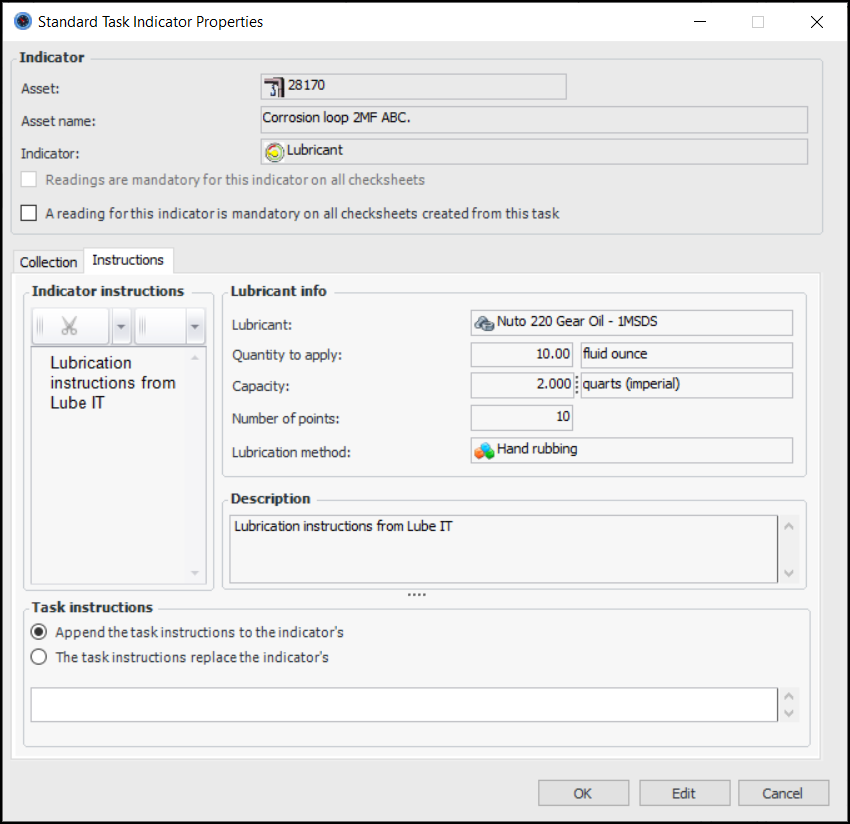
12. Select the Instructions tab to view indicator instructions. If the indicator type includes lubricant information, it is also displayed on this tab. For example:
13.
• Append the task instructions to the indicator’s – If both indicator and task instructions exist, task instructions are added to the indicator instructions, separated by a blank line.
• The task instructions replace the indicator’s – If indicator instructions exist, they are replaced by the task instructions, if they exist.
15. Click OK to save the indicator and close the dialog.