Adding Holds to a Standard Task

This section explains how to add holds to an existing standard task. You can set up automatic holds for new work order tasks by entering holds on standard tasks. If you add a hold to a standard task, the hold comes into effect when the work order task is created.
You can set an automatic release date for a set period of time after the work order task is created. For example, you could say that the hold will be automatically released 10 days after the work order task is created. The hold will be released using the same scheduled action as other work order task holds, and will follow the same rules.
 
Note: If you want to edit a standard task that is based on a task template, see Editing a Standard Task that is Based on a Template.

To Add Holds to a Standard Task

1.
2.
3.
In the Properties view, click the Planning tab and then the Holds tab. This tab shows a list of the holds currently on the standard task.
4.
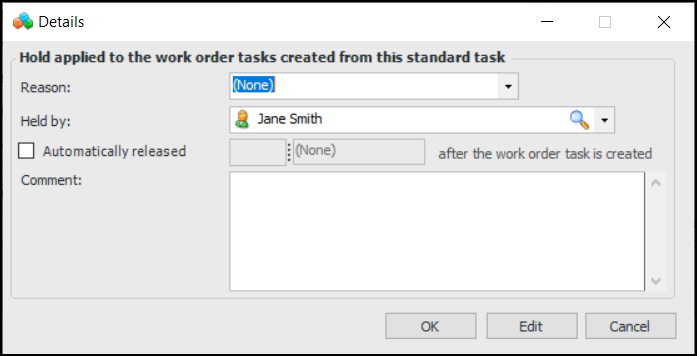
Click New. The Details dialog appears.
5.
For example, if you create a hold with a Report Activity setting of “allowed with warning”, the comment will be displayed on warning messages when users try to report activity for the task.
6.
Click OK to save the hold.
7.
8.