Adding a Supplier’s Warranty

You can add warranty information whenever you purchase warrantied services or equipment. A warranty can be added for either the supplier or the manufacturer of the item, or the warranty can be linked to both a supplier and a manufacturer.
You can enter warranties based on time, units (for example, kilometers), or both. When you check the warranties for an asset, the system displays only warranties that are currently valid. For example, if the asset has a warranty for six months but the warranty has expired, APM does not display that warranty.
If a warranty is based on units, the units entered on the warranty should be in the same unit of measure category as the asset’s primary cumulative indicator. For example, if a truck has a warranty for 100,000 kilometers, the truck’s primary indicator should be an odometer-type indicator measured in miles, kilometers, or any length unit of measure. This way, the system can check whether or not the warranty is still valid.
This topic describes how to add a supplier warranty.

To Add a Supplier’s Warranty

1.
From the Site window, select the Purchasing view and then the Suppliers tab.
2.
Select the Suppliers tab. By default this tab lists the suppliers for the site.
3.
4.
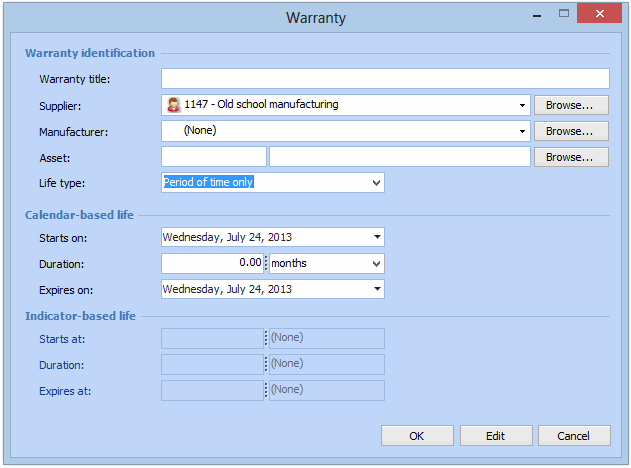
Select the Warranties tab and click New. The Warranty dialog appears.
5.
Enter a Short description of the warranty and select the Asset to which it applies.
6.
7.
Period of time only: The warranty covers only a specific period of time (for example, two years).
Units only: The warranty is valid for a defined number of units (for example, 100,000 km). If the asset has a primary indicator, use the same units as used by the indicator.
Both a period of time and units: The warranty is valid for a specific period of time and a defined number of units (for example, 100,000 km and two years). If the asset has a primary indicator, use the same units as used by the indicator.
8.
9.
Save and close the warranty. APM saves the warranty information and displays it on the supplier’s Warranties tab. You can also view this warranty information from the asset or from the manufacturer (if applicable).
10.