|
|


Setting up a Dynamic Inspection Route on a Standard Task
For an overview of dynamic routes, see Dynamic Inspection Routes. For information about setting options for indicator inclusion and planning lead time, see Setting Inspection Options for a Standard Task.To Access the Dynamic Route on a Standard Task
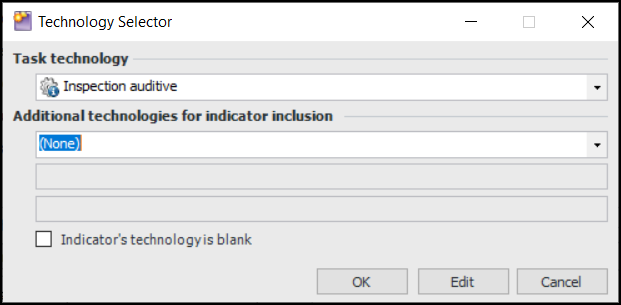
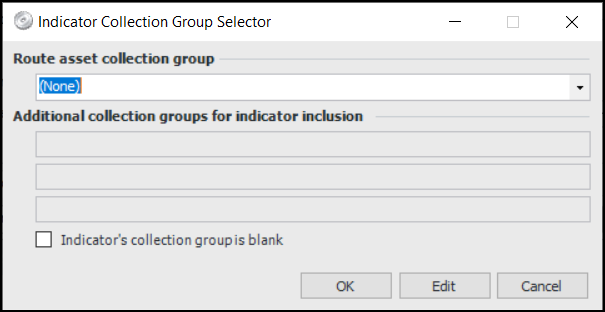
To Set up Indicator Selection Criteria
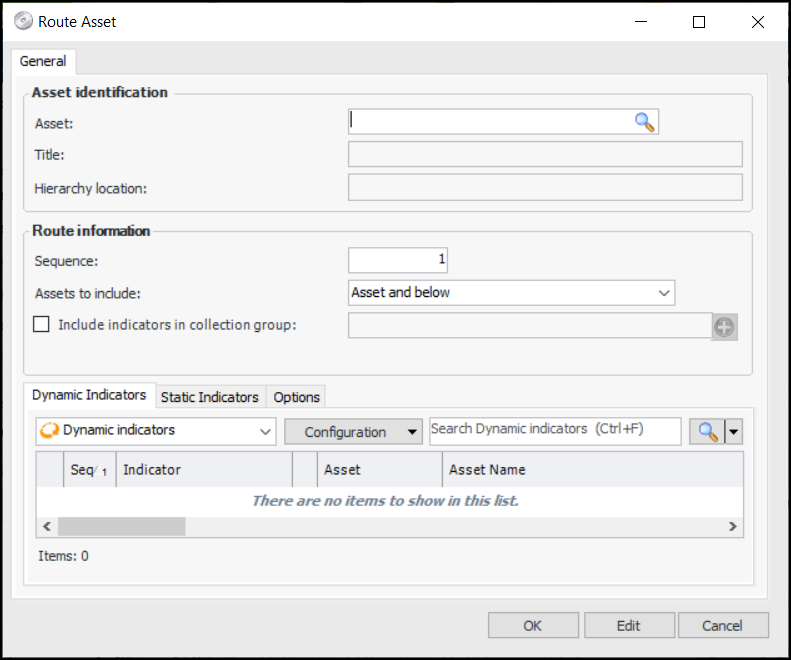
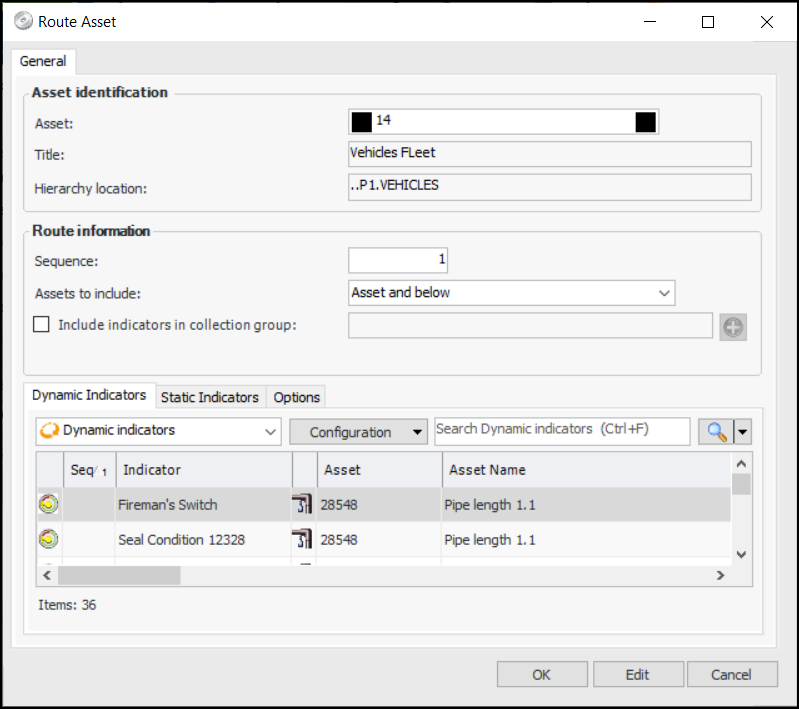
Click OK.To Add Route Assets
To Preview Indicators on the Route
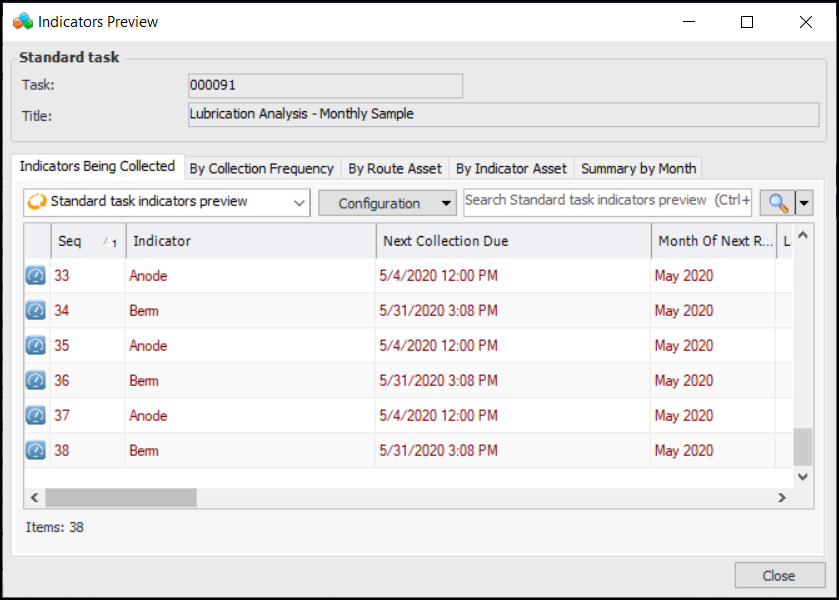
To view a list of all the indicators to read for the route, click Preview Indicators. The Indicators Preview dialog appears, showing the indicators that match the selection criteria in the order that they should be read. For example:Scroll to see the Source column that identifies each indicator as dynamic or static. They are also distinguished by color.
 is enabled.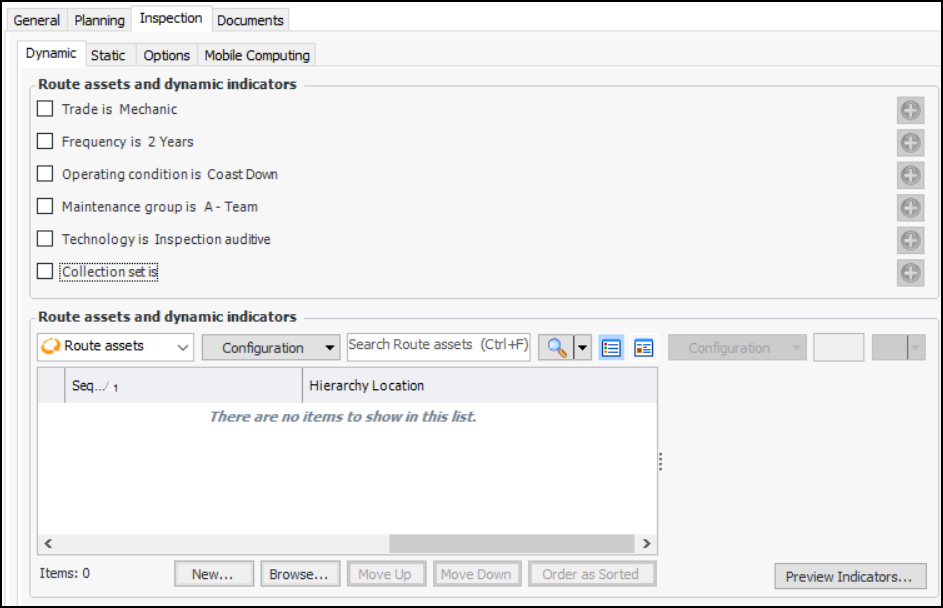
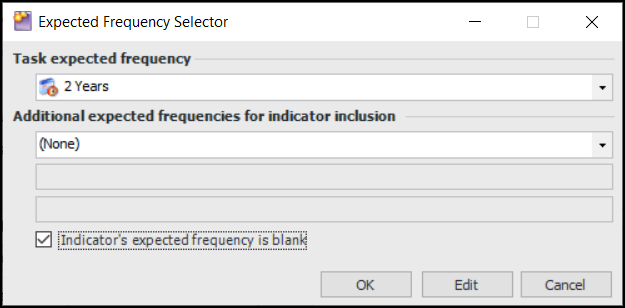
 next to the property to open the selector dialog. Then click the option that allows the indicator’s property to be blank. For example: