|
Adding a Contact for a Supplier
To Add a Contact
3. On the Properties view, select the General tab, then the Contacts tab. This tab lists the current contacts for the supplier.
4.
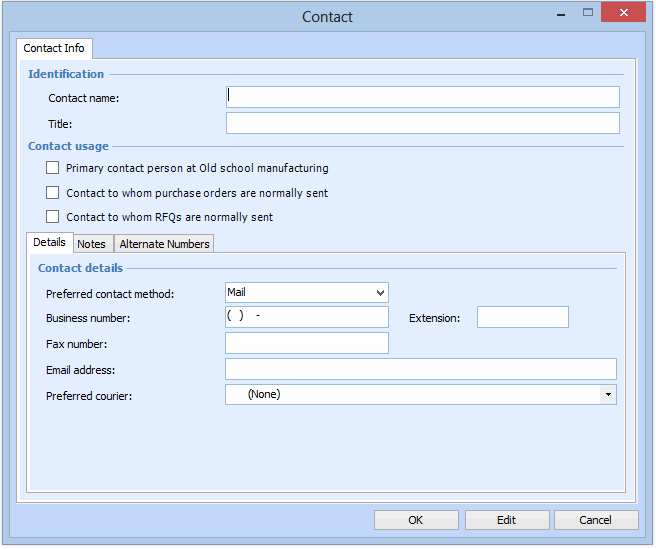
• The Primary contact person for this supplier
• The Contact to whom purchase orders are normally sent
• The Contact to whom RFQs are normally sent
7. Select the preferred contact method for sending RFQs and/or purchase orders to this contact person.
8.
9. Select the Notes tab. Enter any notes or comments you have about this contact.
10. If the contact has more than one telephone number, select the Alternate Numbers tab, and click New to add another number.
11. Click OK to save the contact information. The contact now appears in the list for the supplier.