
Adding a Section to an Asset Activity Report

Asset activity reports are pre-populated with sections from the report’s asset activity report type. From time to time, you might want to add a section to an asset activity report. You can accomplish this from within the report itself.
This topic describes how to add a section to an asset activity report.

To Add a Section to an Asset Activity Report
1.
2.
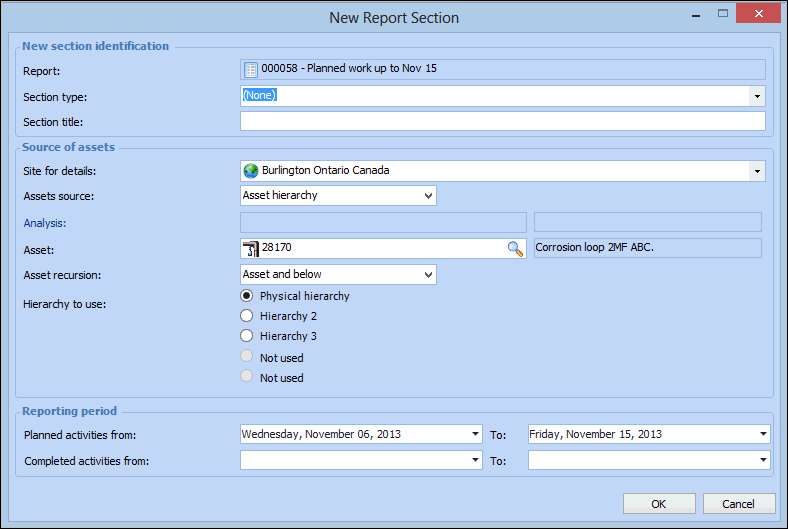
On the Report view, Sections tab, click New. The New Report Section dialog appears, pre-populated with asset activity report information. For example:
3.
Note: If the section type you want to add does not currently exist, you can create a new section type by pressing F3. The report’s section properties dialog appears. For more information on creating an asset activity report section type, see Setting up Asset Activity Report Section Types.
Select either Asset hierarchy or Strategy development analysis for the source of the assets.
4.
In the Reporting period group, you can change the planned and completed activities dates.
5.
When you are finished, click OK. The report section is added to the list.
6.
Repeat steps 2 to 5 for each section that you want to include on the asset activity report.
7.
You can change the sequence order of sections by selecting the Work with sequence configuration, selecting a section in the list, and then clicking Move up or Move down to rearrange the order of sections on the report.
8.
You can also remove a section from the report by right-clicking the section and selecting Delete. A confirmation message appears. Click Yes to delete the section from the report.