Adding a Photograph to an Inspection Report

Inspection photographs stored in the APM database can be included in the inspection report, where they can be viewed and printed with the report.

To Add a Photograph to an Inspection Report
1.
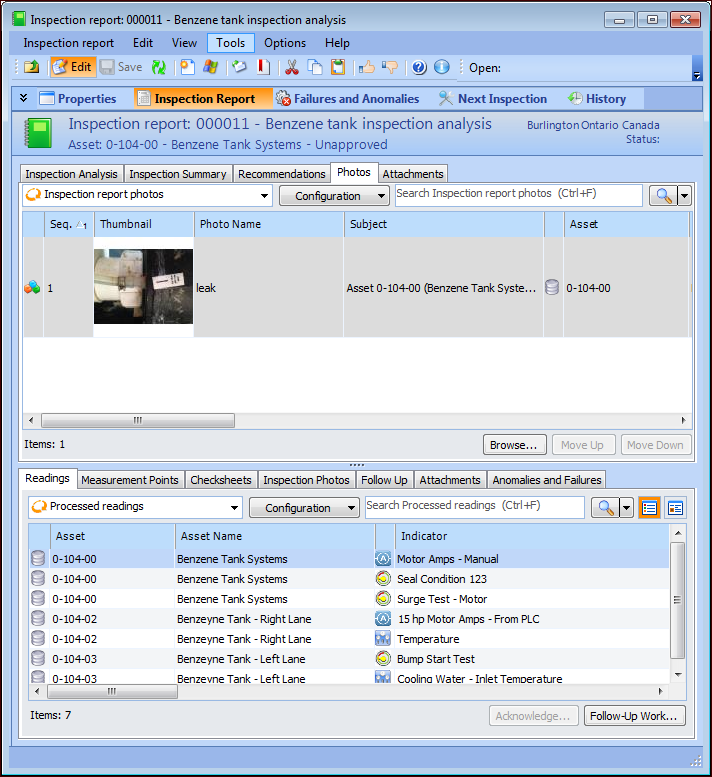
In the Inspection Report window, select the Inspection Report view and the Photos tab.
The Inspection Report Photos table includes a thumbnail of each photograph, its filename, subject, asset, indicator, reading value and state, caption, comments, date taken, and rating.
Tip: To view photographs attached to indicator readings included in the report, select the Inspection Photos tab. You can add these photographs to the report so that they are printed with it.
2.
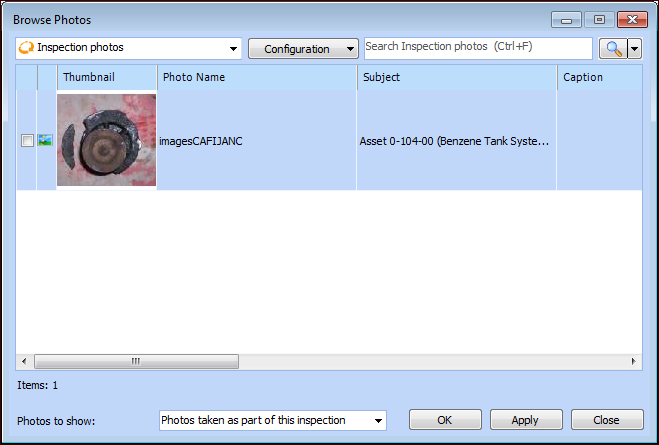
Click Browse. The Browse Photos dialog appears.
3.
In the Photos to show list, select one of the following options:
The list of inspection photographs changes accordingly.
4.
Select one or more photographs and click OK. The photographs are added to the Photos tab.
5.