
|
Adding Attachments to an Asset Activity Report Section
When you print a report to a printer, you can select the file attachments that you want to print with the report. For information about printing attachments with asset activity reports, see Printing an Asset Activity Report.To Add an Attachment to an Asset Activity Report Section
2.
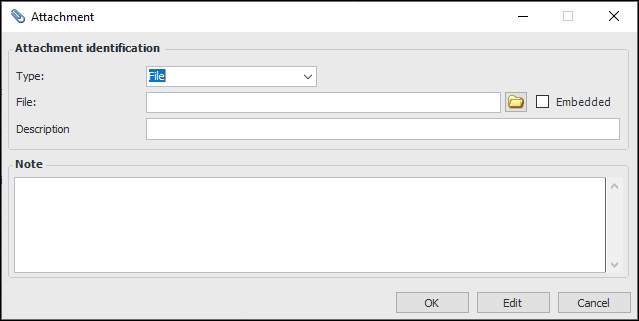
3. Right-click a section in the list and select Attachments, and then select New. The Attachment dialog appears. For example:
• File: You can attach files with standard formats. If the file is not on a shared network drive, you can select Embedded so that other users can access it.
• Folder: You can attach any folder. Folder contents cannot be embedded. If you attach a folder, ensure that it will be available to other users to view (that is, it is shared on your network). When a user views this attachment, the system displays it in a Windows Explorer window.
• Note: You can enter any text and attach it to the object. When you select this option, enter your text in the Note box.
• URL: You can enter any URL to attach to the object. For example, you could enter a web page address or a local network path. When a user views this attachment, the system displays it in the default Web browser.
5.
On the Open dialog, the Supported Files list displays the acceptable formats.
7. If you selected a file type of Note, enter a descriptive note in the section below.
8. Click OK. The attachment is included with the report section.