
|
Rescheduling a Task
To Reschedule Tasks
2. On the Entries tab, find the entries for the task or tasks.
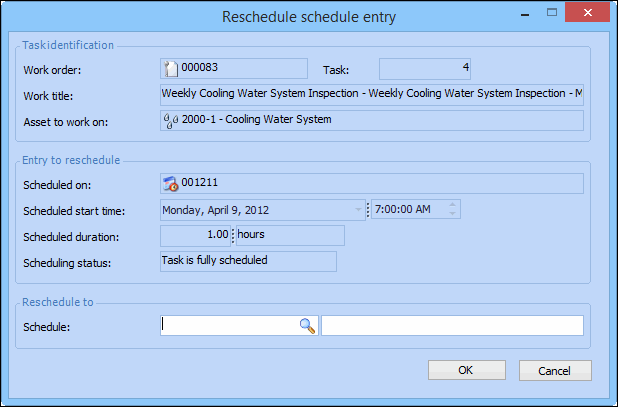
• To reschedule a single task, right-click the task and select Reschedule. The Reschedule Schedule Entry dialog appears.
• To reschedule two or more tasks, select the task entries (press and hold the Ctrl key while clicking the entries), right-click the selected entries and select Reschedule. The Reschedule Schedule Entry dialog appears.
6. To copy all of the selected entries to the new schedule, click OK. APM copies the entry to the selected schedule and reopens the Reschedule dialog. You can now select a schedule for the next entry.