Creating Relationships Between Schedule Entries

This topic explains how to create relationships between schedule entries. You can do this by entering the predecessor information for each entry. If the relationships were planned on the work order task, they will be copied to the schedule entry when the task is scheduled.

Relationship Types

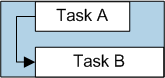
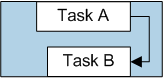
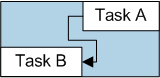
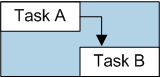
Four relationship types are available:

Lags and Overlaps

For each task relationship, you can enter a lag time. You can use lags to offset the start or completion date of two linked tasks. For example, if two tasks have a finish-to-start relationship with a four-hour lag, task B will start four hours after the completion time of task A.
You can also use lag time to overlap two tasks by entering a negative lag time. For example, to set task B to start four hours before task A is completed, link the tasks with a finish-to-start relationship, and enter a lag of “-4” hours.

To Create Schedule Entry Relationships
1.
2.
3.
Select the Worksheet view, Entries tab. By default, this tab displays a list of all scheduled tasks by work order and task.
4.
5.
Select the General tab, and then the Dependencies tab. The existing relationships are listed.
6.
Click New. The Scheduling Dependency Details dialog appears.
7.
On the General tab, enter the relationship details:
Finish-to-start (FS): The successor task cannot start until the predecessor is finished
Start-to-start (SS): The successor task cannot start until the predecessor starts
Finish-to-finish (FF): The successor task finishes at the same time as the predecessor
Start-to-finish (SF): The successor task finishes at the same time as the predecessor starts
8.
Click OK. The relationship is added to the schedule entry, and the system updates the schedule.
9.
10.