Creating a Request for Work from Scratch

A request for work identifies the tasks to be performed as a result of an asset inspection or report of a failure. Requests for work are created in APM and submitted to the external CMMS using interoperability services. When the CMMS is SAP, a notification or maintenance order is created or updated.
Once a request for work is submitted, its interop status is updated to “Ready to Send” and the request becomes read-only in APM. After the request is accepted, either an interop work request or an interop work order is added to, or updated in, APM with a link to the originating request for work.
There are several ways to create requests for work in APM. You can create them:
See Acknowledging Indicator Alarms with AWEIS
See Requesting Follow-up Work for an Indicator Reading
See Creating a Request for Work from a Checksheet
Requests for work can also be generated automatically in response to the following:
See Setting up Indicator States to Create Requests for Work.
See Setting up Follow-up Work Creation Settings.
See Setting up Site-Specific Work Types.
This topic explains the components of a request for work, interop statuses, and how to create a request for work from scratch. It explains:
It explains how:
Note: Mandatory and read-only properties on requests for work are determined by the site’s interoperability profile and the work type assigned to the request. This topic assumes that all properties are available.

Solution Packages

Requests for work can include preplanned tasks in the form of solution packages sent from the CMMS.
When you request a solution package trigger in a request for work, you are telling the CMMS to create a work order from the solution package. You can select one or more solution package levels, steps, and a cycle.
Or you can simply reference a solution package, rather than triggering one. This tells the CMMS that when the time comes to create the work order, it should be based on the solution package. You can add detailed information such as recommended tasks, labor requirements, and a description.
APM supports as many as four levels of solution packages, which you can name according to the requirements of your CMMS or organization. For example, solution package levels could be named Maintenance plan, Maintenance item, and Task list. Levels can be independent or subordinate to higher levels. For example, if Maintenance items (level 2) are subordinate, you must select a Maintenance plan (level 1) before Maintenance items are available for selection in a request for work.

Events or Failure Codes

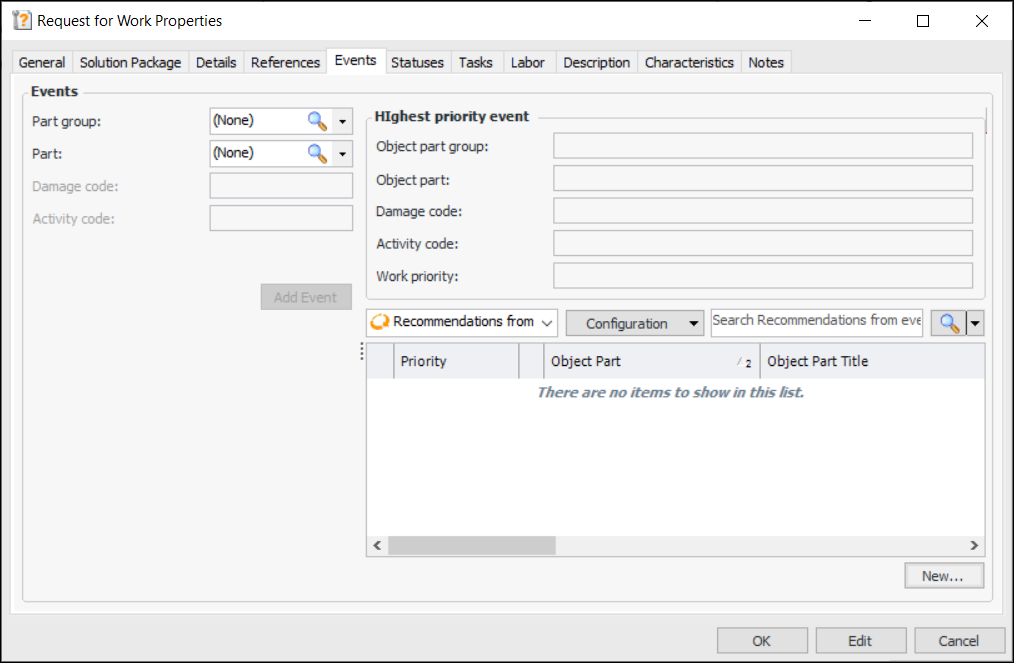
The Failure code type setting in the site interoperability profile determines whether events or failure codes are available in the request for work. If it is set to Object part, damage and activity codes, the Events tab appears in the Request for Work window.
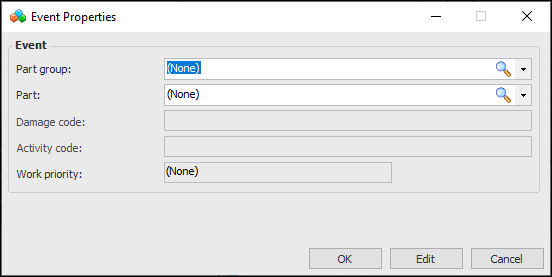
You can add one or more events that identify the problem the requested work is meant to correct. An event consists of up to four catalog codes: object part group, object part, damage code, and activity code. When you add more than one event, APM calculates the highest priority event by comparing the events’ work priorities, durations, and sequence numbers.
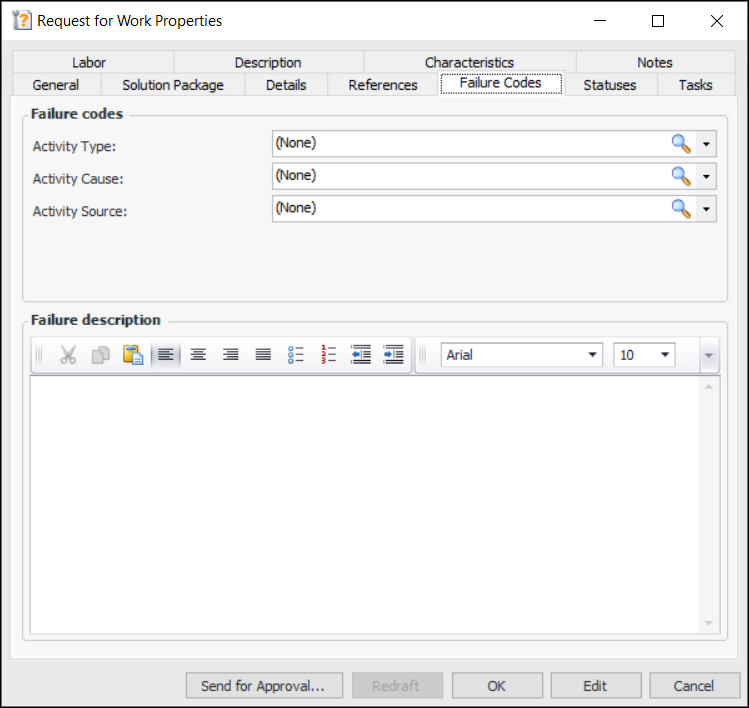
If Failure codes is selected in the site interoperability profile, the Failure Codes tab appears in the Request for Work window. You can select as many as five failure codes from those defined for your organization and enter a description.
Note: To use failure codes in APM, you must first enable feature 46. In the Enterprise window, select the Features view and the Enabled Features tab. Click Browse, select “Failure codes support with AssetWise Interoperability”, and click OK. If APM is running as a smart client, click Refresh Enabled Features. Then restart the client to use the functionality.

Breakdown Information

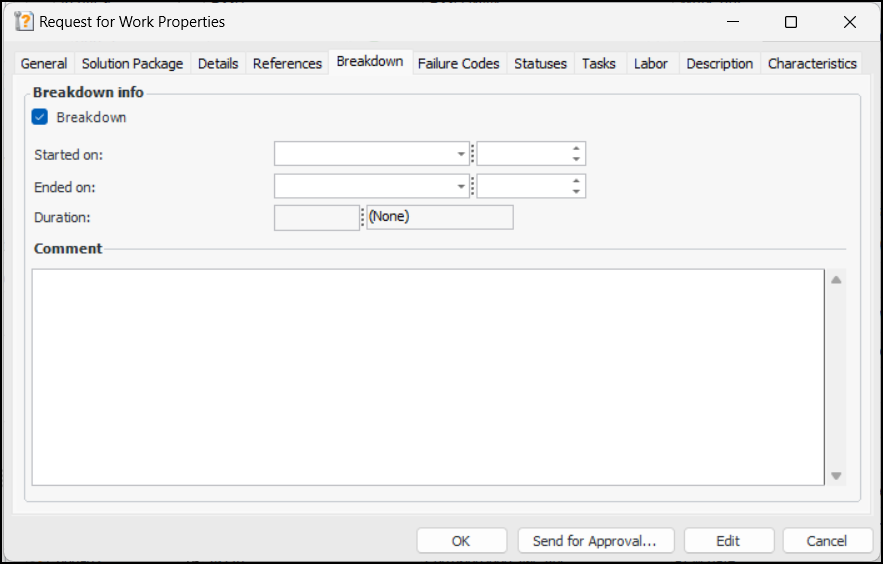
You can record that a breakdown occurred, its start and end dates (if available), and is description. This information is used in the CMMS to create breakdown flags and trigger work. Interop work requests and work orders sent to APM contain breakdown information.

Recommended Tasks

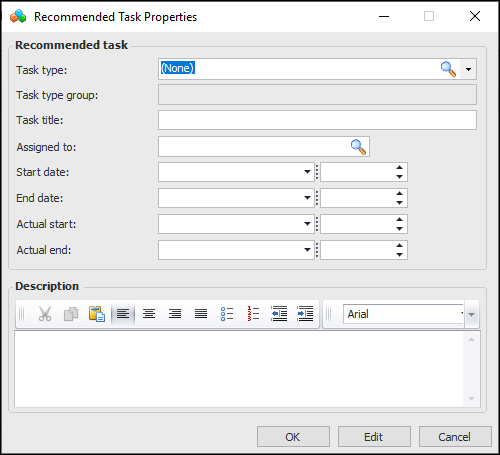
You can add recommended tasks to requests for work. A task is identified by its task type, task type group, and title. You can include a description, assign an employee, and set start and end dates.
Recommended tasks are added to the interop work request or interop work order that results from the request for work.

Labor Requirements

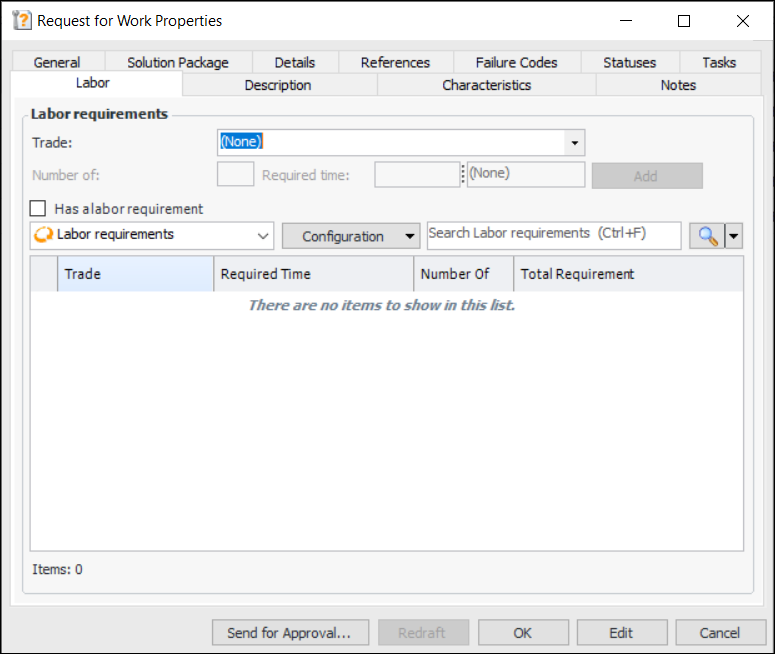
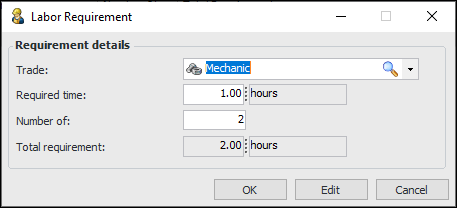
You can add labor requirements to the request for work. APM automatically calculates the total duration of effort for resources of the same trade. For example, three electricians for two hours each results in a total requirement of six hours.
Labor requirements are added to the interop work request or interop work order that results from the request for work.

Work Document Characteristics

The reference numbers that you enter on the References tab can appear in the Characteristics tab when the request has been submitted. When the external CMMS is SAP, the reference numbers are added to the notification. To prepare for creating requests for work, be sure to set up classification classes and map sets for work documents.
In some cases, AWEIS returns characteristic values from the CMMS to the interop work request or interop work order. Characteristic mapping is optional for these values.
For more information, see Setting up Characteristic Mapping for Interop Work Documents.

Interop Statuses and Resubmitting Requests

The interop status appears in the Request for Work Properties dialog, General tab.
A request for work can be edited when its status is New\Pending, Error, or Rejected. You can revise a request with the status Error or Rejected and then resubmit the request. Right-click the request in the Requests for Work tab and click Resubmit.

To Start the Request for Work

1.
On the Site window, select the Work Management view, Requests for Work tab.
2.
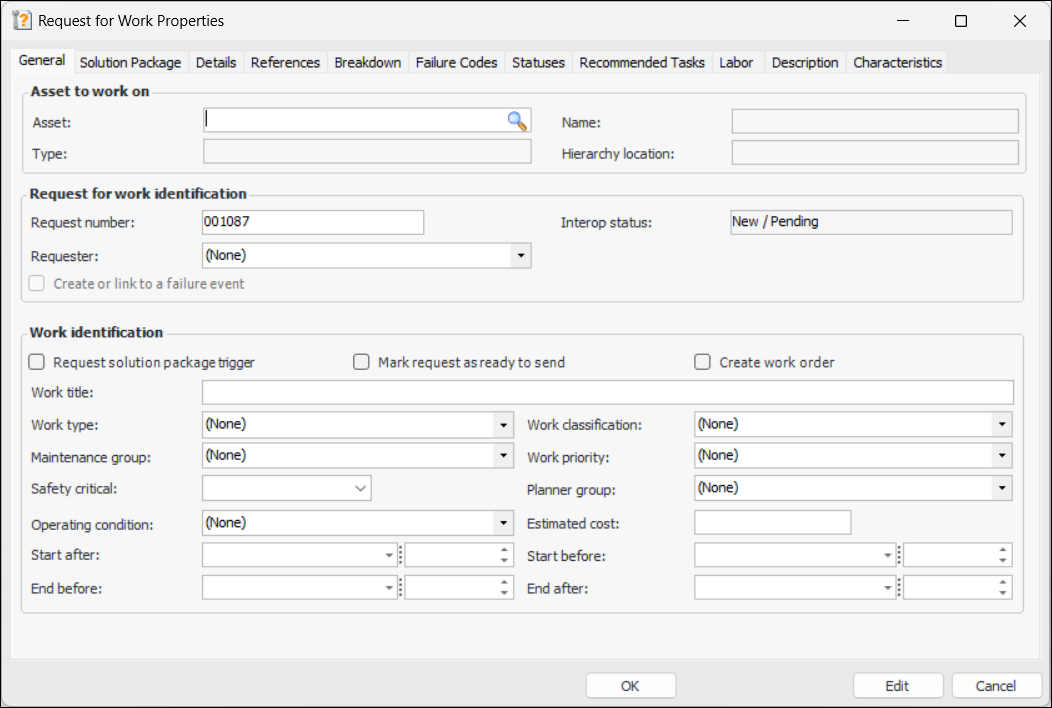
Click New. The Request for Work Properties dialog appears. For example:
3.
The asset’s name, asset type, and hierarchy location are displayed in the dialog.
4.
APM sets the interop status to “New/Pending”.
5.

To Add Work Information

1.
2.
Select start and end dates as appropriate. If the End before date is displayed, it is calculated using the request’s creation date plus the duration of the work priority’s “work to be completed within” setting.

To Add or Link to a Failure

1.
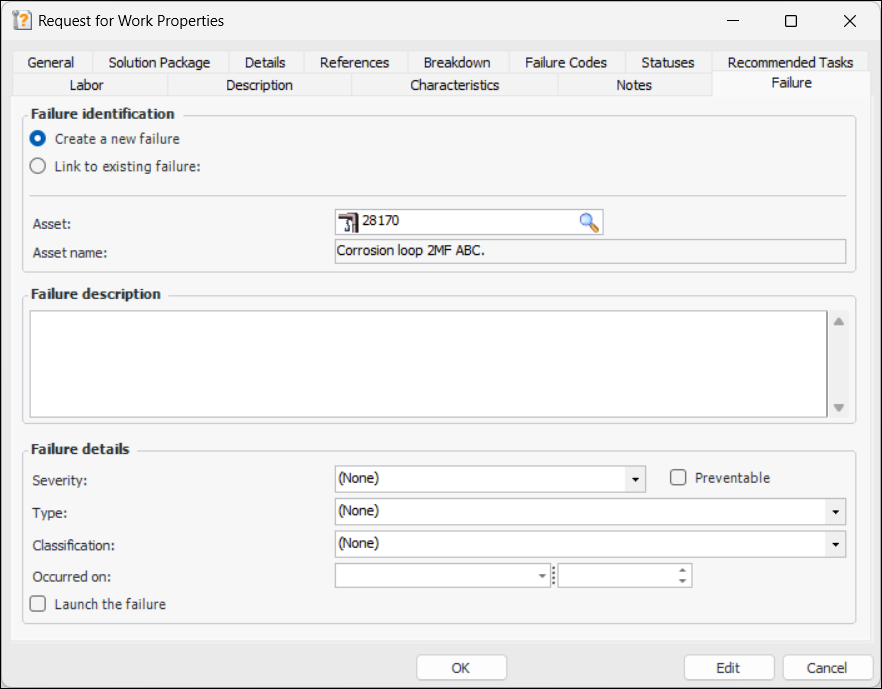
On the General tab, select Create or link to a failure event. This option is available if the work type’s site settings allow failure creation. The Failure tab is added to the window.
2.
Select the Failure tab.
3.
Select either Create a new failure or Link to existing failure.
4.
If you selected Link to existing failure, browse to select a failure from the Failure Selector dialog.
5.
If you selected Create a new failure, identify the asset.
6.
Add information to the Failure description box.
7.
8.
9.
10.
Select Preventable if you wish to indicate that the asset’s reliability program needs review.
11.
12.

To Add a Solution Package

1.
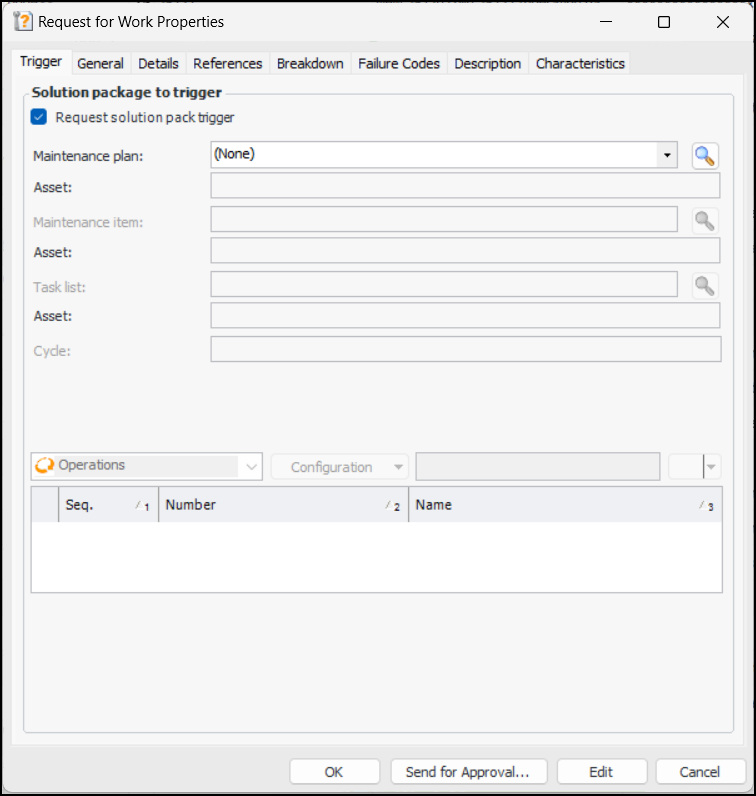
If you wish to trigger the solution package following the successful submission of the request for work, select Request solution package trigger on the General tab. The Trigger tab is added and the Solution Package, Statuses, Tasks, Labor, Description tabs are removed from the window.
This example is from an organization that uses three solution package levels named “Maintenance plan”, “Maintenance item”, and “Task list”. Maintenance item and task list are subordinate to the levels above them, so they are not available for selection until the level above is selected. Steps have been defined as “Operations” to identify the operations or tasks performed on the solution package.
Select the solution package level(s), cycle, and steps as needed.
2.
If you do not wish to trigger the solution package, select the Solution Package tab and select the solution package level(s), steps, and cycle, as needed.

To Enter Values for User Fields and Reference Numbers

1.
If your organization has defined user fields, the Details tab is available, where you can select the appropriate strings, dates, and options.
2.
If your organization has defined reference numbers, select the References tab to enter values. The tab can contain up to five text boxes where you can enter numbers specific to this request and your organization’s requirements.
Once the request has been submitted, the values are transferred to characteristic values to update the CMMS. The Characteristics tab is then populated with this information.

To Enter Breakdown Information

1.
Select the Breakdown tab and click Breakdown:
2.
3.

To Select Failure Codes

1.
If the site interoperability profile specifies failure codes, the Failure Codes tab appears in the window. This tab lists the failure codes that have been defined for your organization. For example:
2.
3.

To Add Events

1.
2.
3.
When you have selected the codes, click Add Event. APM adds the event to the “Recommendations from event” table and calculates the highest priority event.
Tip: You can open the Event Properties dialog for an event by double-clicking it in the table. You can also click New to create an event. For example:

To Select Secondary Statuses

1.
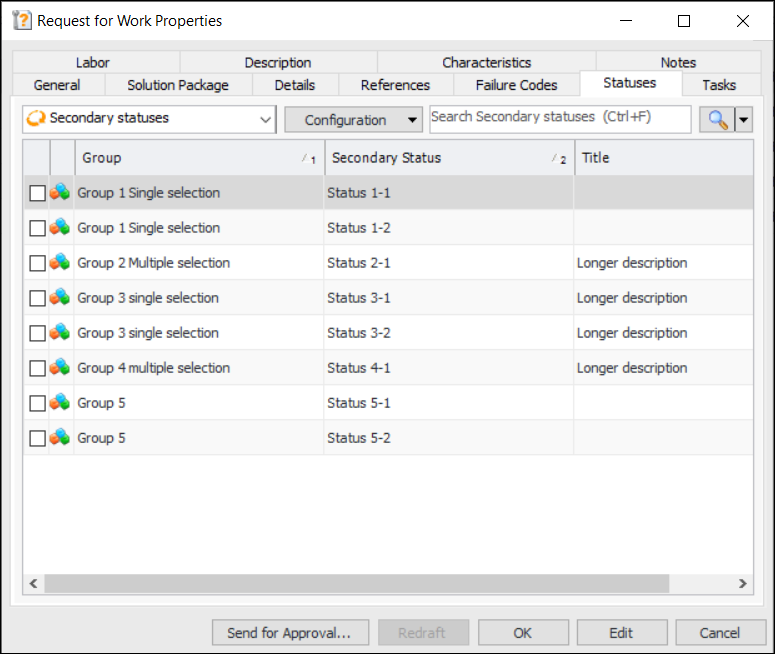
Select the Statuses tab. For example:
This tab displays the available secondary status codes.
2.

To Add Tasks and Labor Requirements

1.
Select the Recommended Tasks tab to add one or more recommended work steps to the request. Click New. The Recommended Task Properties dialog appears:
2.
When the request is submitted to the CMMS, recommended tasks are displayed in the resulting interop work request or interop work order.
3.
4.
5.
6.
7.
Click Add. The requirement is added to the table.
Tip: You can edit a labor requirement by double-clicking it in the table to open its dialog. Click Edit and make your changes. Click OK when you have finished.

To Complete the Request for Work
1.
Select the Description tab to add more information about the request for work.
2.
Click OK to save the request and close the window. The request is added to the Requests for Work tab.
Tip: You can select one or more requests in the Requests for Work tab, click the Selected list, and click Submit.
When the request has been submitted, you can return to the Request for Work Properties dialog and select the Characteristics tab. Information about the request is displayed in the Source and History tabs. Select the Work tab to view the linked interop work request or interop work order.