Setting up Indicator States to Create Requests for Work

When AssetWise Enterprise Interoperability (AWEIS) is active for the site, you can set up indicators so that requests for work can be created when a reading is taken that records a specific state. For example, a “Normal” reading might require that a work document be created with the reading. Or a request for work could be created automatically to acknowledge an alarm. In either case, you can provide default information to include in the work document.
This topic explains:

Requests for Work Created from Readings

On an indicator state, you can specify that a request for work be created from the indicator reading using default information provided in the state. This functionality is available for alarm states and non-alarm states when the creation of work documents is allowed.
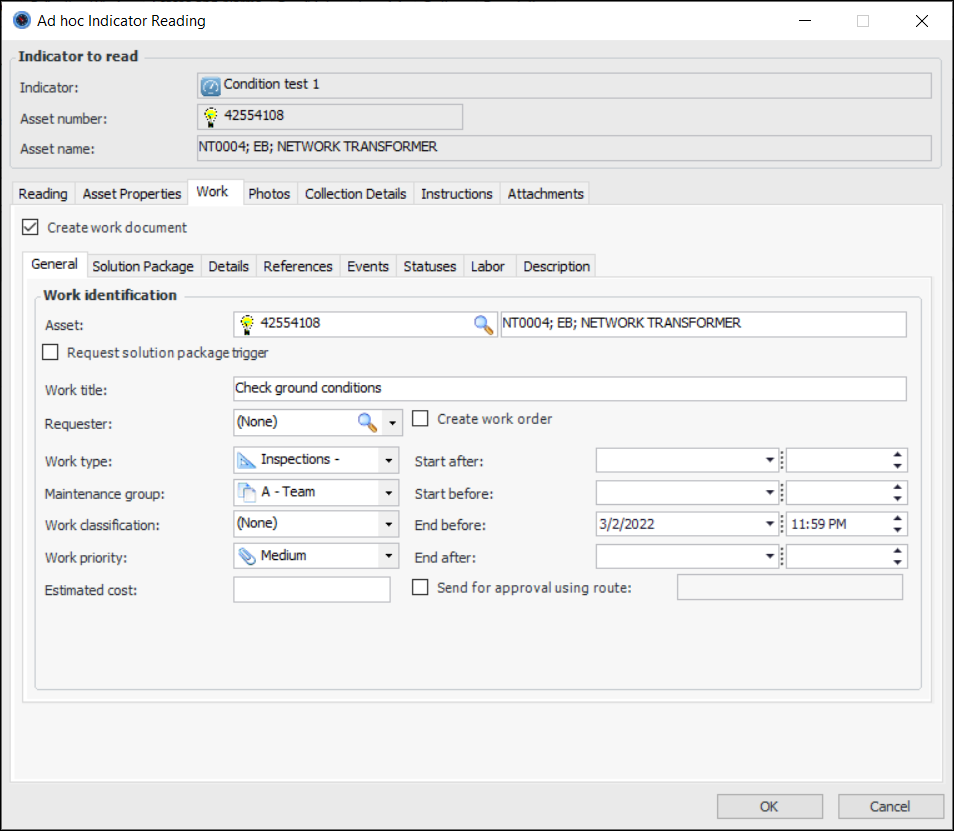
When the indicator state requires it, the Work tab is available in the Indicator Reading window. If a work document is mandatory (on a non-alarm state), Create work document is selected and read-only. Default information from the indicator state’s default work document info and the default solution package is displayed. For example:
For information about adding solution packages to a request for work, see Creating a Request for Work from Scratch.
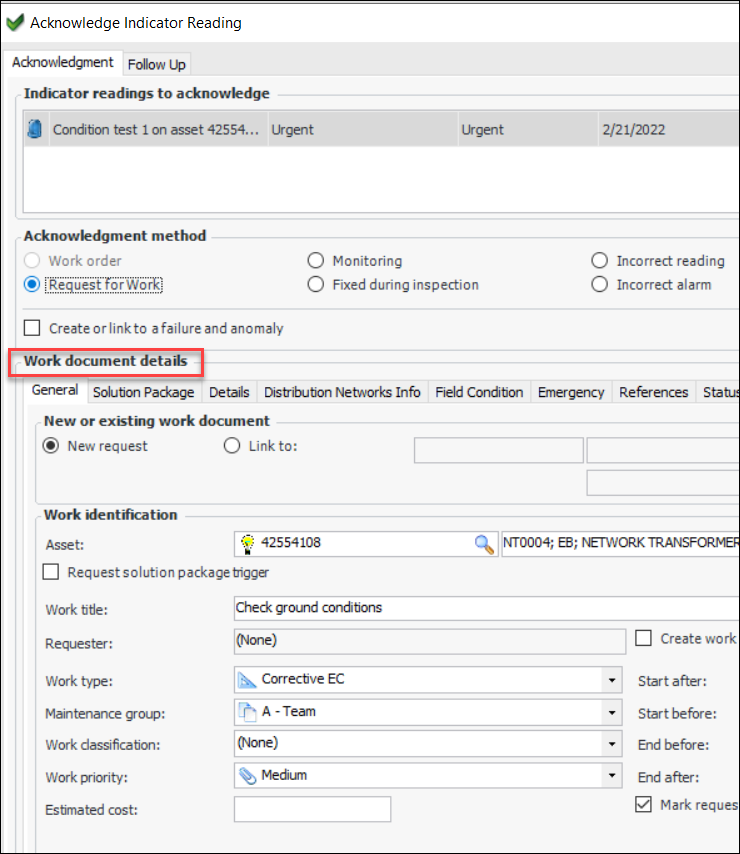
When you are acknowledging an alarm, the Acknowledgment tab displays the Work document details area, which shows the default information for the request for work. For example:

Automatic Alarm Acknowledgments

Indicator alarms can be acknowledged automatically with a request for work. This is handy, for example, when standard work must be performed whenever an asset is reported in a particular state.
When the indicator reading is processed, APM does the following:
Subsequent readings that trigger the same alarm are automatically acknowledged if the work is not complete. A second request for work is not sent.

Conditional Indicator Readings

A conditional indicator reading is added to a checksheet when an alarm reading has already been recorded and the indicator’s alarm state specifies a conditional indicator list. Readings are added for the conditional indicators so that additional checks or readings can be recorded on the checksheet.

To Set Work Document Options on an Indicator State

1.
2.
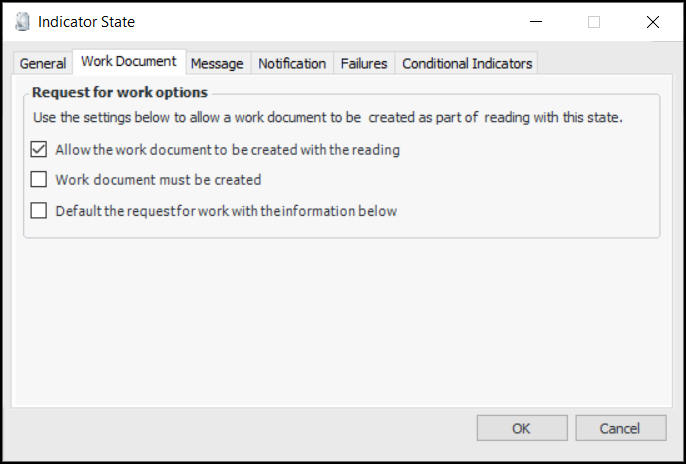
Double-click the state to open the Indicator State window. Select the Work Document tab and click Allow the work document to be created with the reading. For example:
3.
Work document must be created is only available on non-alarm states. When it is selected, Create work document is selected and read-only in indicator readings.
4.
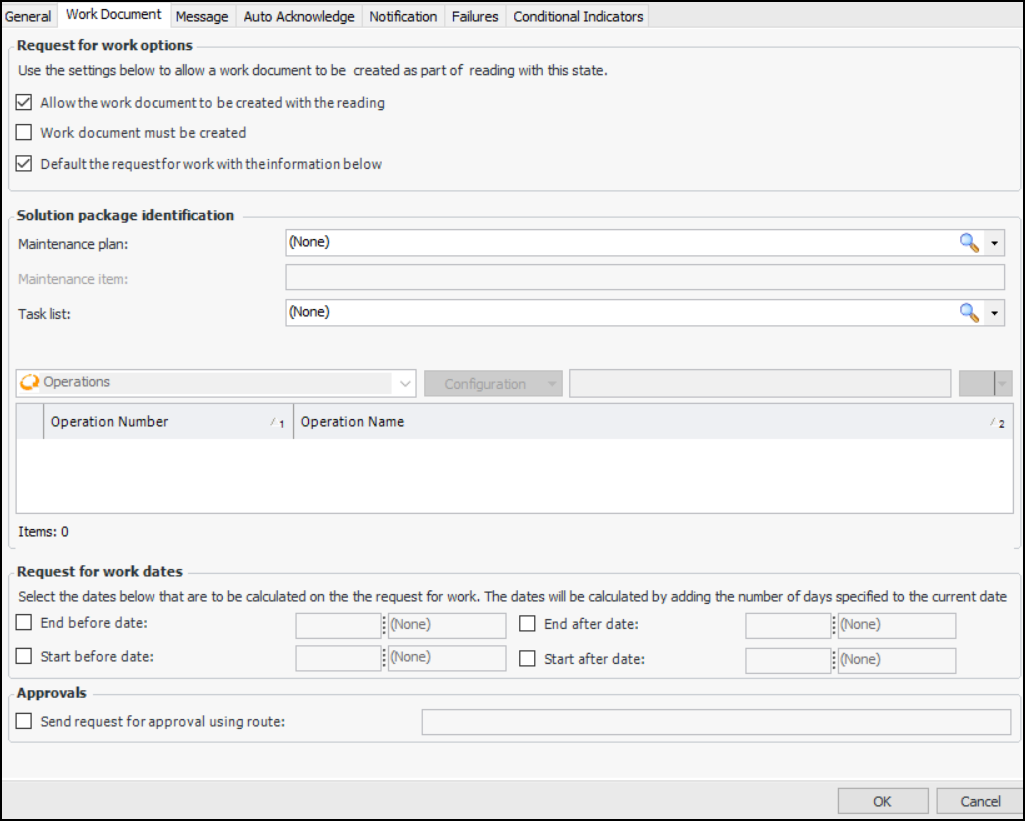
Select Default the request for work with the information below. The tab changes as follows:
This example is from an organization that uses three solution package levels named “Maintenance plan”, “Maintenance item”, and “Task list”. Maintenance item and task list are subordinate to the levels above them, so they are not available for selection until the level above is selected. Steps have been defined as “Operations” to describe the tasks performed on the solution package.
5.
6.
In the Request for work dates area, set options to calculate end and start dates.
7.
8.

To Set up Automatic Acknowledgment with Request for Work

1.
2.
3.
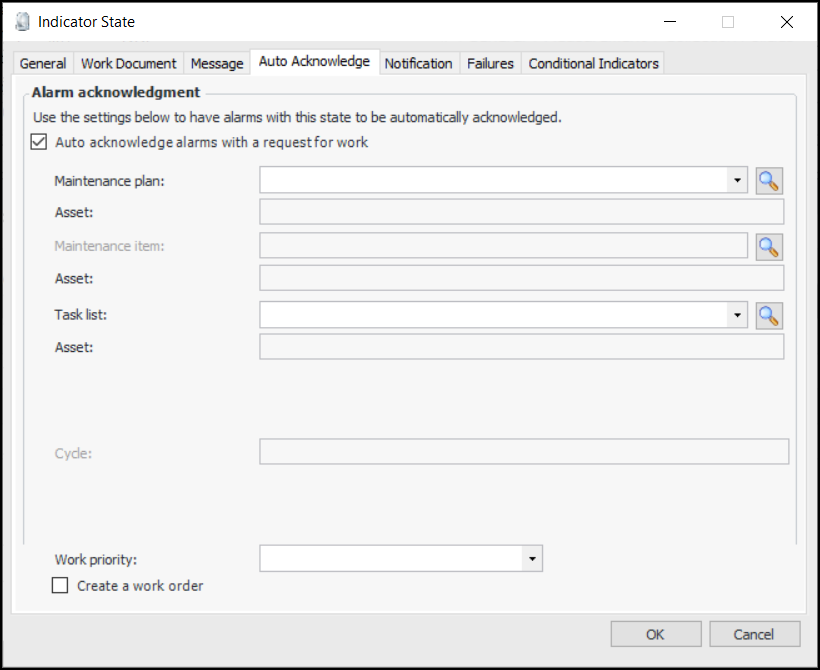
Click Auto acknowledge alarms with a request for work. For example:
This example is from an organization that uses three solution package levels named “Maintenance plan”, “Maintenance item”, and “Task list”. Maintenance item and task list are subordinate to the levels above them, so they are not available for selection until the level above is selected. Steps have been defined as “Operations” to describe the tasks performed on the solution package.
4.
Select Create a work order if appropriate. As a result, an interop work order is created and sent to APM. Otherwise, an interop work request is returned.

To Add Conditional Indicators

1.
2.
3.
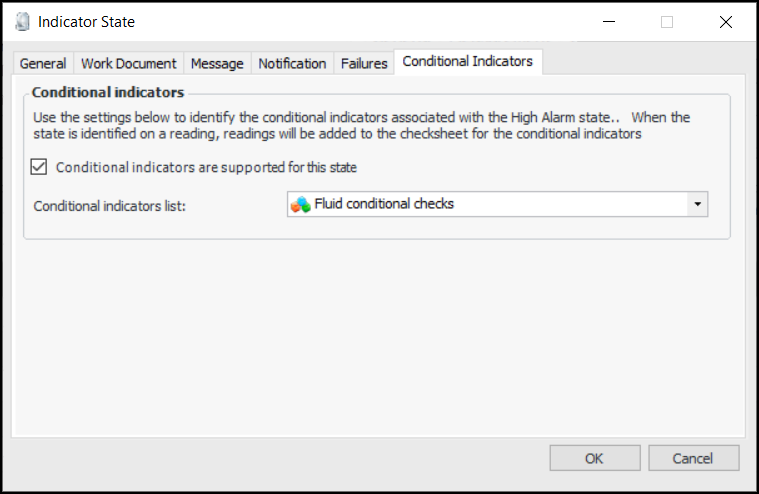
Click Conditional indicators are supported for this state.
4.
Select a list in the Conditional indicators list. For example:
5.