Acknowledging Indicator Alarms with AWEIS

When AssetWise Enterprise Interoperability (AWEIS) is active for the site, you can acknowledge indicator alarms using the following methods:
Note: One or more of these acknowledgment methods might be unavailable if they have been turned off in the site’s indicator settings (acknowledgment policies).
When you acknowledge the warning or alarm, you are asked to record any notes about the problem. Your name and the date and time when the acknowledgment took place are also recorded. Once the alarm is acknowledged, APM turns off the alarm notification on the indicator and on the asset (if applicable).
When you acknowledge an alarm with a request for work, the document’s description includes the collection note from the primary indicator reading and the acknowledgment notes.
Tip: After creating an acknowledgment, you can view information about it in the site’s Inspection Management view, Readings tab, Acknowledgments tab. This tab lists the acknowledgments by date and includes columns for asset, indicator, reading date, indicator state, acknowledgment method, and status. Double-click an acknowledgment to open its dialog.
This topic explains components of alarm acknowledgments and requests for work, as well as how to create an acknowledgment. It explains:
It explains how:

Follow-up Readings

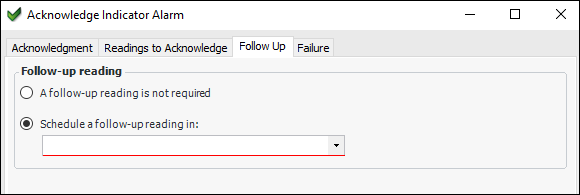
When you acknowledge an alarm or warning, you can specify that a follow-up reading is required and a time limit (for example, 10 days). If the indicator’s collection policy allows it, the indicator’s next reading due date is based on the acknowledgment date plus the follow-up time period.

Failure Tracking

If failure tracking is set up in your environment, a failure record can be created automatically when you acknowledge an alarm with a work document, by monitoring, or with the “fixed during inspection” flag. When acknowledging the alarm, you can provide information about the failure, for example, its severity and description.
For more information, see Creating a Failure to Acknowledge an Alarm with AWEIS.
Settings in the site interoperability profile determine whether failure records can be created from requests for work.

Escalation and Automatic Acknowledgment of Alarms

Your site can use more than one alarm type with different levels of seriousness, such as warning, alarm, and critical. If this is the case, APM notifies users when an indicator has moved from a less serious alarm state (warning) to a more serious alarm state (alarm or critical).
When you acknowledge an alarm by creating a request for work, if another reading is then entered for the indicator that creates an alarm state, the system does the following:
For example, a temperature indicator might have a warning flag that a user acknowledged by creating a request for work. As long as indicator readings come in that are within the warning range, APM does not ask users to re-acknowledge the warning. However, if the readings cross over into the alarm range, APM uses the alarm notification feature to warn users of the more serious alarm.
For all other acknowledgment methods, the alarm is turned on again when a new reading is entered that creates an alarm state.

Most Recent Reading or Most Severe Unacknowledged Alarm

The acknowledgment policies for the site determine whether the alarm state of an indicator reflects the alarm state of its most recent reading or that of its most severe unacknowledged alarm.
For more information, see Setting Acknowledgment Policies.

Solution Packages

Requests for work can include preplanned tasks in the form of solution packages sent from the CMMS.
When you request a solution package trigger in a request for work, you are telling the CMMS to create a work order from the solution package. You can select one or more solution package levels, steps, and a cycle.
Or you can simply reference a solution package, rather than triggering one. This tells the CMMS that when the time comes to create the work order, it should be based on the solution package. You can add detailed information such as recommended tasks, labor requirements, and a description.
APM supports as many as four levels of solution packages, which you can name according to the requirements of your CMMS or organization. For example, solution package levels could be named Maintenance plan, Maintenance item, and Task list. Levels can be independent or subordinate to higher levels. For example, if Maintenance items (level 2) are subordinate, you must select a Maintenance plan (level 1) before Maintenance items are available for selection in a request for work.

Events or Failure Codes

The Failure code type setting in the site interoperability profile determines whether events or failure codes are available in the request for work. If it is set to Object part, damage and activity codes, the Events tab appears in the Acknowledge Indicator Alarm window.
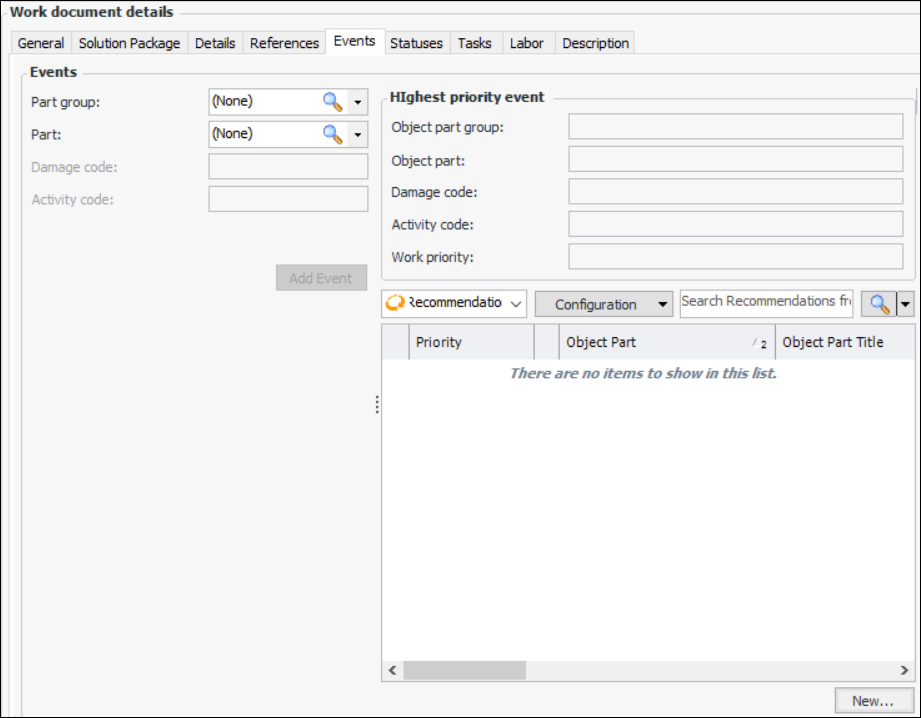
You can add one or more events that identify the problem the requested work is meant to correct. An event consists of up to four catalog codes: object part group, object part, damage code, and activity code. When you add more than one event, APM calculates the highest priority event by comparing the events’ work priorities, durations, and sequence numbers.
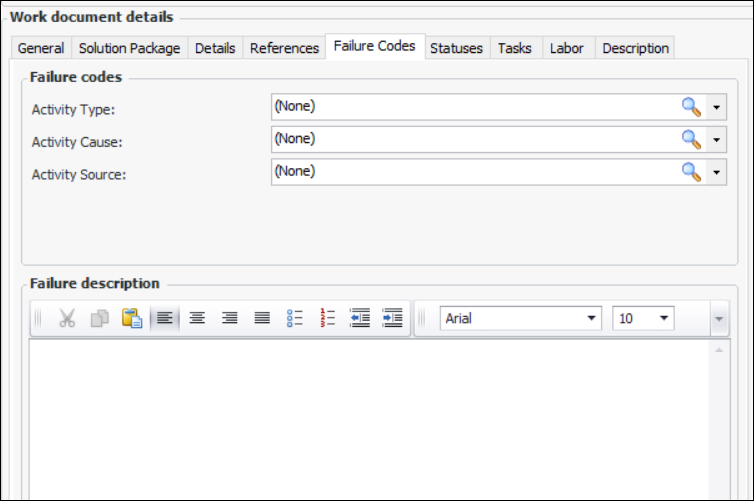
If Failure codes is selected in the site interoperability profile, the Failure Codes tab appears in the Acknowledge Indicator Alarm window. You can select as many as five failure codes from those defined for your organization and enter a description.
Note: To use failure codes in APM, you must first enable feature 46. In the Enterprise window, select the Features view and the Enabled Features tab. Click Browse, select “Failure codes support with AssetWise Interoperability”, and click OK. If APM is running as a smart client, click Refresh Enabled Features. Then restart the client to use the functionality.

Breakdown Information

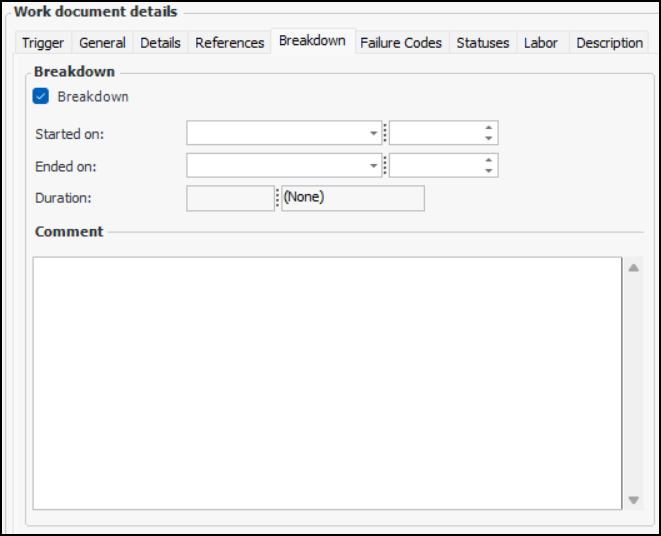
You can record that a breakdown occurred, its start and end dates (if available), and is description. This information is used in the CMMS to create breakdown flags and trigger work. Interop work requests and work orders sent to APM contain breakdown information.

Recommended Tasks

You can add recommended tasks to requests for work. A task is identified by its task type, task type group, and title. You can include a description, assign an employee, and set start and end dates.
Recommended tasks are added to the interop work request or interop work order that results from the request for work.

Labor Requirements

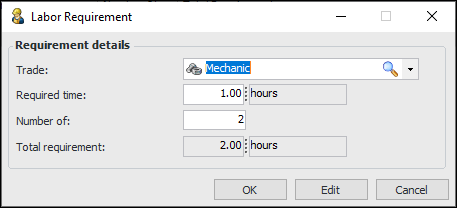
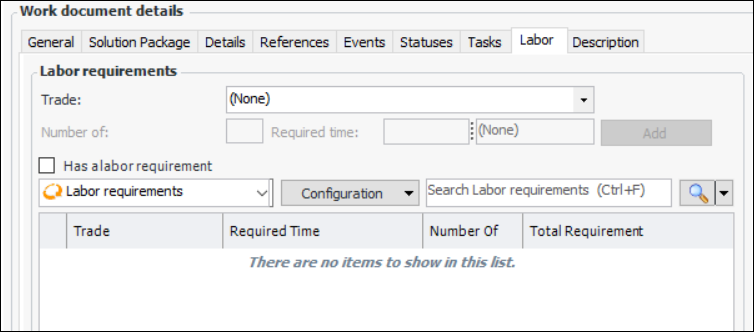
You can add labor requirements to the request for work. APM automatically calculates the total duration of effort for resources of the same trade. For example, three electricians for two hours each results in a total requirement of six hours.
Labor requirements are added to the interop work request or interop work order that results from the request for work.

Work Document Characteristics

The reference numbers that you enter on the References tab can appear in the Characteristics tab when the request has been submitted. When the external CMMS is SAP, the reference numbers are added to the notification. To prepare for creating requests for work, be sure to set up classification classes and map sets for work documents.
In some cases, AWEIS returns characteristic values from the CMMS to the interop work request or interop work order. Characteristic mapping is optional for these values.
For more information, see Setting up Characteristic Mapping for Interop Work Documents.

To Start the Acknowledgment

1.
Locate the indicator in the site’s or asset’s Inspection Management view. Select the Indicators tab, By Asset Hierarchy tab. In the list of configurations, select “Indicators currently in alarm”. The indicator’s warning or alarm state is signaled with a flashing icon.
Tip: You can also acknowledge an alarm from these locations:
Indicator window – Select the Readings view and tab. Select the reading in the table and click Acknowledge Alarm
Inspection Report window – Select the Inspection Report view, Readings tab. Select the reading in the table and click Acknowledge
2.
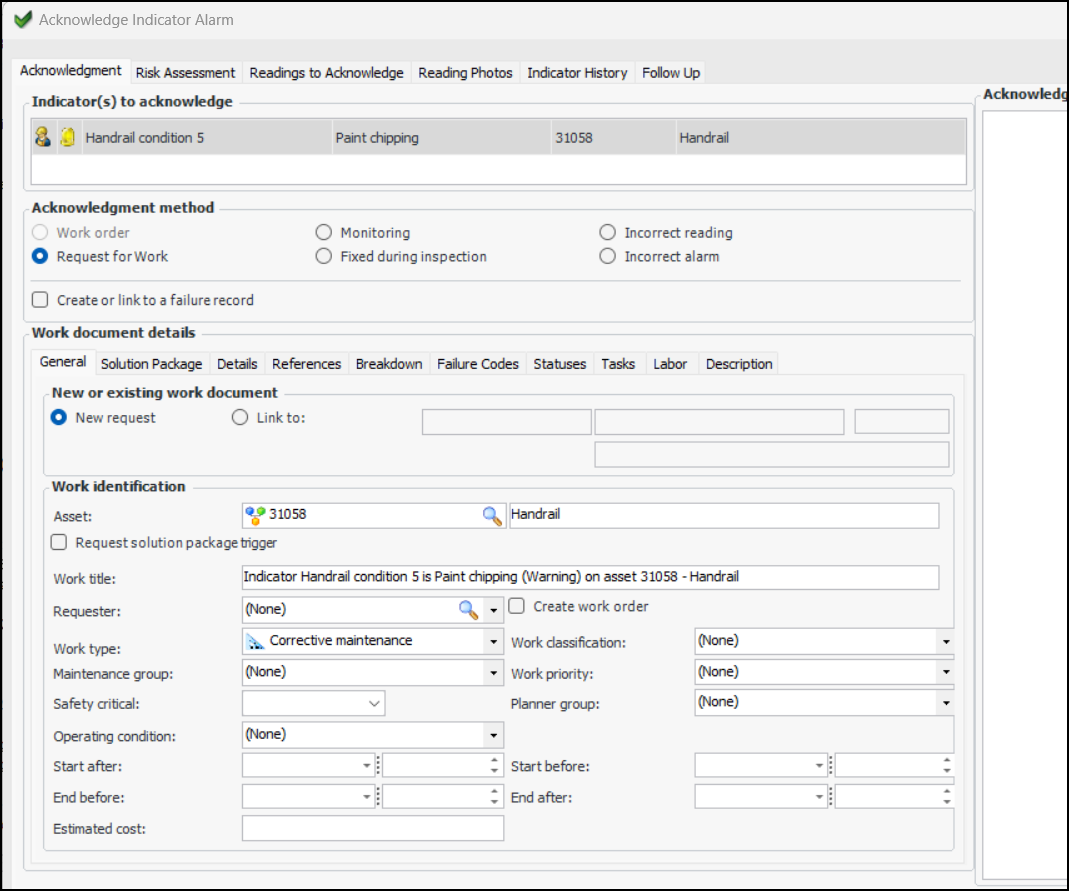
Right-click the indicator and click Acknowledge Alarm. The Acknowledge Indicator Alarm dialog appears. For example:
3.
The Indicator(s) to acknowledge table lists the alarm to be acknowledged. If your site uses the most “severe unacknowledged alarm” policy, the most severe alarm is shown in this table. Select the Readings to Acknowledge tab to view all unacknowledged alarms for the indicator. By default, all of the alarms are selected.
Tip: You can acknowledge an alarm individually by selecting it, returning to the Acknowledgment tab and continuing with the following steps. The alarms that you did not acknowledge remain in affect until they are acknowledged.
4.
Request for Work: Create or link to an existing request for work
Monitoring: Indicates that the indicator will be monitored
Fixed during inspection: Stating that the problem that caused the alarm was fixed during inspection
Incorrect reading: Stating that the indicator reading was incorrect
Incorrect alarm: Stating that the alarm settings were incorrect and an inappropriate alarm was triggered
5.
The site’s indicator settings (acknowledgment policies) can specify that the default behavior is to create a failure when an alarm is acknowledged with the selected method. In this case, Create or link to a failure and anomaly is selected and the Failure tab appears in the Acknowledge Indicator Alarm dialog. If this option is not selected, you can click it to show the Failure tab and link the acknowledgment to a new or existing failure record. For more information, see Creating a Failure to Acknowledge an Alarm with AWEIS.
6.
Note: To acknowledge an alarm with an existing work document, you must first enable feature 49. In the Enterprise window, select the Features view and the Enabled Features tab. Click Browse, select “Ability to link an acknowledgment to an existing work document with AssetWise Interoperability”, and click OK. If APM is running as a smart client, click Refresh Enabled Features on the server. Then restart the client to use the functionality.
7.
On the General tab, the indicator asset is selected by default. You can browse for another asset, if appropriate. The asset must be (or be descended from) an interop asset, which means that there is a corresponding object in the CMMS. The asset can be the descendant of an interop asset in the site’s physical hierarchy.

To Add Work Information

1.
2.
Select start and end dates as appropriate. If the End before date is displayed, it is calculated using the request’s creation date plus the duration of the work priority’s “work to be completed within” setting.

To Add a Solution Package

1.
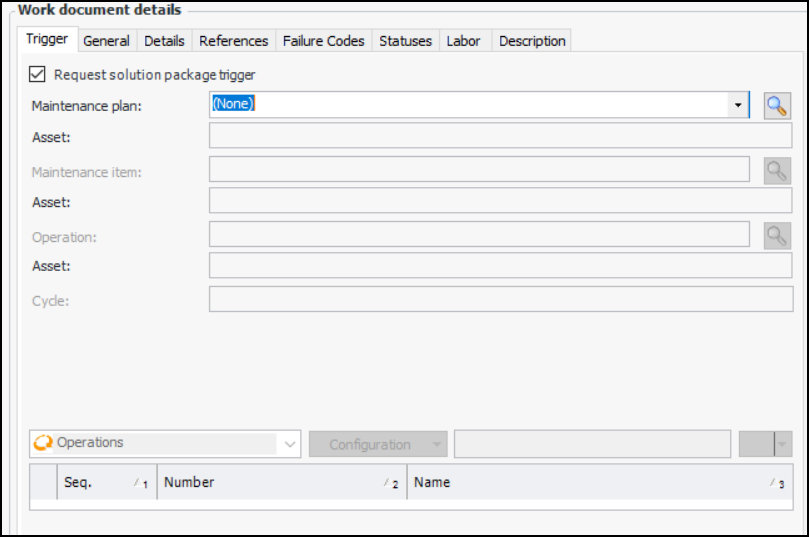
If you wish to trigger the solution package following the successful submission of the request for work, select Request solution package trigger on the General tab. The Trigger tab is added and the Solution Package, Statuses, Tasks, Labor, Description tabs are removed from the window.
This example is from an organization that uses three solution package levels named “Maintenance plan”, “Maintenance item”, and “Operation”. Maintenance item and operation are subordinate to the levels above them, so they are not available for selection until the level above is selected.
Select the solution package level(s) and cycle, as needed. The lists can be limited to solution packages linked to the current indicator.
2.
If you do not wish to trigger the solution package, select the Solution Package tab and select the solution package level(s) and cycle, as needed.

To Enter Values for User Fields and Reference Numbers

1.
If your organization has defined user fields, the Details tab is available, where you can select the appropriate strings, dates, and options.
2.
If your organization has defined reference numbers, select the References tab to enter values. The tab can contain up to five text boxes where you can enter numbers specific to this request and your organization’s requirements.

To Enter Breakdown Information

1.
Select the Breakdown tab and click Breakdown:
2.
3.

To Select Failure Codes

1.
If the site interoperability profile specifies failure codes, the Failure Codes tab appears in the window. This tab lists the failure codes that have been defined for your organization. For example:
2.
3.

To Add Events

1.
2.
3.
When you have selected the codes, click Add Event. APM adds the event to the “Recommendations from event” table and calculates the highest priority event.
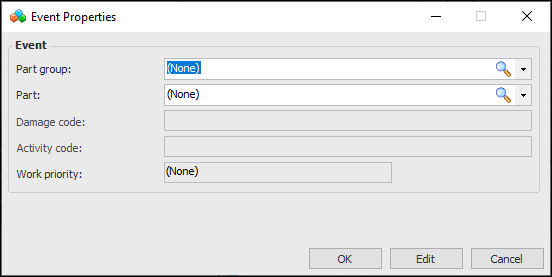
Tip: You can open the Event Properties dialog for an event by double-clicking it in the table. You can also click New to create an event. For example:

To Select Secondary Statuses

1.
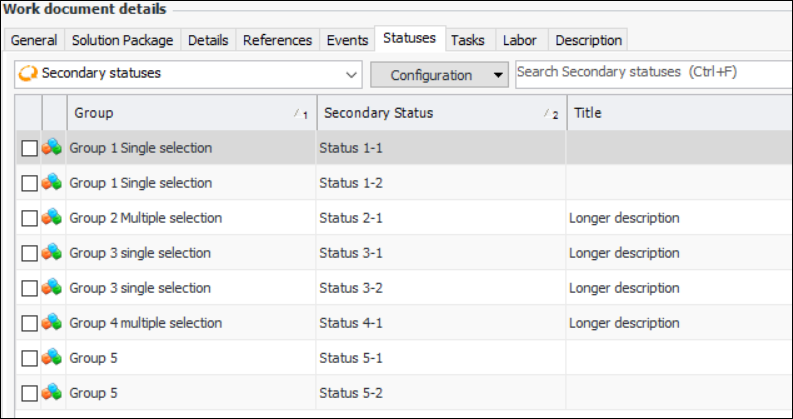
Select the Statuses tab. For example:
This tab displays the available secondary status codes.
2.

To Add Tasks and Labor Requirements

1.
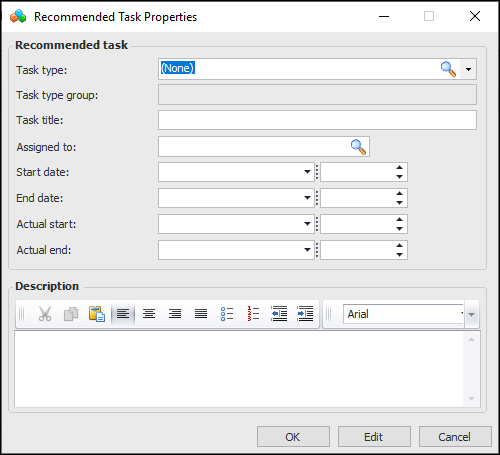
Select the Recommended Tasks tab to add one or more recommended work steps to the request. Click New. The Recommended Task Properties dialog appears:
2.
When the request is submitted to the CMMS, recommended tasks are displayed in the resulting interop work request or interop work order.
3.
4.
5.
6.
7.
Click Add. The requirement is added to the table.
Tip: You can edit a labor requirement by double-clicking it in the table to open its dialog. Click Edit and make your changes. Click OK when you have finished.

To Request a Follow-up Reading

1.
If you wish to request a follow-up reading, select the Follow Up tab and select Schedule a follow-up reading.
Select a time period from the Follow up reading is required in list. The indicator’s collection due date changes to the date of the acknowledgment plus the follow-up time.
Tip: To view the next collection due date in the Indicator window, select the Readings view and the Next Reading tab.

To Complete the Acknowledgment
1.
Enter your notes in the Acknowledgment comments box.
2.
Click OK. APM closes the dialog, creates the required objects, and turns off the warning or alarm on the indicator.
Tip: The request for work is listed in the Indicator Reading and Acknowledgment windows, as well as in the asset’s and site’s Work Management view.
3.
Open the Request for Work Properties window to review it. You can select the Source tab to view the acknowledgment and indicator reading.
Tip: You can click Submit from the Request for Work Properties dialog to release the document to AWEIS. Or you can select one or more requests in the Requests for Work tab and click Submit.
When the request has been submitted, you can return to the Request for Work Properties dialog and select the Characteristics tab. Information about the request is displayed in the Source and History tabs. Select the Work tab to view the linked interop work request or interop work order.