Receiving Assets

You can transfer assets from one site to another using an asset transfer document. An asset transfer document, like other documents in APM, has a life cycle. When you create it, you can send it for approval. When the document has been approved, you can transfer the assets. When you perform the transfer, ownership of the assets changes from your site to the in-transit site. When the assets arrive at the receiving site, the receiver marks them as received, changing ownership from the in-transit site to the receiving site.
While you can review the asset transfer document at any time, assets should not be received in APM until the assets have been physically received at your site.

To Receive Assets

1.
On the Site window for the receiving site, select the Assets view, Utilities tab, and then the Transfers To tab.
2.
3.
4.
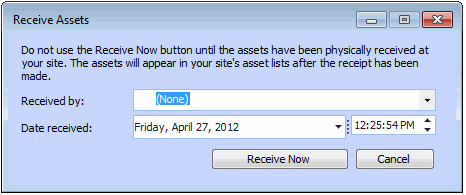
Click Receive Now. When the receipt has been processed, APM displays a message saying the assets have been received.
5.
Click OK.
Note: If your site has a “spares” asset (an asset that is the automatic parent for spare components), the transferred assets are child assets of the spares asset in the physical hierarchy. If your site does not have a “spares” asset, the transferred assets are not in the hierarchy. You can view them on the Assets view, Listing tab.