Creating an Asset Transfer Document

You can transfer assets from one site to another. To do this, create an asset transfer document.
An asset transfer document, like other documents in APM, has a life cycle. When you create it, you can send it for approval. When the document has been approved, you can transfer the assets. When you perform the transfer, ownership of the assets changes from your site to the in-transit site. When the assets arrive at the receiving site, the receiver marks them as received, changing ownership from the in-transit site to the receiving site. When you transfer assets, their failure records are transferred with them.
Only maintainable, system, sub system, and component assets can be selected for transfer. If you select an asset that has child assets (such as the top asset for an assembly with component locations and components), all of the child assets will be transferred as well.
The same modules must be active on the transfer and receiving sites:
If the receiving site does not use compatible modules, it is not available in the list of target sites when you create the asset transfer document.
When you transfer assets, APM also transfers the standard tasks and standard jobs for the assets. Because standard tasks and jobs can only refer to assets within one site, if the standard tasks and jobs point to assets that you are not transferring, APM cannot transfer the assets. When the asset transfer document is created, you can verify that the assets are valid to be transferred using the Verify Assets feature. APM checks the reliability program for the assets and tells you if there are any problems with the transfer. If necessary, you can then update the standard tasks and standard jobs so that they point to the correct assets.
Work orders and work requests that are transferred with the asset cannot be re-opened on the new site.
For transferred assets, APM maintains separate costs for each site to accurately reflect differences between site currencies.

Transferring Serialized Resource Units

Transferring a serialized asset transfers both the asset and its serialized unit record. When the serialized asset is transferred, it is moved from its current site to the in-transit site and the serialized resource unit is moved to its new warehouse with a status of in-transit. They remain as such until the asset transfer is received.
To provide an audit trail of the unit’s warehouse change, the system creates a transfer-type resource transaction for each unit affected by the transfer.
APM checks the following conditions before transferring assets:
A serialized resource unit that is transferred as part of an asset transfer is tracked as in-transit, the same as warehouse transfers.
Note: You cannot transfer a serialized asset to a site with a different site currency. If you want to do so, you must first remove the link between the asset and the serialized resource unit. After transferring the asset, link the asset to a unit at the new site.

To Create a New Asset Transfer Document
1.
On the Site window, select the Assets view, Utilities tab and then the Transfers From tab.
2.
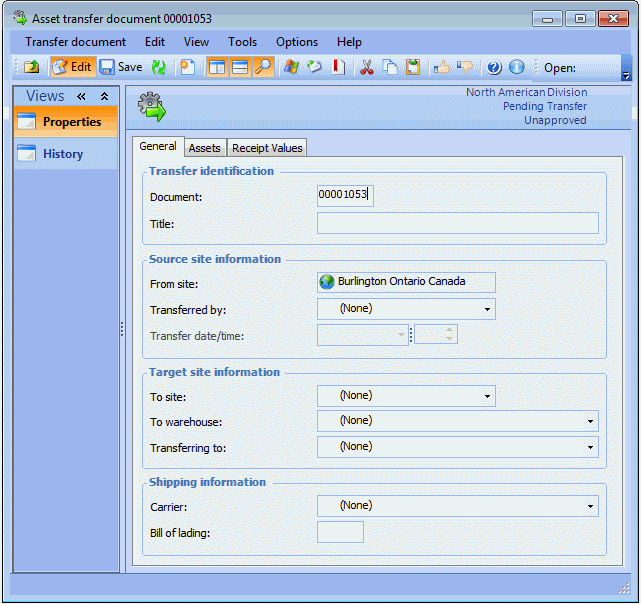
Click New. The Asset Transfer Document window appears, open to the General tab.
3.
4.
5.
If appropriate, enter the Carrier and Bill of lading for the assets.
6.
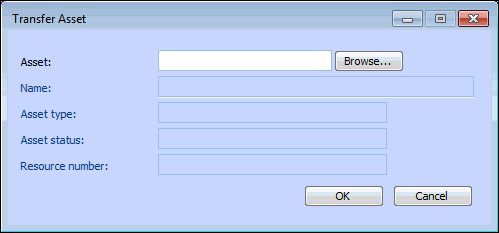
Select the Assets tab, and then click New. The Transfer Asset dialog appears.
7.
Click Browse to select an asset to transfer. The Asset Selector dialog appears.
8.
Select the asset you want to transfer and click OK. You can only transfer maintainable, system, sub system, or component assets that are owned by your site.
9.
Click OK to accept the asset and close the Transfer Asset dialog.
10.
Repeat steps 6 to 9 for every asset that you want to transfer on this document.
11.
Click Verify Assets. APM verifies if the assets can be transferred. If there are any issues with the transfer, a warning message appears. If there are no issues, APM displays a message confirming the assets can be transferred.
12.
The transfer document appears in the Transfers From tab with the transfer status “Pending Transfer”.
If your site settings do not require that asset transfers be approved, the document’s approval status is “Approval not required”. However, if approval is required, the approval status is “Unapproved”, and you can send the transfer document for approval. For more information, see Sending a Document for Approval.
When the transfer document’s approval status is either “Approval not required” or “Approved”, you can transfer the asset. For more information, see Transferring Assets.