|
Creating an Asset Restoration Plan from Scratch
For information about starting with the condition analysis and creating or linking to a restoration plan, see Creating an Asset Restoration Plan from an ACA.To Create an Asset Restoration Plan from Scratch
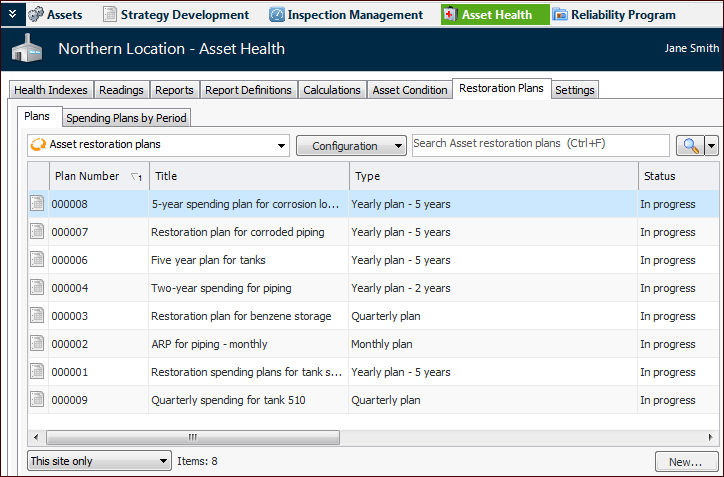
1. Select the Asset Health view on the Site or Asset window and then the Restoration Plans tab. This tab lists existing plans, for example:
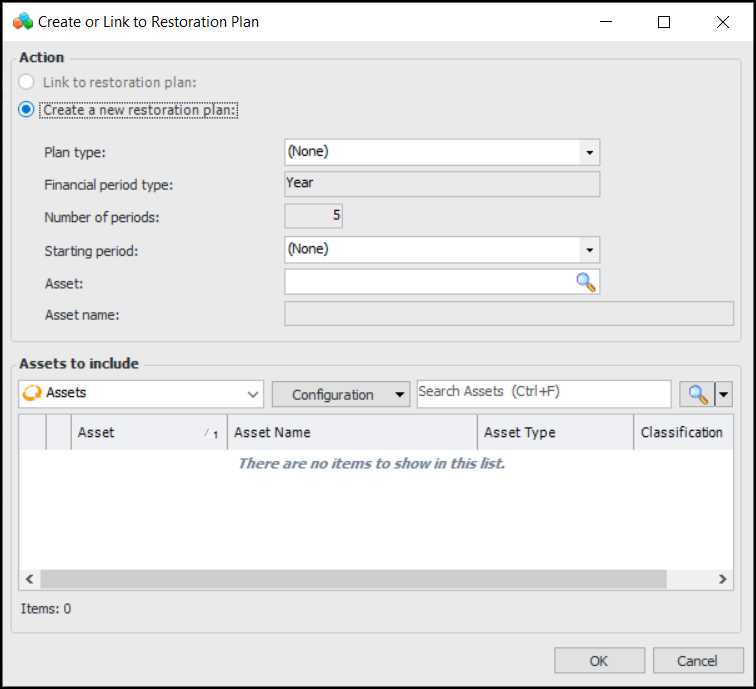
2. Click New. The Create or Link to Restoration Plan dialog appears:
4. In the Starting period list, select the first year, quarter, or month in the restoration plan.
5. Select the appropriate high-level asset. The Assets to include table is populated with the asset and its descendants.
6. In the Assets to include table, select the assets to include in the plan.
7.
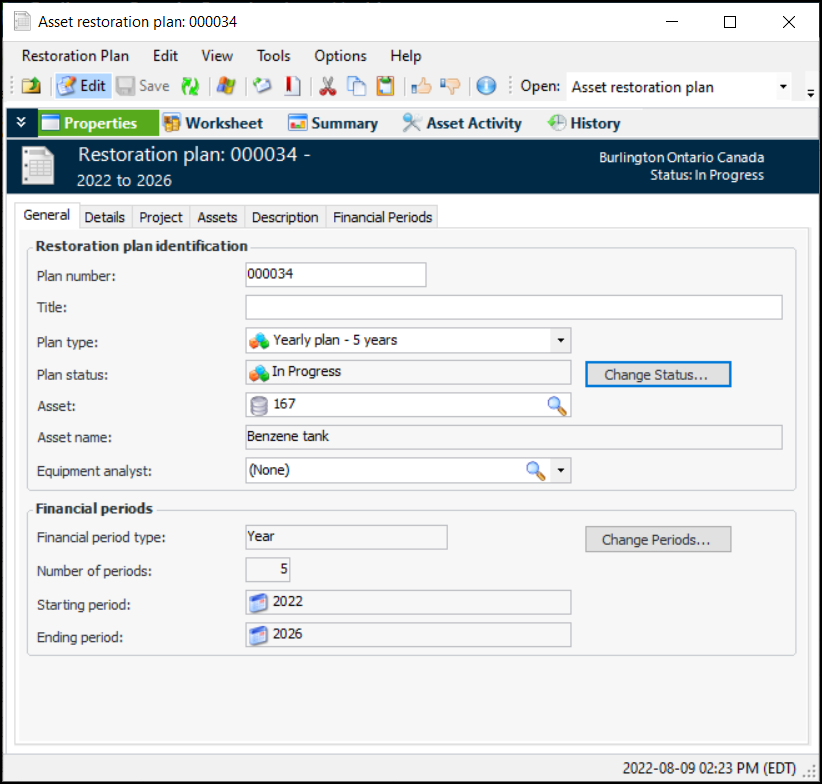
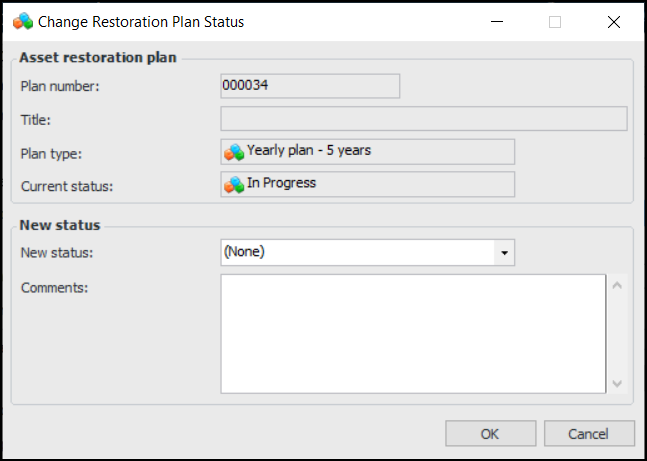
9. The plan status is read-only. When you wish to change the status, click Change Status. The Change Restoration Plan Status dialog appears:
• Click OK. The dialog closes and the status is changed.
10. In the Equipment analyst list, select the employee who is developing the restoration plan.
11. Select the Details tab to record the planned start and completion date for the planning process. You can also select the operating context for the asset as it relates to restoration planning.
12. On the Project tab, you can add the analysis to a reliability project and associate the analysis with a project task. Reliability projects are typically used to organize and track analyses and objects. They usually use project tasks rather than work orders.
13. Select the Description tab to add information.