Developing an Asset’s Spending Plan

Each asset’s spending plan identifies expected costs over a number of periods (next five years, for example) and by expense category (capital expense, maintenance costs, operating expenses). If the plan type supports it, you can break amounts down by expense type for each category and financial period.
This topic explains how:

To Create an Asset’s Spending Plan

1.
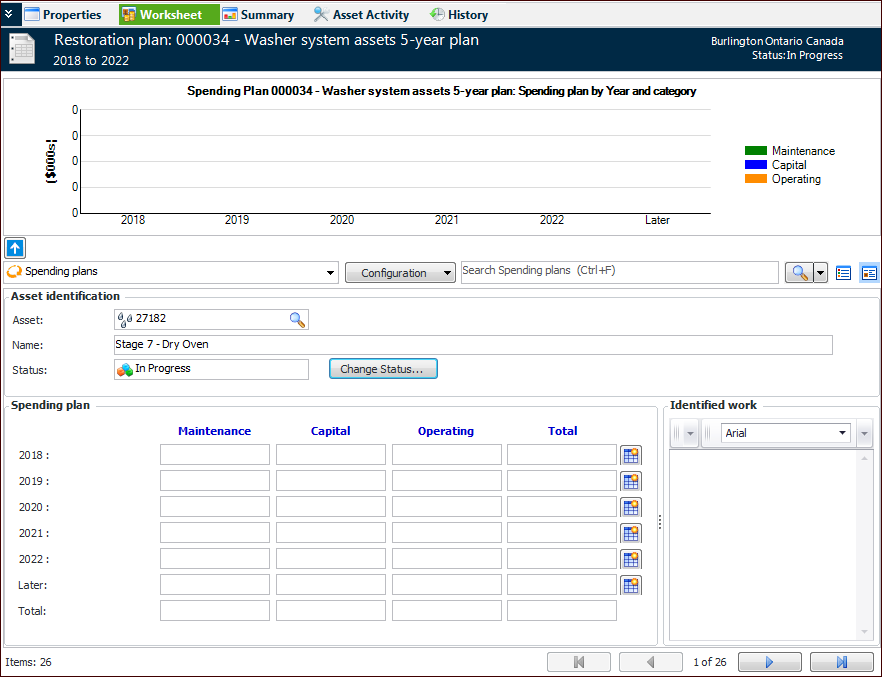
By default, the worksheet displays spending plans using the form view (). Use the navigation buttons at the bottom to move between plan assets.
Tip: Click the table icon () to list plan assets, along with their priorities, conditions, totals, work, and amounts. You can use in-line editing to enter spending plan amounts for each financial period. You can also double-click an asset to open its Asset Restoration Plan dialog.
When the plan is saved, the graph at the top of the Worksheet view displays bars for each financial period and expense category. You can click the arrow icons to hide () or show () the graph.
2.
In the Spending plan area, enter costs for each period and expense type. APM automatically calculates the totals. Alternatively, you can break the cost down according to expense types. See To Enter Expense Details.
3.
In the Later boxes, enter any expenses that you estimate will be incurred outside of the plan’s life time. Alternatively, you can break the cost down according to expense types. See To Enter Expense Details.
4.
In the Identified work box, enter the steps required to replace or restore the asset.
5.

To Enter Expense Details

1.
In the Worksheet view, display the asset’s spending plan using the navigation buttons at the bottom of the form view.
2.
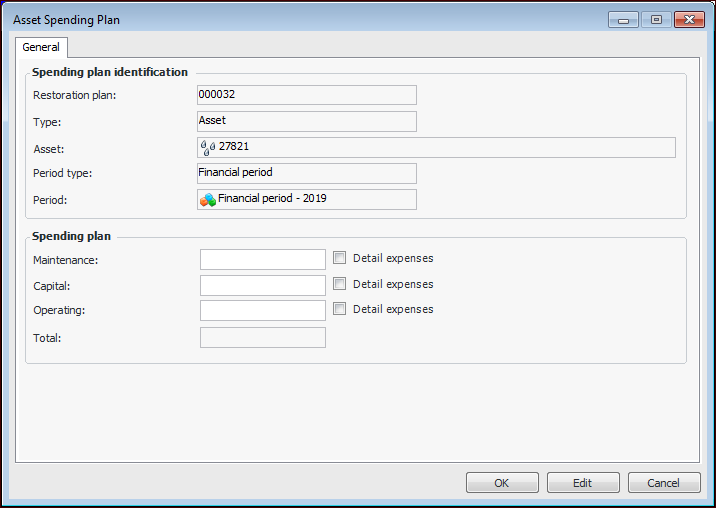
In the Spending plan area, click to open the Asset Spending Plan dialog. For example:
3.
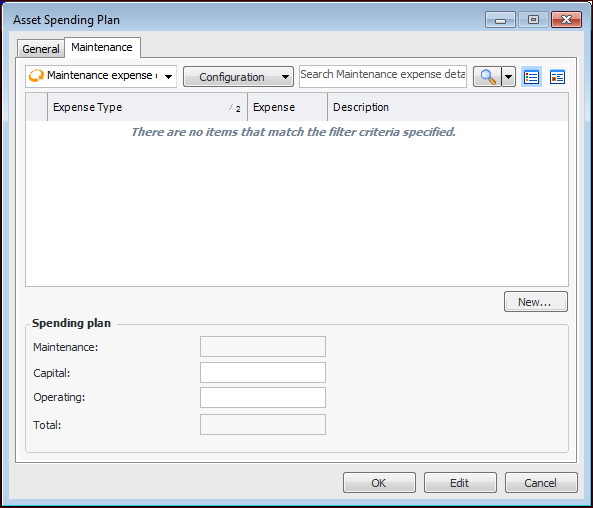
Click Detail expenses for the expense types that you want to enter. A tab is added for each of the selected expense types.
4.
5.
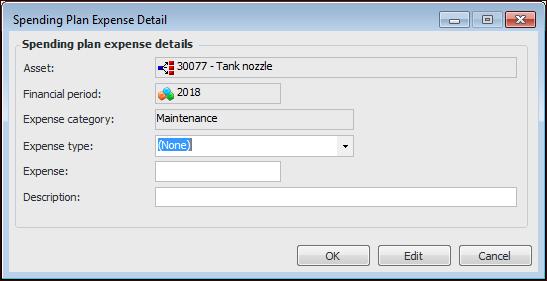
For each expense, click New. The Spending Plan Expense Detail dialog appears.
6.
7.
8.
Click OK. The dialog closes, the expense is listed in the table, and the Spending plan area shows the updated cost for that expense category.
9.
When you have finished entering detailed expenses, click OK. The Asset Spending Plan dialog closes, the updated amount is shown in the Spending plan area of the worksheet, and the details icon changes to . You can click this icon to change the details.
10.