Changing a Restoration Plan’s or Asset’s Status

Statuses for restoration plans and their assets describe planning processes and control what actions can be performed. For example, the plan status can allow or prevent the plan’s properties from being changed. Similarly, the asset’s status can allow or prevent changes to identified work, spending plans, and detail expenses.
While the plan status applies to the plan as a whole, the asset status applies to individual assets in the plan. The overall ARP might have a status of “Accepted”, while the status of an individual asset might be “In progress”.
Statuses also control whether or not the plan is included in lists. For example, plans with the “Accepted” status would usually be included in tables that show spending plans by financial period. The asset’s status determines whether its spending plan is included in the plan’s spending plan and lists.
This topic explains how:

To Change a Restoration Plan’s Status

1.
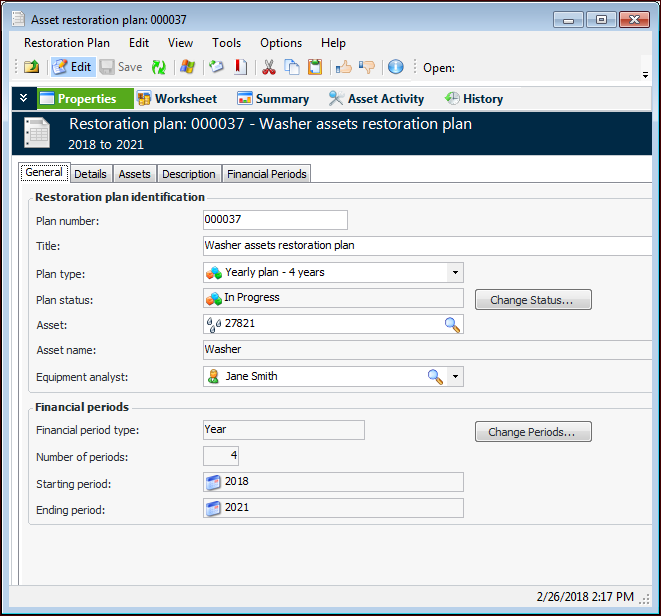
Open the Asset Restoration Plan window. Select the Properties view and the General tab. For example:
2.
Click Change Status.
Tip: You can also right-click the ARP in a list and click Change Status.
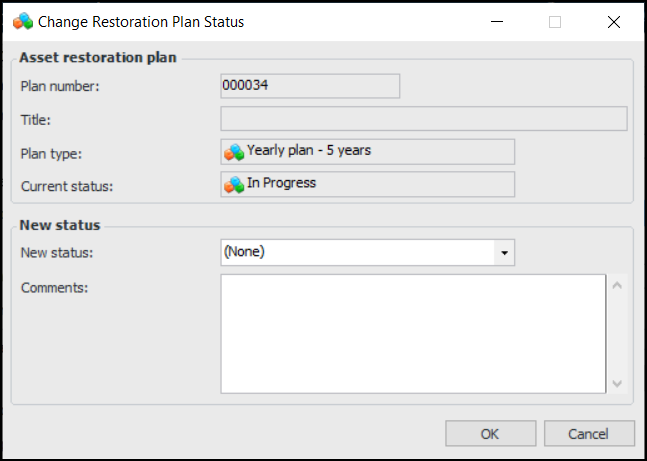
The Change Status dialog appears. For example:
3.
4.
5.
Click OK to save the status and close the dialog.

To Change an Asset’s Status

1.
In the Asset Restoration Plan window, select the Properties view and the Assets tab. This tab lists the assets, their spending plans, and identified work.
2.
Select the asset in the table, click the Selected list, and then Change Status.
Tip: You can also change the status from the Worksheet view. In the Asset identification area, click Change Status.
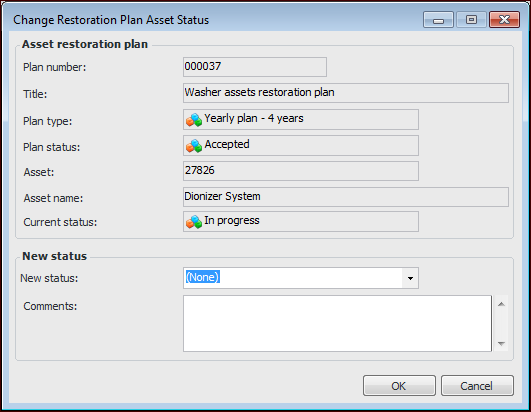
The Change Restoration Plan Asset Status dialog appears. For example:
3.
4.
5.
Click OK to save the status and close the dialog.