
Changing a Restoration Plan’s Financial Periods
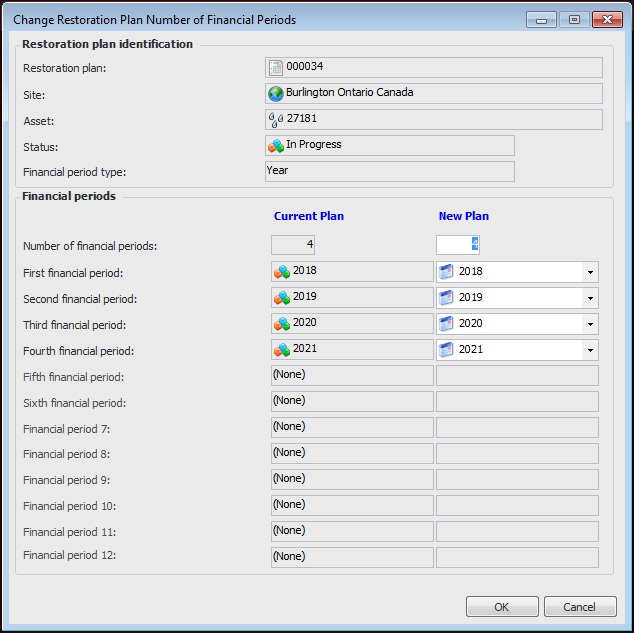
You can increase or decrease the number of financial periods in a restoration plan. The maximum number of periods is 12: 12 months, quarters, or years. For example, circumstances might require that a plan’s spending be spread over a longer time period or that work items be reduced to decrease the number of planned periods and their costs.
Note: If you remove a period, its spending plan amounts will be deleted from the restoration plan.

To Change a Restoration Plan’s Financial Periods

1.
Open the Asset Restoration Plan window and select the Properties view, Financial Periods tab.
Tip: You can also select the Properties view, General tab.
2.
Click Change Periods. The Change Restoration Plan Number of Financial Periods dialog appears. Here is an example for a four-year plan:
3.
In the New Plan area, enter the new number of periods, if appropriate. Press Tab to update the list of periods accordingly.
4.
5.
6.
When you are finished, click OK to close the dialog and save the financial periods. If you reduced the number of periods, a confirmation message appears. Click Yes.
The Financial Periods tab displays the changes.