|
|


Setting up APM for Anomaly Risk Assessment and Integration
Note: AssetWise Enterprise Interoperability (AWEIS) must be configured to communicate with your CMMS to support anomaly integration. In addition, you must use interop work documents, including requests for work, interop work request, and interop work orders. Asset and employee synchronization must also be active. For more information, see Overview of Setting up APM for AWEIS.Note: Support for anomaly assessment is generally available. However, you must first enable feature 108 to use the functionality in APM. In the Enterprise window, select the Features view and the Enabled Features tab. Click Browse, select “Anomaly risk assessment” and click OK. If APM is running as a smart client, click Refresh Enabled Features on the server. Then restart the client to use the functionality.Set up Anomaly Risk Assessment Settings
In Inspection Management, Performance Management, or Work Management settings, select the Risk Assessment tab and enable risk assessment for alarm acknowledgments at the site. Then add the following value lists:Assign Anomaly Risk Assessment Results to Failure Mode Criticalities
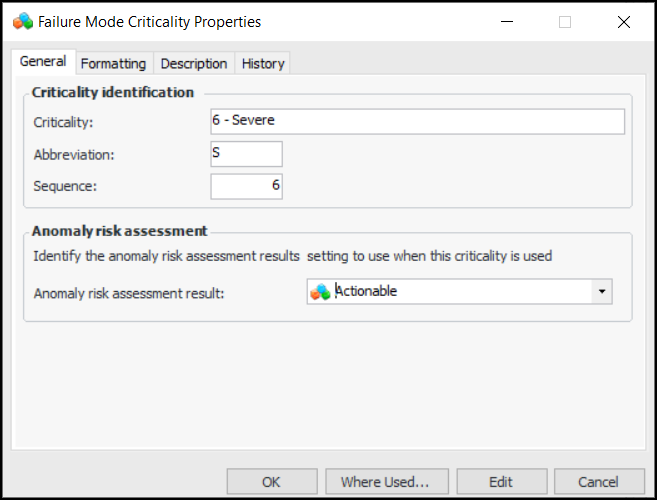
In Inspection Management, Performance Management, or Work Management settings, select the Risk Assessment tab. Select the Criticalities tab. Open each of the criticalities, enable editing, and select the appropriate anomaly risk assessment result. For example:Enable Anomaly Risk Assessment on the Risk Matrix
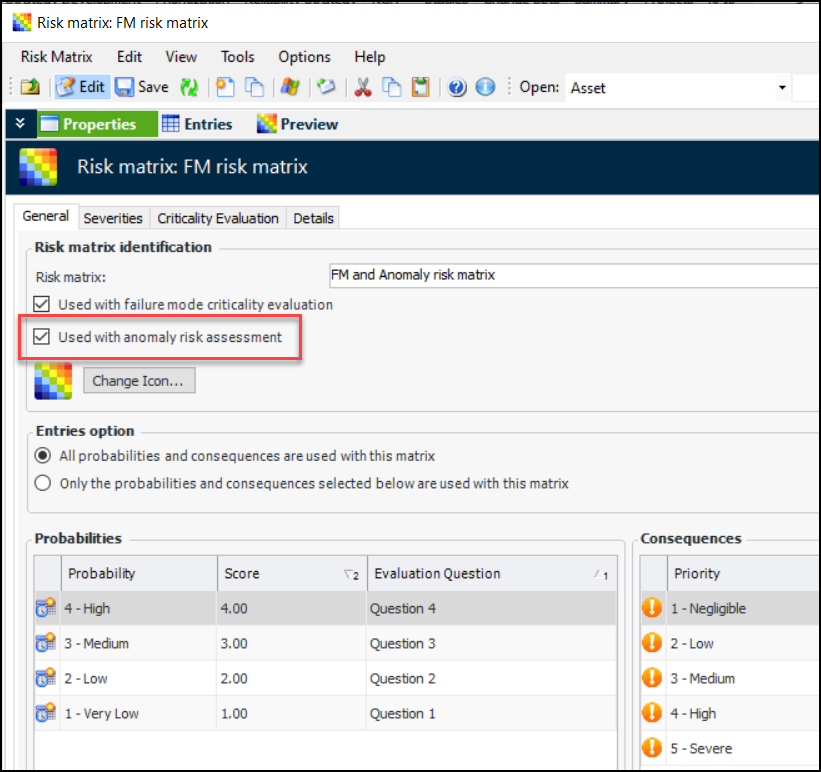
In the Site window, select the Strategy Development view, Settings tab, Risk tab, and Risk Matrices tab. Open the Risk Matrix window. After enabling editing in the Risk Matrix window, select the Properties view and General tab. Click Used with anomaly risk assessment and close the window.Update Failure or Anomaly Settings
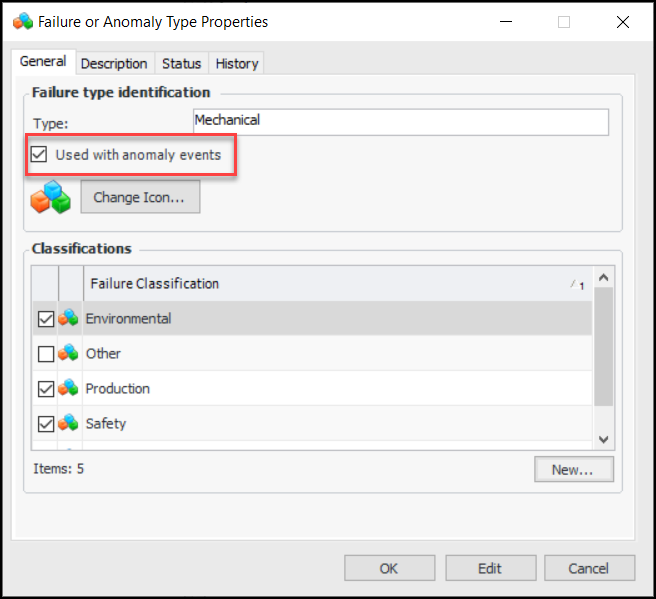
For more information, see Defining Failure or Anomaly Types and Classifications and Defining Failure Severities.Identify Employees to Own Anomaly Events
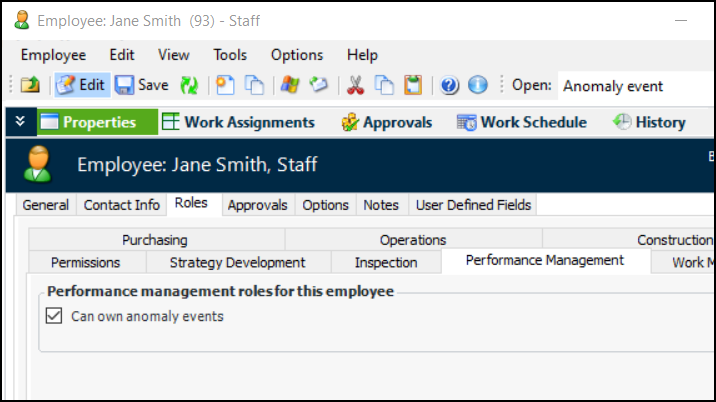
To allow employees to be associated with anomaly events, you must enable the option in the employee record. In the Employee window, select the Roles tab and the Performance Management tab. Select Can own anomaly events. For example:Enable Anomaly Risk Assessment for Requests for Work
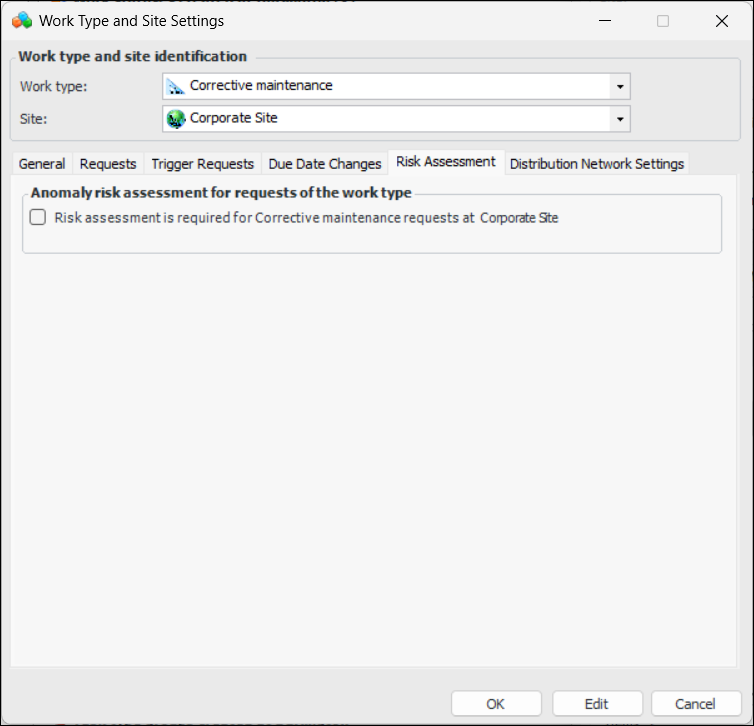
In the Site window, select the Work Management view, Settings tab, Work Management tab, and the Work Types tab.Open the work type and enable editing. Select the Site Settings tab and open or create the site settings. In the Work Type Site Settings dialog, select the Risk Assessment tab. Select Risk assessment required. For example:Customize Criticality Terminology (Optional)