Performing Risk Assessment on a Request for Work

When AssetWise Enterprise Interoperability (AWEIS) is active for the site and has been configured to integrate with an external Anomaly Assessment and Tracking (AA&T) system, you can perform risk assessments for requests for work.
Note: Support for anomaly assessment is generally available. However, you must first enable feature 108 to use the functionality in APM. In the Enterprise window, select the Features view and the Enabled Features tab. Click Browse, select “Anomaly risk assessment” and click OK. If APM is running as a smart client, click Refresh Enabled Features on the server. Then restart the client to use the functionality.
Note: The request for work’s work type site settings must require that risk be assessed for the request. For related information about setting up anomaly risk assessment, see Setting up Site-Specific Work Types.
The risk assessment process consists of the following steps:
1.
2.
APM calculates the sum of the consequences and uses the probability score to arrive at the criticality score. The criticality determines the risk assessment result, which, in turn, determines:
3.
Note: Once a request for work is approved and an anomaly event created, the request cannot be redrafted.
4.
5.
This topic explains components of risk assessment as well as how to perform risk assessment. It explains:
It explains how:

Risk Assessment

To perform risk assessment, the severity of the consequences of failure must be determined. Consequences are categorized:
Each of these consequence categories is assigned a value. The sum of the values in all categories is used in the calculation of the consequence assessment.
For more information, see Overview of Risk Analysis.

To Perform a Risk Assessment for a Request for Work
1.
In the Site window, select the Work Management view and the Requests for Work tab.
2.
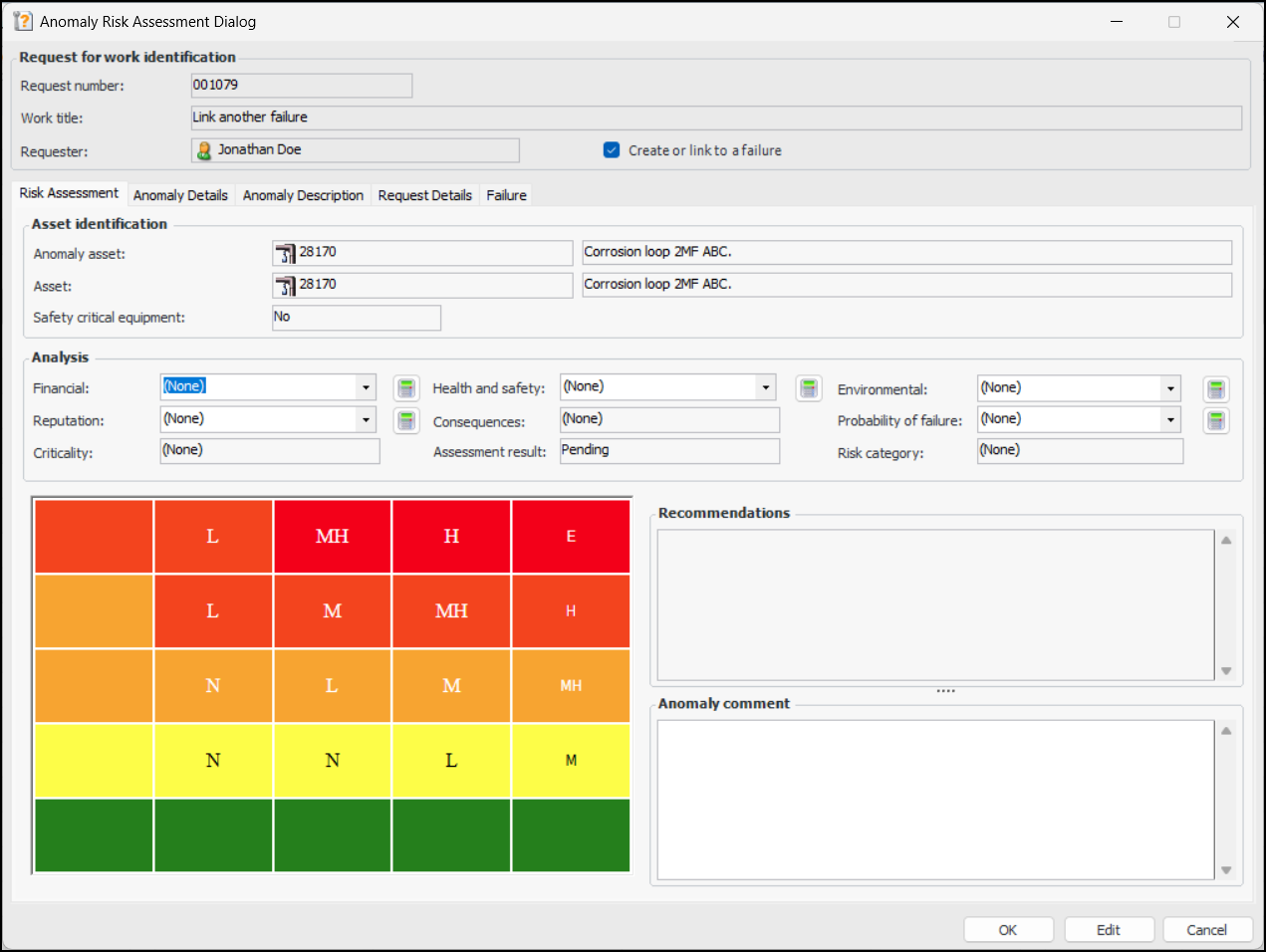
Right-click the request and click Assess Risk. The Anomaly Risk Assessment dialog appears. For example:
On the Risk Assessment tab, the Asset identification area shows the following:
Anomaly asset – The asset on which the indicator reading was recorded
Asset – The interop asset. Its counterpart in the CMMS is updated with information about the anomaly event. If the anomaly asset is an APM-only asset, APM searches up the asset hierarchy to find the nearest interop asset and displays it here
Safety critical equipment – Indicates if the asset’s use involves risk (there is a potential that a mishap could occur, with severe consequences). If this property was set on the anomaly asset, the value is displayed
3.
For an example of using evaluation questionnaires, see Performing Risk Analysis for RBI Failure Modes.
4.
Note: The criticality value is highlighted with a color chosen by your organization. In this example, the value “High” is highlighted with red ().
Note: If the default risk assessment result can be overridden, a button is available to toggle between actionable and non-actionable:
5.
Add more information in the Recommendations or Anomaly comment boxes.
6.
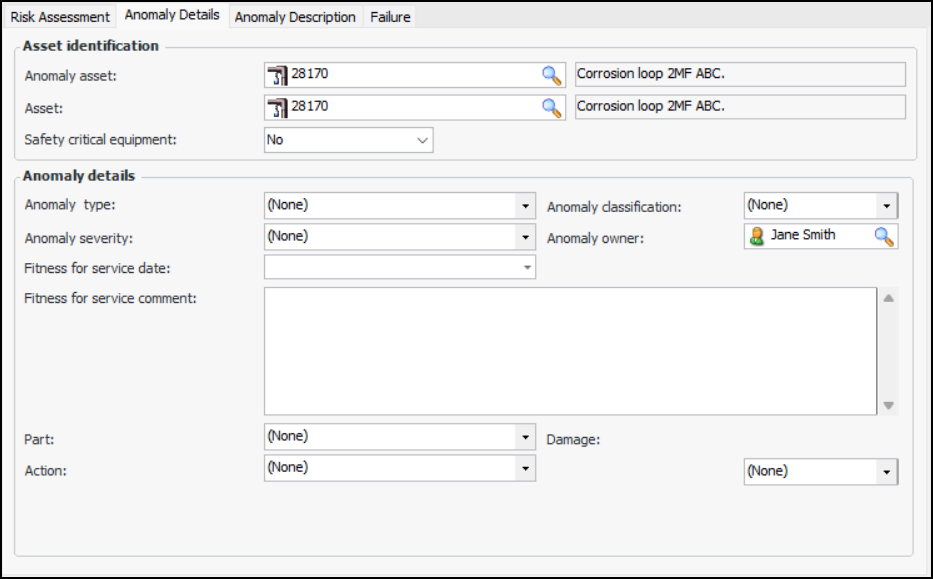
Select the Anomaly Details tab:
7.
Potential: a condition that has been noticed that would result in an actual failure if the problem is not resolved. The actual failure has not yet occurred. Potential failures are normally reported as the result of an indicator reading that has raised a warning alarm against the asset.
Partial: the asset’s performance has decreased to a point where it is no longer performing one of its functions at the specified levels. The asset is still functioning.
Total: the asset’s performance has decreased to a point where the asset is no longer performing at its required level. The asset has completely failed.
8.
Select the Anomaly Description tab to add more information.
The Request Details tab displays information from the source request for work.
9.
Select the Failure tab, where you can create or link to a failure.
10.
Click OK. The dialog closes and the Requests for Work tab displays updated information.
If the request for work’s assessment is actionable, its Interop status typically changes to “Anomaly event created”. If the result is not actionable, its status changes to “Held in APM”.