Introduction to Anomaly Risk Assessment and Integration

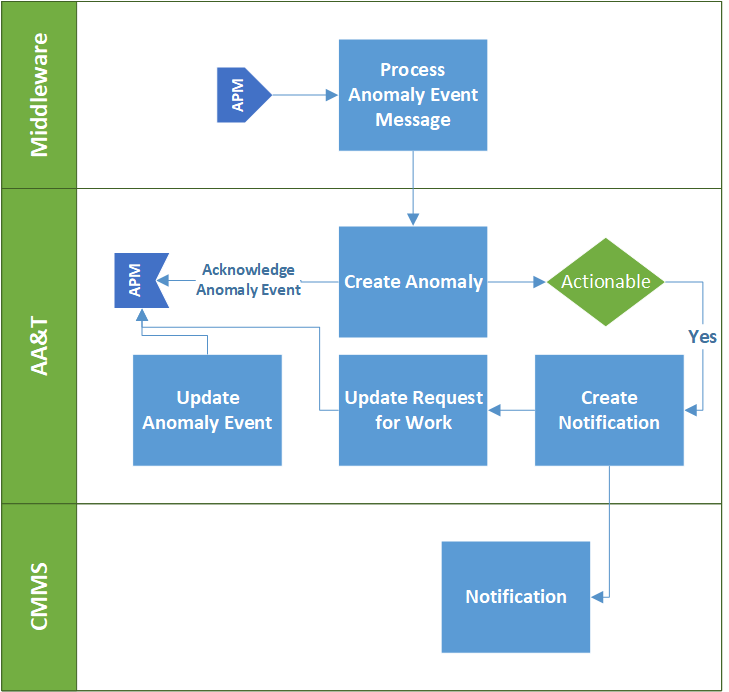
APM can be configured to integrate with an external Anomaly Assessment and Tracking (AA&T) system. With the help of AWEIS and other middleware, anomaly events are sent to the AA&T system, which then becomes the master system for the anomaly events. Information, including event statuses, is sent to the anomaly event in APM to keep the two systems synchronized.
When the integration has been set up, you can perform risk assessment when acknowledging indicator alarms or creating requests for work. The resulting criticality is added to the new anomaly event and used to determine if the anomaly is actionable. Actionable events are sent to the AA&T system for the creation of notifications, which are then sent on to the CMMS (SAP) to generate maintenance orders.
This topic includes:
Tip: To view tables of anomaly events, in the Site or Asset window, select the Work Management view and the Anomaly Events tab.
Note: Support for anomaly assessment is generally available. However, you must first enable feature 108 to use the functionality in APM. In the Enterprise window, select the Features view and the Enabled Features tab. Click Browse, select “Anomaly risk assessment” and click OK. If APM is running as a smart client, click Refresh Enabled Features on the server. Then restart the client to use the functionality.

Alarm Acknowledgment Process with Risk Assessment

Anomaly events are created in APM when users acknowledge indicator alarms and assess the risk associated with the anomaly (alarm). The risk assessment step occurs as part of the acknowledgment process and must be completed before the acknowledgment can be processed in APM.
The alarm acknowledgment and risk assessment process consists of these steps:
1.
2.
Note: Depending on settings in the anomaly risk assessment profile assigned to the site, some acknowledgment methods might not require risk assessment. For example, “Fixed during inspection” might not warrant a request for work, in which case, the Risk Assessment tab does not appear in the Acknowledge Indicator Alarm dialog.
3.
4.
Note: Risk assessment result settings determine if an anomaly event is created for each of the acknowledgment methods. This means that an event can be created for a non-actionable result, for example, “Incorrect reading”.
5.
6.
This diagram shows the acknowledgment and risk assessment process in APM.
This diagram shows the integration components.

Request for Work Process with Risk Assessment

You can perform risk assessments when creating requests for work (without acknowledging an alarm). When activated, the functionality is available whether you are creating the request from scratch or adding follow-up work to an indicator reading, checksheet, failure record, inspection report, maintenance action plan, reliability program review, or safety override incident.
The work type site settings determine if risk assessment is required on requests for work. Your organization decides the circumstances that require risk assessment. For example, work type site settings might specify that only Inspection and Corrective tasks be assessed. For related information, see Setting up Site-Specific Work Types.
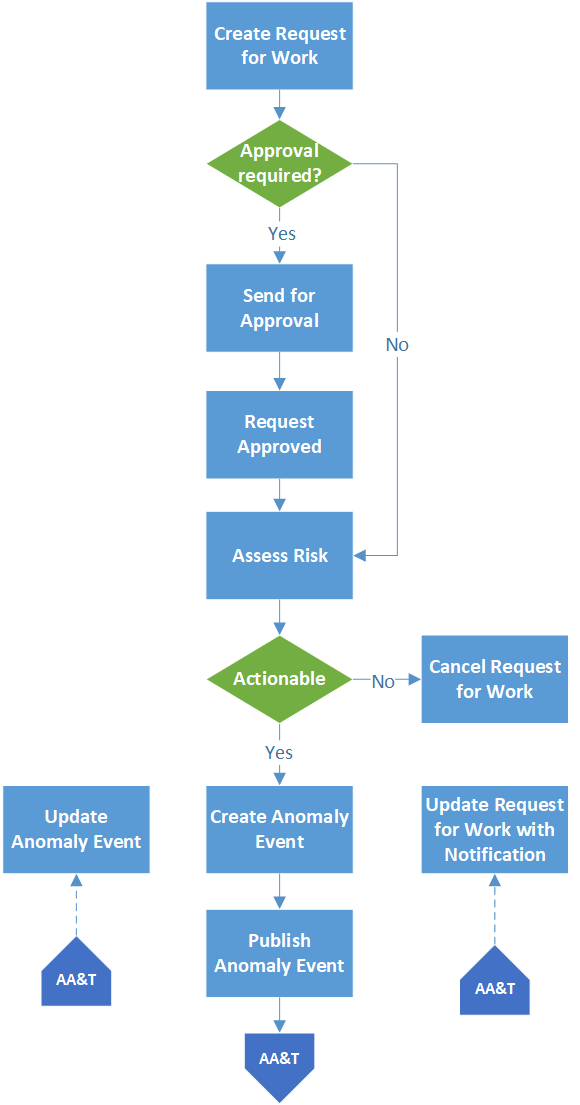
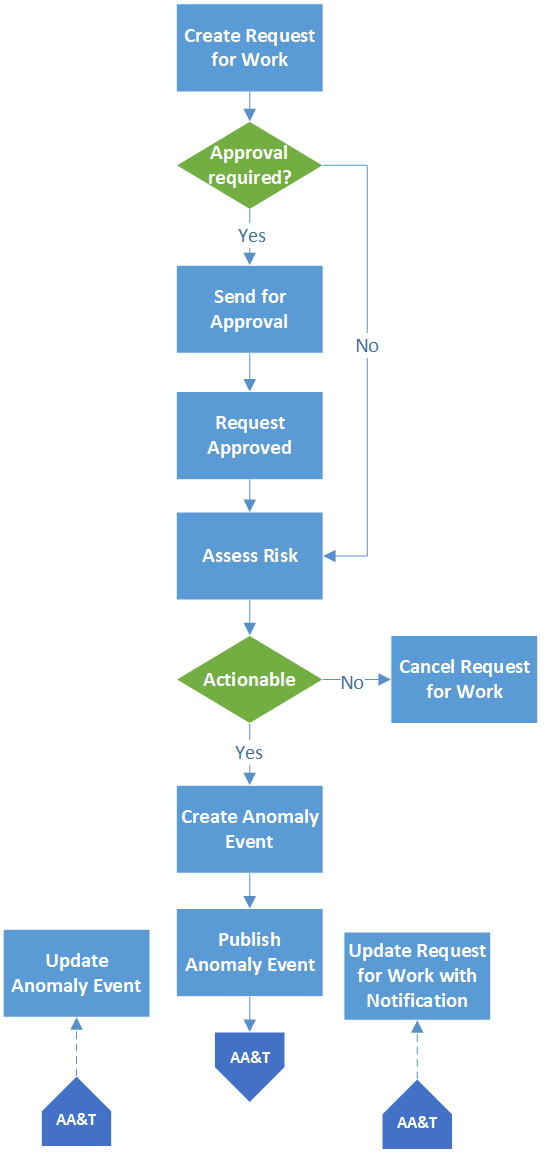
Risk assessment is performed either after the request for work’s approval process or, if the formal approval process is not in use, before the submission to AWEIS process.
The risk assessment process consists of the following steps:
1.
2.
3.
4.
5.
This diagram shows the risk assessment process for requests for work:
 

More About Risk Assessment

To perform risk assessment, the severity of the consequences of failure must be determined. Consequences are categorized:
Each of these consequence categories is assigned a value. The sum of the values in all categories is used in the calculation of the criticality score, along with the result of the probability of failure evaluation.
For more information, see Overview of Risk Analysis.