Working with Anomaly Events

APM typically creates an anomaly event when the risk assessment for an alarm acknowledgment or request for work has an actionable result. The information from the criticality evaluation is copied to the anomaly event. The anomaly event is used to track information in the AA&T system and APM.
Note: Risk assessment result settings determine whether an anomaly event is created for each of the acknowledgment methods. This means that an event can be created for a non-actionable result (for example, “Incorrect reading”), depending on your organization’s requirements.
The anomaly event and request for work are processed by the middleware and sent to the AA&T system. The request for work is held in APM; the anomaly event represents the request in its interaction with the CMMS.
The AA&T system creates an anomaly and notification (for example, if the CMMS is SAP Plant Maintenance), sends the notification to the CMMS, and sends messages to APM to update the anomaly event and request for work. The AA&T system continues to track the anomaly and communicate changes, such as the event ID and status, to update the anomaly event in APM.
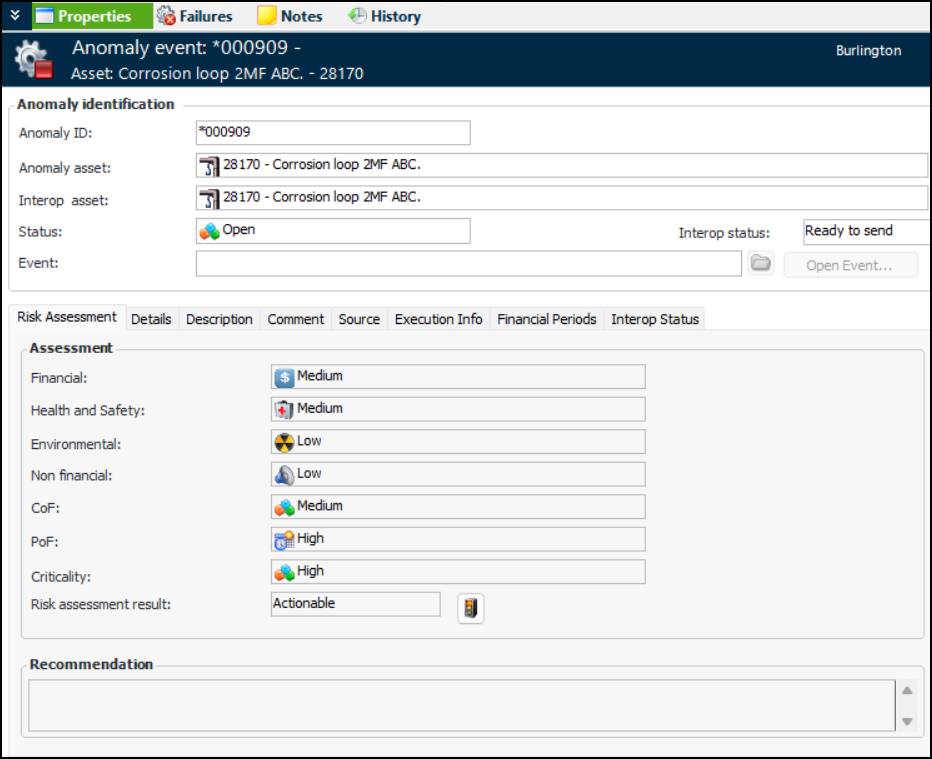
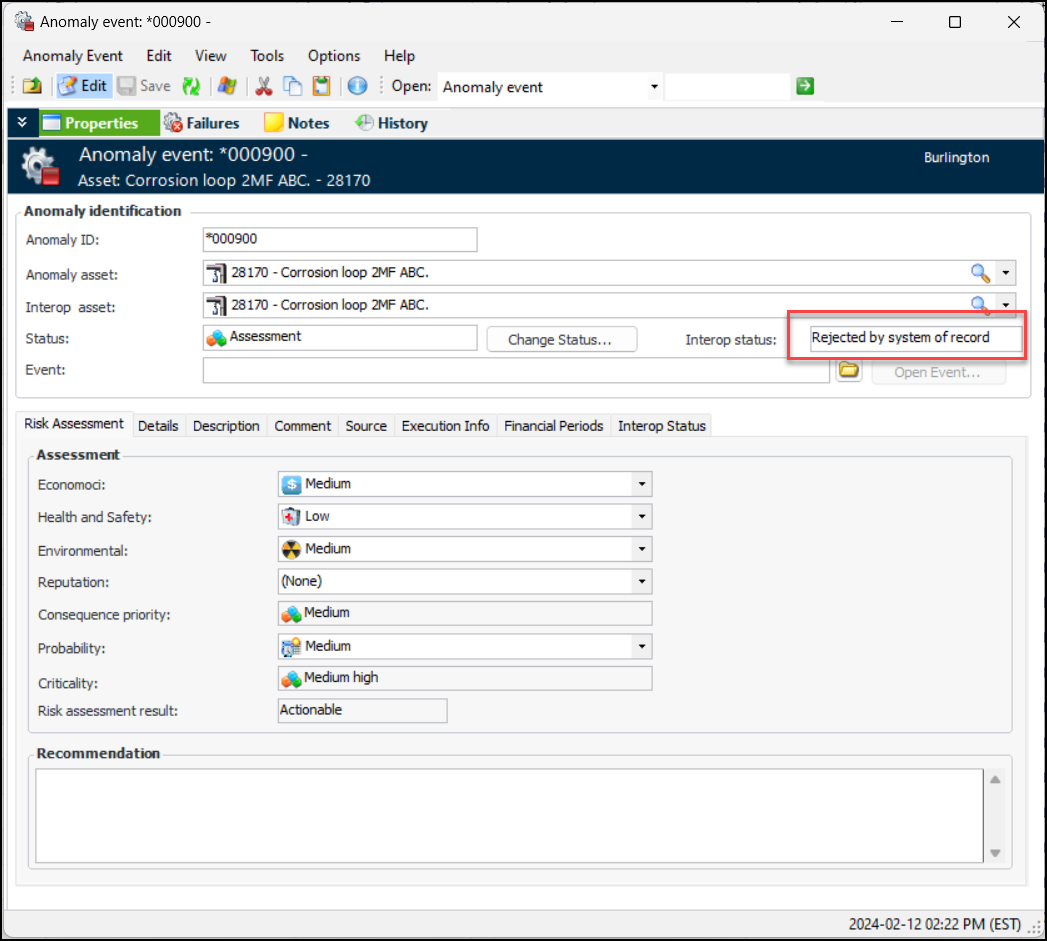
When an anomaly event sent from APM is rejected by the system of record (AA&T), you can reopen and revise the event and resubmit it. You can update the risk assessment and APM calculates the criticality and determines if the event is actionable. You can then submit the anomaly to the system of record.
In APM, you can view anomaly events, add asset notes to them (depending on settings), change the anomaly status, and add new or existing failure records. This topic explains how:

To View an Anomaly Event

1.
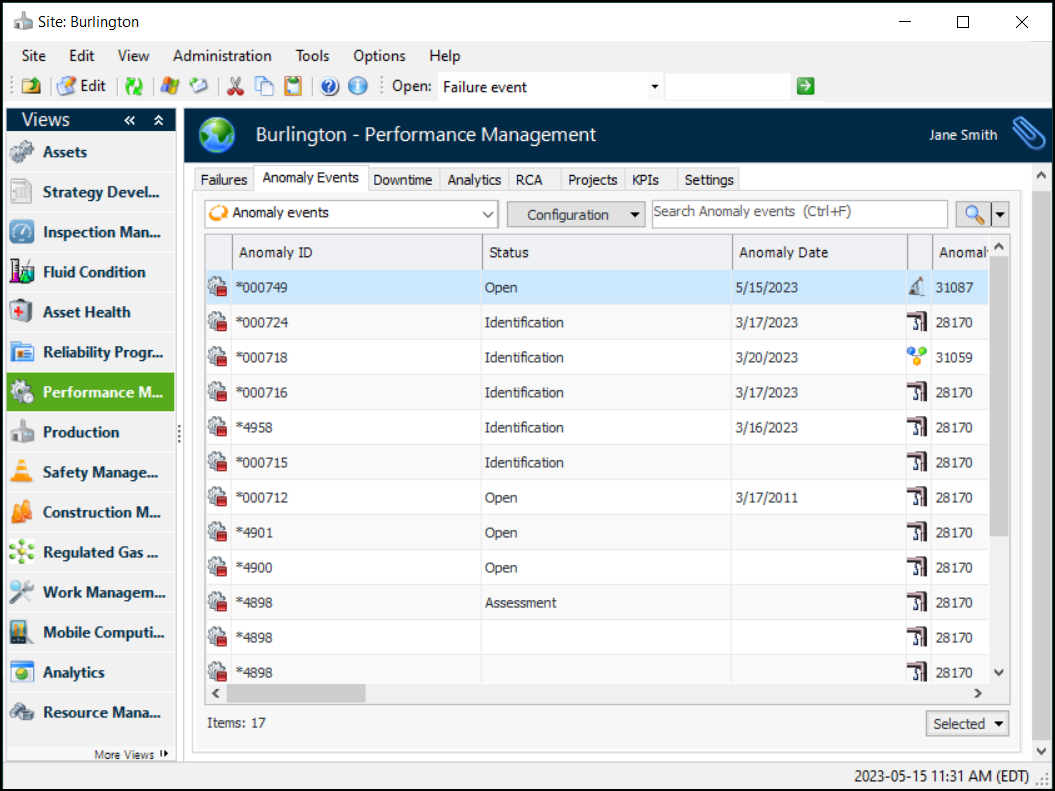
In the Site or Asset window, select the Performance Management or Work Management view, Anomaly Events tab. For example:
2.
When APM creates the anomaly event, it is given a temporary ID prefixed by an asterisk to indicate that it has not been sent to the external system. When the external system receives and accepts the object, it sends back the permanent ID and the APM event is updated. At this point, no changes can be made to the event in APM. All future updates come through the integration.
3.
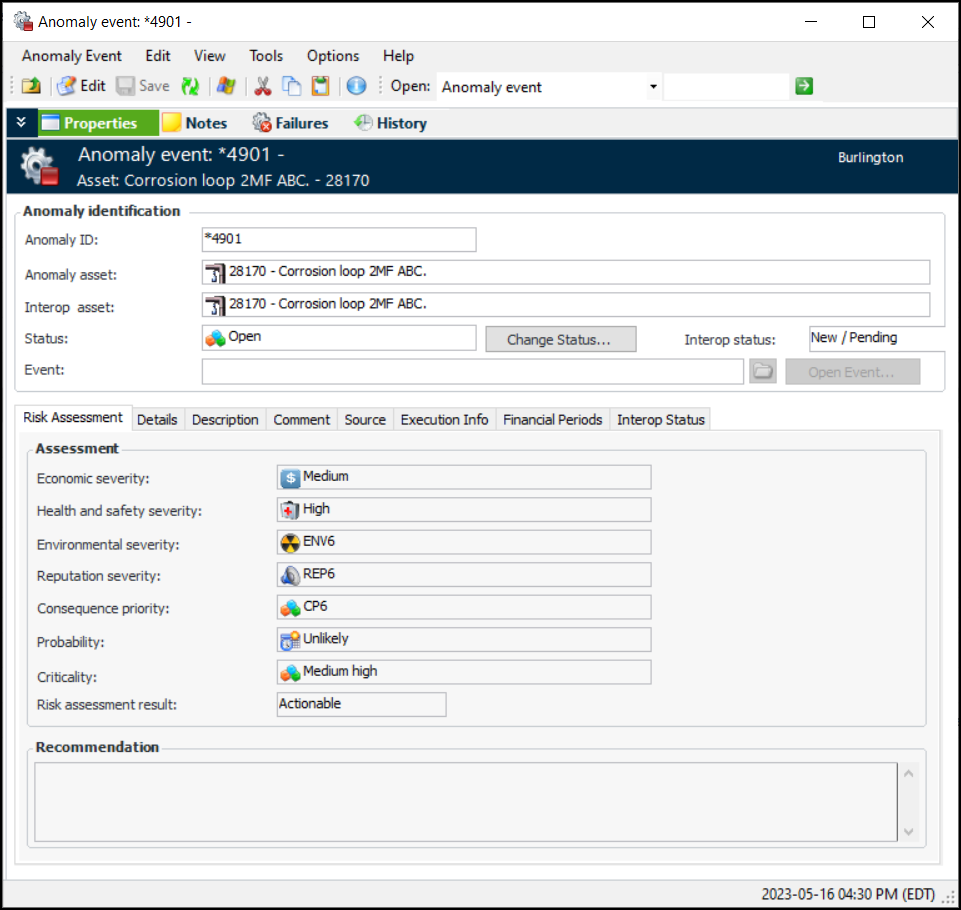
Click Edit to open the event for updates.
4.
5.
Select the Source tab to view the acknowledgment, indicator reading, checksheet, acknowledgment failure, and request for work associated with the event.
6.
Select the Financial Periods tab to see the month, quarter, and year in which the event was created and closed.
When the anomaly event has been published, Open Event is enabled. Click this button to view the AA&T event. You can view the date on the Execution Info tab and the interop status on the Interop Status tab.

To Change the Anomaly Status

1.
2.
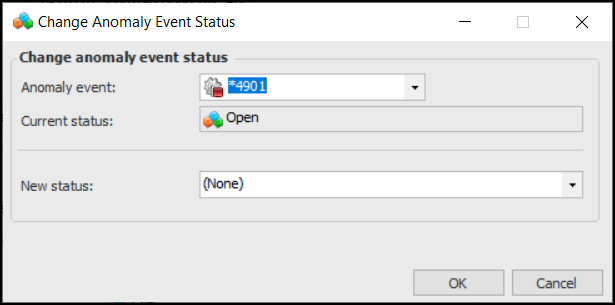
Select a status in the New status list. The list includes only statuses that can be set manually.
3.
Click OK. The dialog closes and the status is changed in the Anomaly Event window.
Note: If you change the status to “Closed”, the Closure Info tab is added to the window. It displays the closure date and the employee who closed it.

To Override the Risk Assessment Result

1.
2.
Click Edit to open the event for updates. For example:
3.

To Add a Failure Record to an Anomaly Event

Tip: You can also add an anomaly event to a failure event. In the Failure event window, select the Anomaly Events view and tab and click New Link at the bottom of the tab to open the New Anomaly Event Link dialog.
1.
In the Anomaly Event window, click the Failures view. The New button is enabled if the anomaly status specifies that failures can be created.
2.
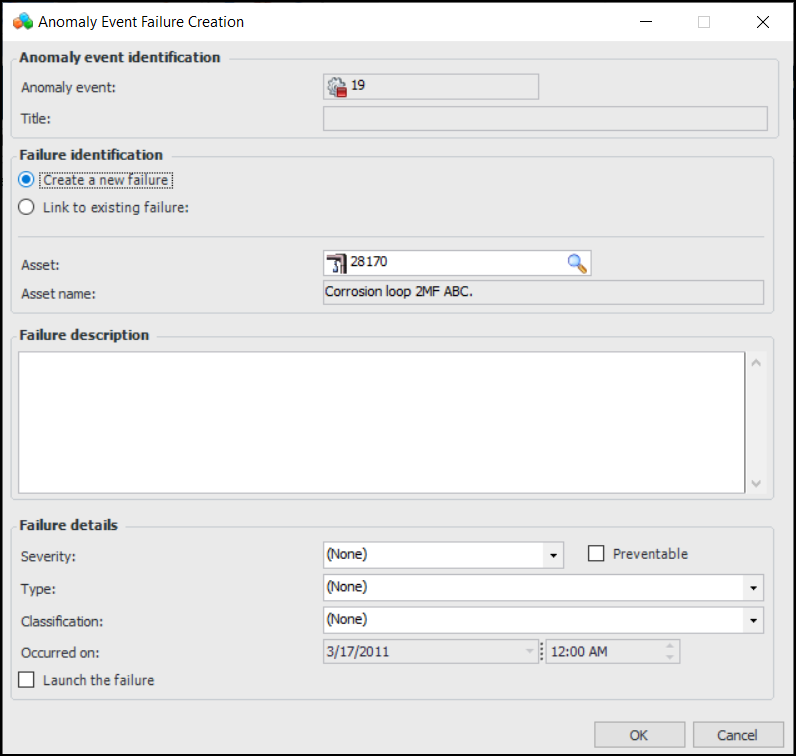
Click New. The Anomaly Event Failure Creation dialog appears:
3.
You can link the anomaly event to a new or existing failure record. If you click Link to existing failure, you can browse a list of failures, select one, and click OK.
4.
To create failure, select Create a new failure. Provide the following information:
Occurred on displays the date and time when the anomaly event was created.
5.
Click OK. The failure is created and added to the list. If you selected Launch the failure, the Failure Event window opens.

To Resubmit an Anomaly Event

1.
2.
3.
4.
5.
When you have finished, click the Tools menu and then Submit. A confirmation message opens to inform you that once the anomaly is submitted, it will only be updated by the AA&T system.
6.
Click Yes. The anomaly event’s Interop status changes to “Ready to send”.