
Manually Generating Asset Health Readings

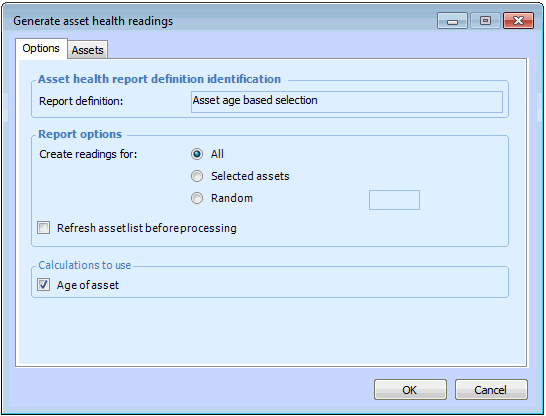
From time-to-time you might want to manually generate an asset health readings for an asset health report definition. You can choose to create readings for all, selected, or a random percentage of asset health assets on a report definition as well as select which calculations to use for the readings.
All calculations used in the report definition must have a status of “Active” in order for this option to be available.
This topic describes how to manually generate asset health readings.

To Manually Generate Asset Health Readings
1.
On the Asset Health view, select the Report Definitions tab. By default, all report definitions are listed.
2.
Double-click an asset health report definition from the list to open it, and select Tools, Generate Readings. The Generate Asset Health Readings dialog appears.
Note: If the previous readings generation was incomplete, the Previous Report tab appears allowing you to complete the previous report or create a new report and mark the previous report as canceled.
3.
Select the Options tab, and then select whether to create readings for all assets, selected assets, or a random percentage of assets.
4.
Select Refresh asset list before processing to update the list of assets used in this reading before the readings are generated.
5.
In the Calculations to Use section, select each of the calculations to be used in the reading.
6.
On the Assets tab you can view the list of assets for this reading if Selected Assets was chosen, otherwise this tab is blank.
7.