
Creating a Filter Criterion Based on a Relationship
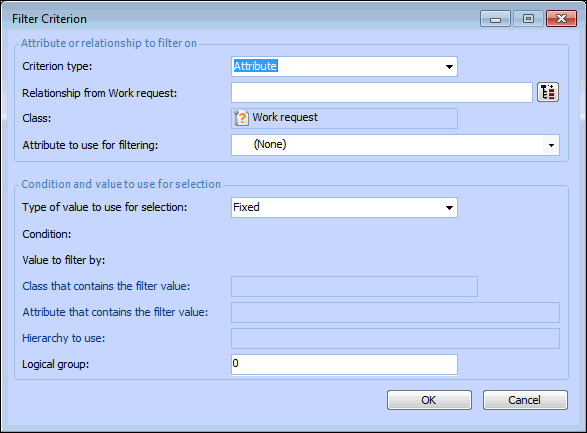
You can use relationship-based filter criteria to filter a group of objects based on their relationship to another set of objects. For example, you might use the Work Request class’ Asset to work on relationship to select only tasks for a specific asset or for a specific asset and its children.
You can create criteria using either fixed or variable values. A regular (fixed) filter based on a value allows you to filter a group of items based on a fixed value that you enter. Most of the filters you create will be regular filters.
 
A variable filter allows you to filter a group of objects based on a variable value. The value used in the filter is only determined at the time the filter is used by looking up the current value of the selected attribute or relationship. A specific, fixed value cannot be selected. For example, you might want to filter employee names based on the name of the employee currently logged in, rather than a specific employee name.
If you create a variable filter criterion based on a relationship, the variable relationship that you select must belong to the same class as the relationship being filtered on. That is, you must compare assets to assets, or maintenance groups to maintenance groups.
This topic explains how to create both fixed and variable filter criteria based on a relationship. To create attribute-based filter criteria, see Creating a Filter Criterion Based on an Attribute.
Note: Before you begin creating filter criteria, you should have a good understanding of APM object modelling and filtering concepts. For more information, see Object Model Overview and Selection Criteria Concepts for Asset Health Assets.

To Create a Filter Criterion Based on a Relationship

1.
On the Asset Health Report Definition window, Assets tab, click New. The Filter Criterion dialog appears.
2.
Select Based on a relationship from the list. This allows you to create a filter that uses a relationship from the base class to filter the list of objects.
3.
Select whether this will be a Fixed or Variable filter:
The Fixed option allows you to filter a group of items based on a specific value that you enter.
To create a fixed value filter, see Fixed Value Filter Settings.
The Variable option allows you to filter a group of objects using a relative value. The value used in the filter is only determined at the time the filter is used by looking up the current value of the selected relationship. A specific value cannot be selected.
To create a variable value filter, see Variable Value Filter Settings.
4.
Fixed Value Filter Settings
Select the fixed value to be used to filter the list of objects. For example, if you are filtering work requests based on the MonthClosed relationship and the End date attribute, you would select a specific end date.
Variable Value Filter Settings
5.
To save the criterion, click OK. The criterion appears in the table on the Selection Criteria tab.