
|
Creating a Filter Criterion Based on an Attribute
Every filter criterion starts from the class of objects that you want to select (for example, the Work Request class). You can then select either an attribute or a relationship to use to filter the objects. In most cases, you will base the filter on an attribute (property) of the base class. For example, you might filter a group of work requests based on the WorkRequestStatus attribute. However, you can also use an attribute owned by a related class.You can also filter a group of objects based on its relationship to another set of objects. For example, you might use the Work Request class’ Asset to work on relationship to select only requests for a specific asset or for a specific asset and its children. Criteria based on relationships are more complicated to create. For information about relationship-based filter criteria, see Creating a Filter Criterion Based on a Relationship.A variable filter allows you to filter a group of objects based on a variable value. The value used in the filter is only determined at the time the filter is used by looking up the current value of the selected attribute or relationship. A specific, fixed value cannot be selected. For example, you might want to filter employee names based on the name of the employee currently logged in, rather than a specific employee name.Note: Before you begin creating filter criteria, you should have a good understanding of APM object modeling and filtering concepts. For more information, see Object Model Overview and Selection Criteria Concepts for Asset Health Assets.To Create a Filter Criterion Based on an Attribute
1. On the Asset Health Report Definition window, Assets tab, click New. The Filter Criterion dialog appears.
Select Based on an attribute from the list. This allows you to create a filter that uses the value of an attribute owned by either the base class or a related class. For example, when filtering assets, you can use the Asset class’ Classification attribute. Most filter criteria are based on an attribute.
• For example, to filter a list of tasks based on the asset, you would select the Work Order Task class’ Asset to work on relationship. Or, you could select a relationship from the Work Order Task class to the Maintenance Group class. You could then use the Maintenance Group Name attribute to filter the group of tasks.To select a join path, click. Expand the hierarchy until you see the class that you want, select it, and click OK. The Class box displays the class you selected.
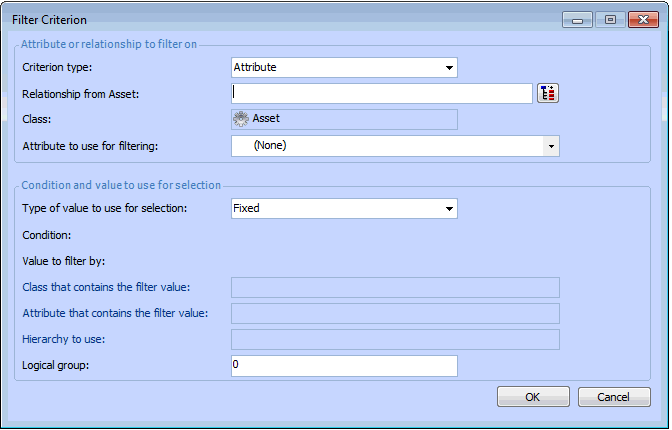
For example, if you are filtering a group of work order tasks, you might select the Task status attribute. You can then select one of the task statuses (for example, Planned) as the value to filter on.
•
•
3.
• The Fixed option allows you to filter a group of items based on a specific value that you enter.
• The Variable option allows you to filter a group of objects using a relative value. The value used in the filter is only determined at the time the filter is used by looking up the current value of the selected relationship. A specific value cannot be selected.
Select or enter the fixed value to be used to filter the list of objects. For example, if you are filtering based on the Maintenance Group class’ Name attribute, enter a text string that contains all or part of the name.
The list contains attributes that are owned directly by the specified class. However, it only includes attributes that are of the same type as the attribute identified in the Attribute to use for filtering box. For example, if the attribute to filter by is a string, then only string attributes appear in this list. Similarly, if the attribute to filter by is a date, then only date attributes are available.
5.