|
Creating an Asset Health Report Definition
To Create an Asset Health Report Definition
1. On the Site window, select the Asset Health view and then the Report Definitions tab. By default, this tab lists all asset health report definitions for this site and above.
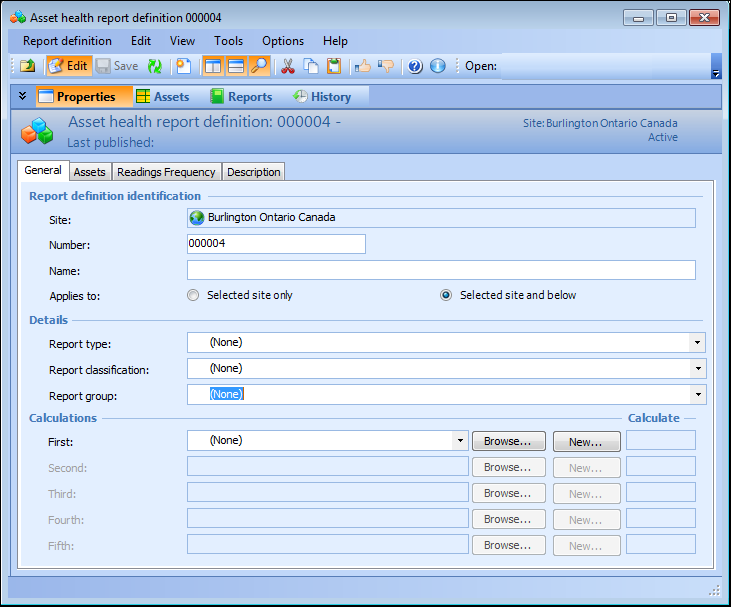
2. Click New. The Asset Health Report Definition window appears.
3.
• Selected site only: Only assets from this site are available for this report definition.
• Selected site and below: Assets for this site and all sites below it in the asset hierarchy are available for this report definition.
4. In the Details section, select a report type, report classification, and a report group, if necessary.
5. In the Calculations section, select the calculation that you want to add or click Browse to select it from the list. If there are no calculations currently associated with this report definition, you must choose the First calculation.Note: To create a new asset health calculation, click New. For detailed instructions about creating an asset health calculation, see Creating Asset Health Calculations.
6. Repeat step 5 for each calculation that you want to add.
7. For each calculation, select Calculate to determine the sequence in which the calculations will be performed.
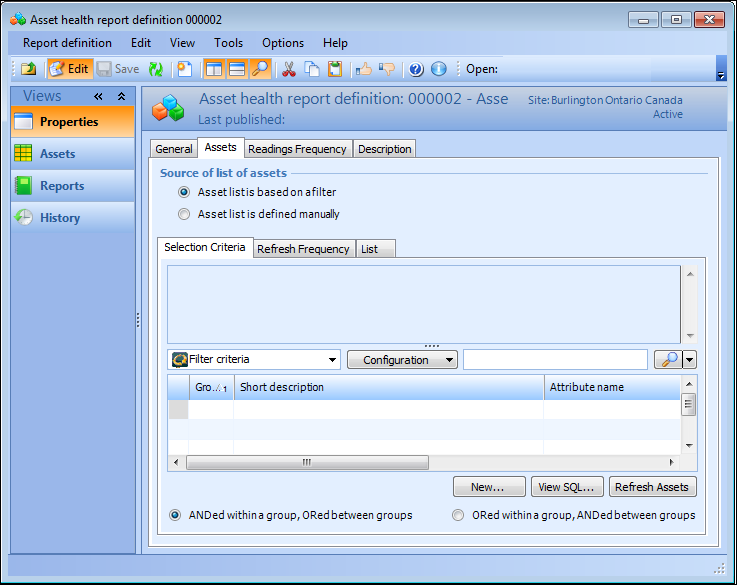
8. Select the Assets tab.
• Asset list is defined manually: The user must select the assets. Click Browse to select assets from the Browse Assets dialog and click OK when finished.
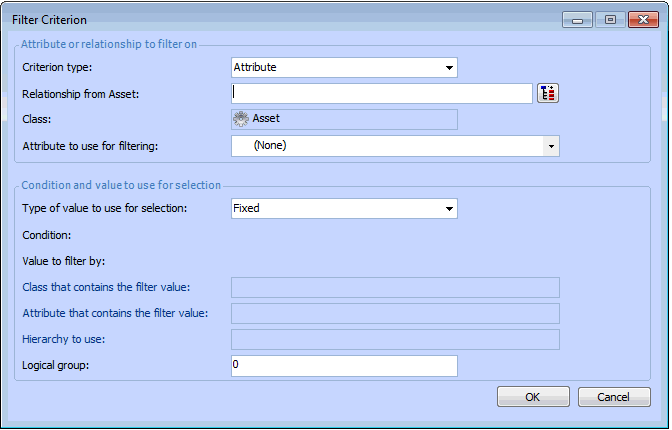
10. Select New. The Filter Criterion dialog appears.
12. If you wish, you can change the relationship between the filter groups from the default (ANDed with a group, ORed between groups) to ORed within a group, ANDed between groups.
13. When the filter is executed, the selection criteria is translated into an SQL select statement. You can preview the SQL to be produced by clicking View SQL. You cannot alter the generated SQL.
14. You can also click Refresh Assets to refresh the list of assets selected.
15. Select the Refresh Frequency tab to select a refresh method and apply a frequency to update the list of asset health assets. For more information, see Defining Recurrence Patterns .
16. Select the List tab to view the list of asset health assets for this report definition. To refresh the list, click Refresh List.
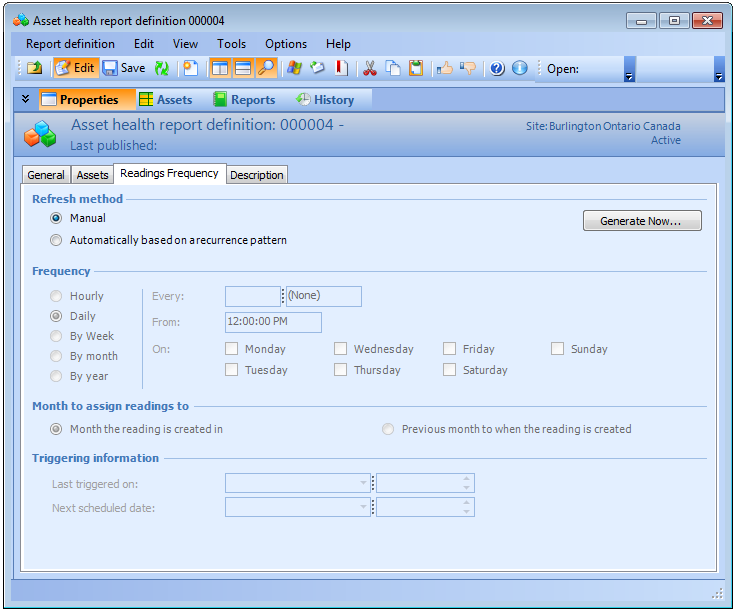
17. Select the Readings Frequency tab.Manual: The user is required to generate readings.Automatically based on a recurrence pattern: Select frequency and triggering information for readings that occur automatically. See Setting up a Recurrence Pattern for Report Readings.
19. To generate the readings immediately, click Generate Now.
20. On the Description tab, you can enter a more detailed description of the asset health report definition.
21. Click OK to save the changes.